in this guide
Child Care Subsidy provides help with the cost of child care.
We’ll pre-fill any information you’ve already given us into your Child Care Subsidy claim.
The screenshots in this guide are from a computer. The page layout will look different if you’re using a mobile device.
Step 1: get started
Sign in to myGov or the myGov app and select Centrelink.
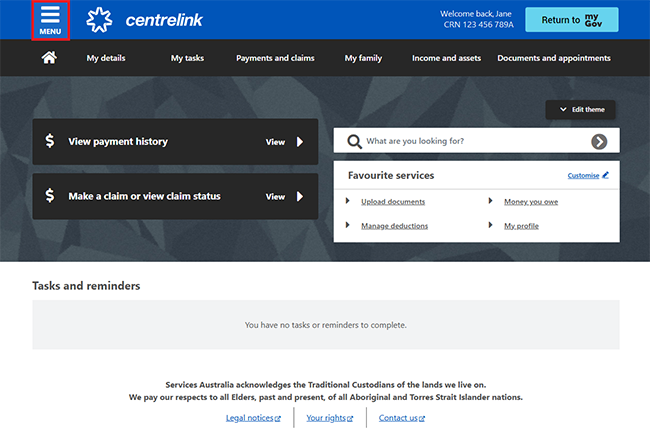
From your homepage, select MENU.
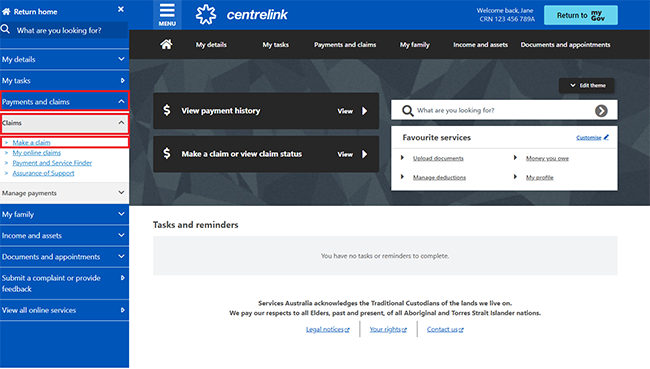
Select Payments and claims, then Claims and Make a claim.
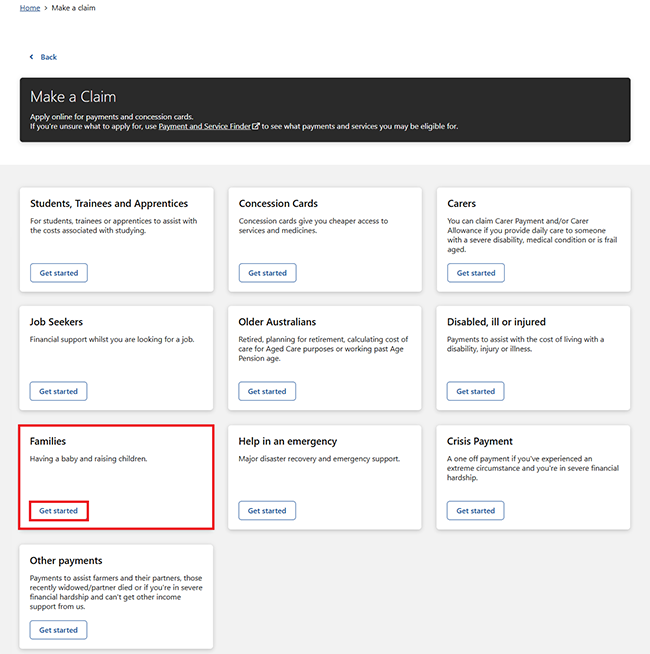
Select Get started in the Families category.
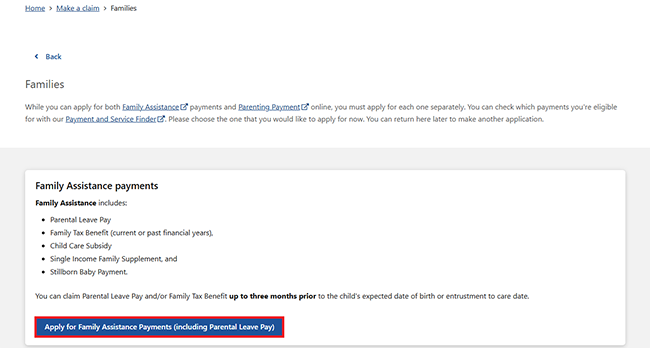
Select Apply for Family Assistance Payments (including Parental Leave Pay).
Step 2: answer pre-claim questions and check eligibility
We’ll ask you some questions to check if you’re eligible for the payment from the category you’ve chosen.
This helps you decide if you should claim this type of payment.
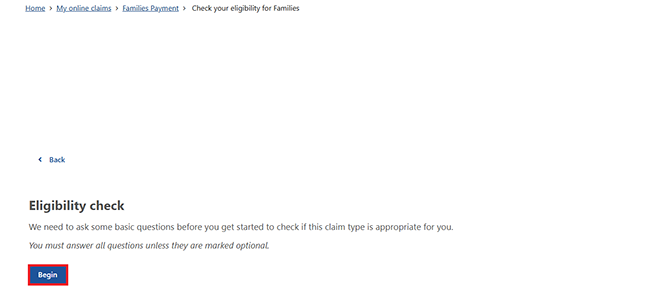
To check your eligibility, select Begin.
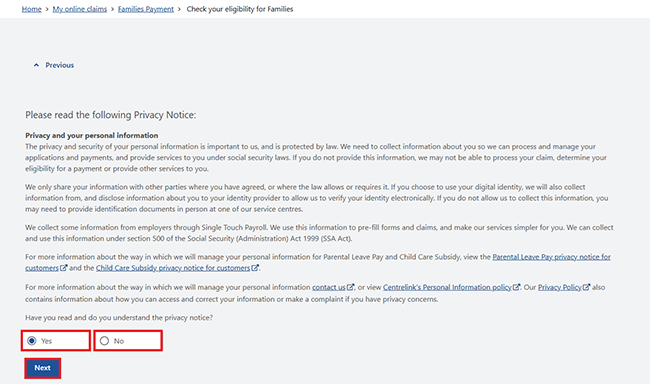
Read the Privacy Notice about how Services Australia uses your personal information.
Select Yes if you have read and understand the privacy agreement, then Next to continue.
If you select No, you won’t be able to continue your claim. If you still want to claim a payment, you’ll need to contact us to discuss your options.
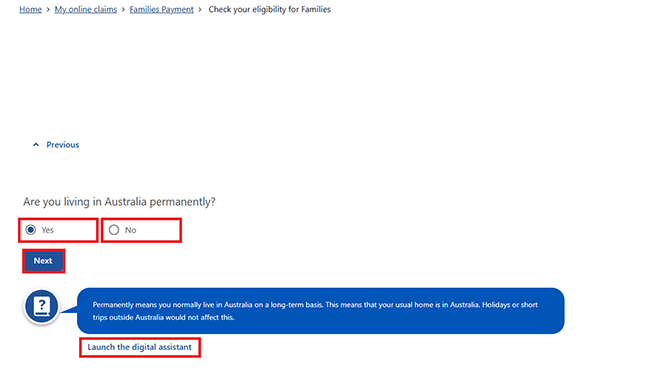
Answer all the questions by either:
- selecting Yes or No
- entering information we ask for.
After you answer each question, select Next to move to the next one.
Select Launch the digital assistant to use our digital assistant for help.
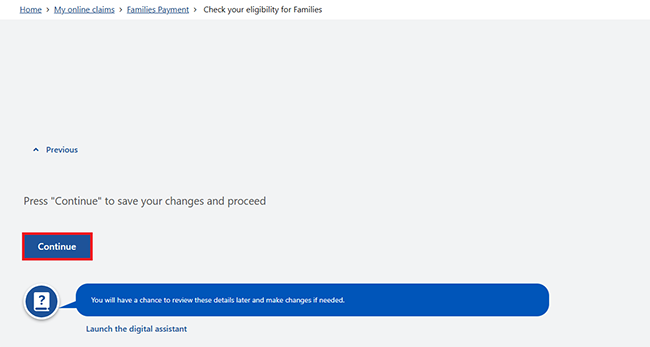
When you’ve answered all the questions, select Continue to save your changes and proceed.
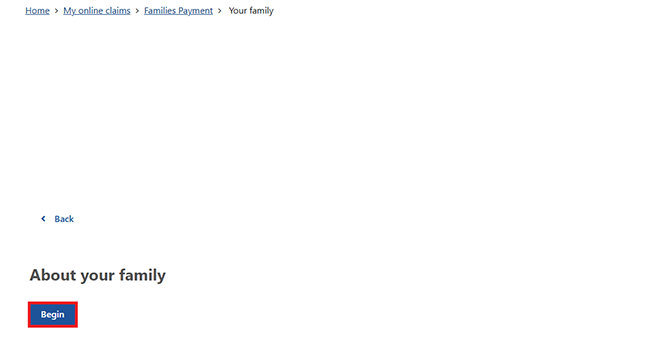
Select Begin to answer questions about your family.
Answer all the questions, then select Continue to save your changes and proceed.
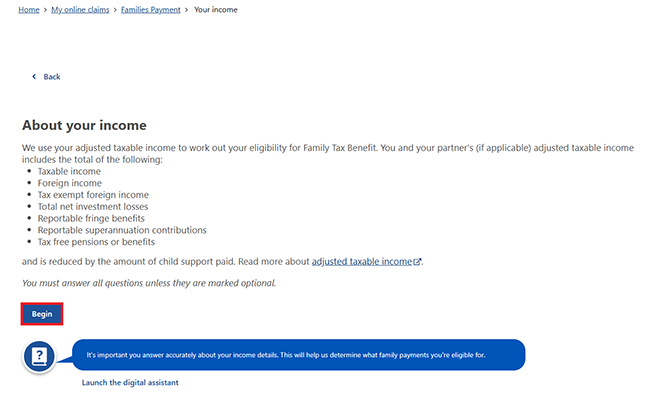
Select Begin to answer questions about your income.
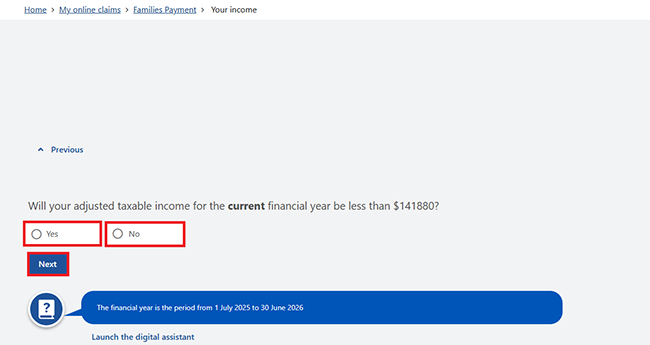
Select Yes or No to confirm your adjusted taxable income, then Next.
Select Continue to save your changes and proceed.
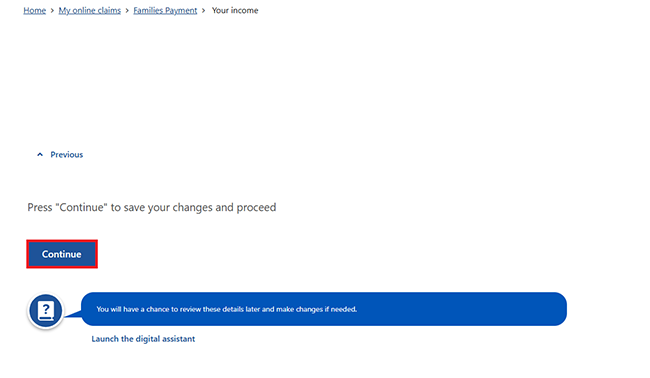
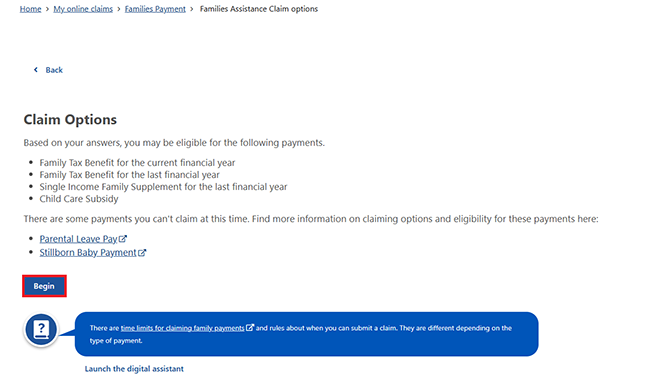
On the Claim Options page, we’ll show the different payment types you can claim.
Select Begin to continue.
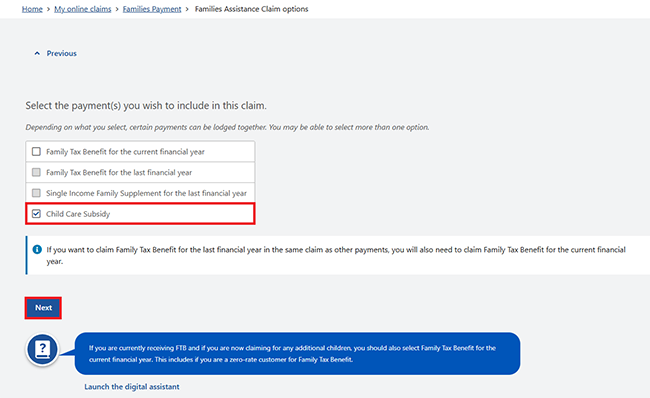
You can claim Child Care Subsidy together with some other family assistance payments. In this example, we’ll only claim Child Care Subsidy.
Select Child Care Subsidy, then Next.
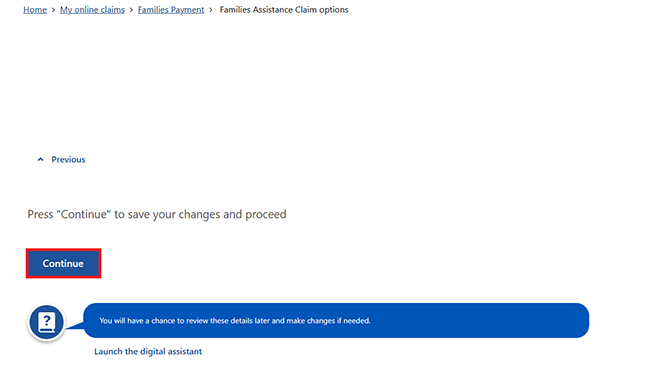
Select Continue to save your changes and proceed.
Step 3: start your claim and answer questions
To start your claim, select Begin.
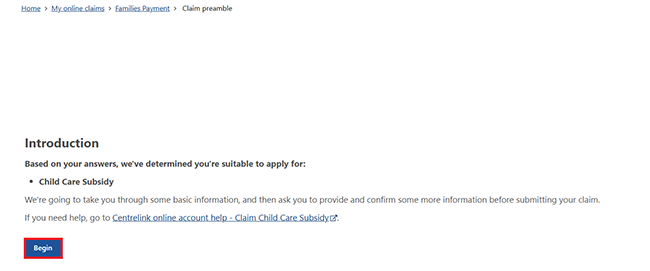
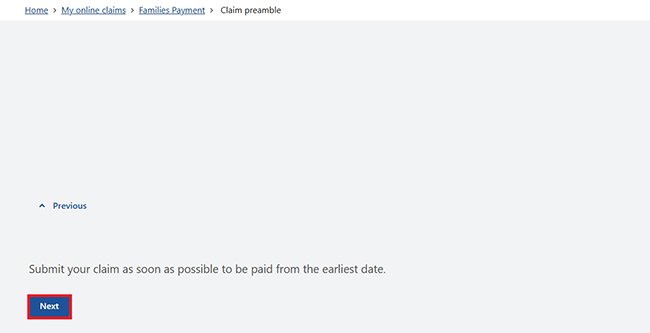
Select Next.
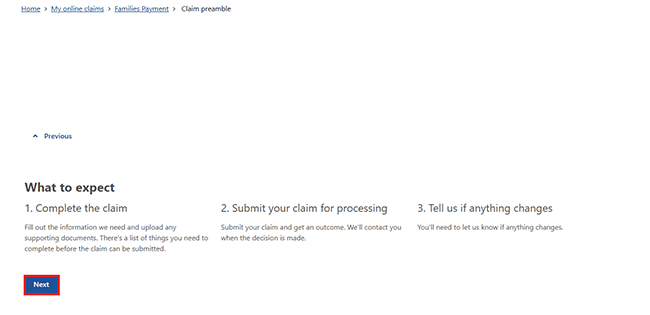
Read about what to expect during the claim process, then select Next.
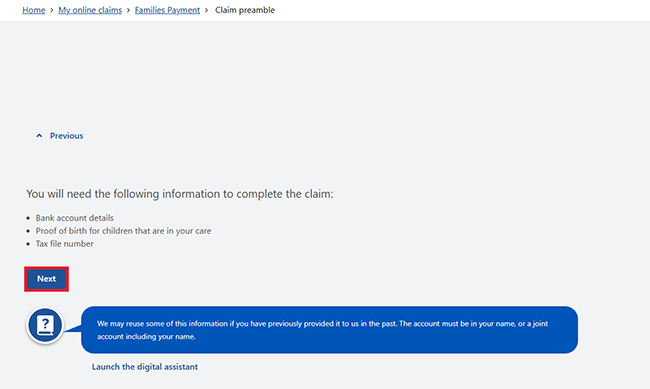
Get the information you need to complete your claim, then select Next.
Select Continue to save your changes and proceed.
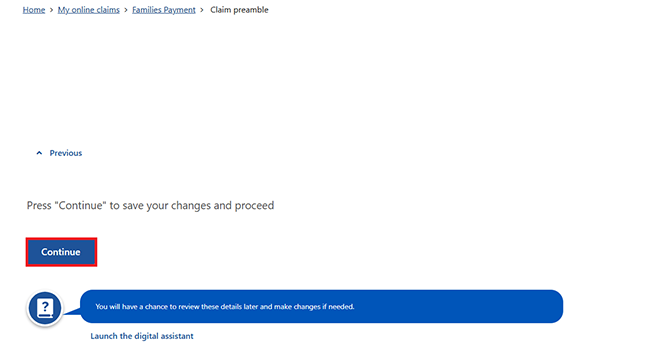
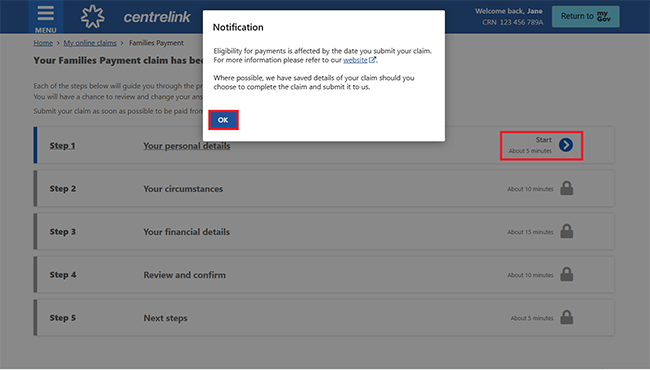
You’ll have some steps to complete in your claim.
If you’re eligible to apply for Child Care Subsidy, you’ll have 5 steps:
- Your personal details.
- Your circumstances.
- Your financial details.
- Review and confirm.
- Next steps.
Each step will ask you to answer questions.
Answer all the questions, then select Next.
Read the Notification about how the date you submit your claim can affect eligibility for payments, then select OK.
Select Start when you’re ready to complete Step 1.
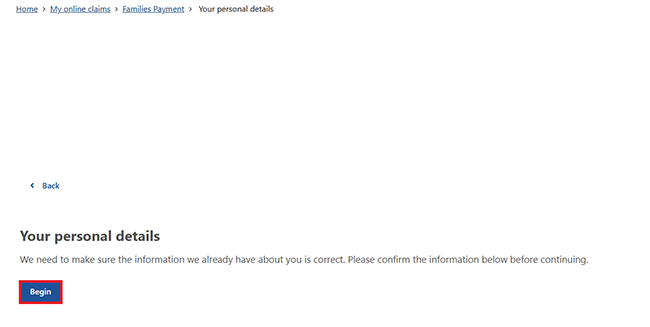
Select Begin to update or confirm your personal details.
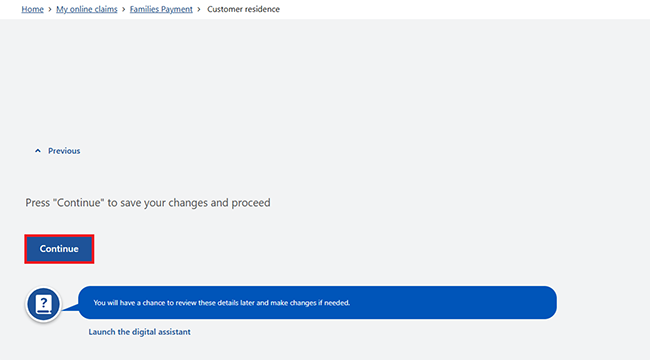
Update or confirm your personal details, then select Continue to save your changes and go back to your claim page.
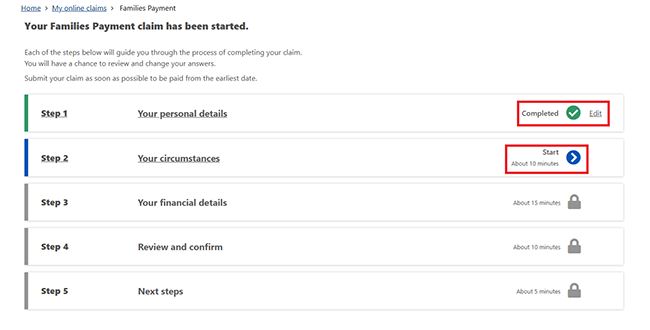
When you’ve completed a step, it will show as Completed. You can select Edit if you need to make any changes.
Select Start when you’re ready to complete Step 2.
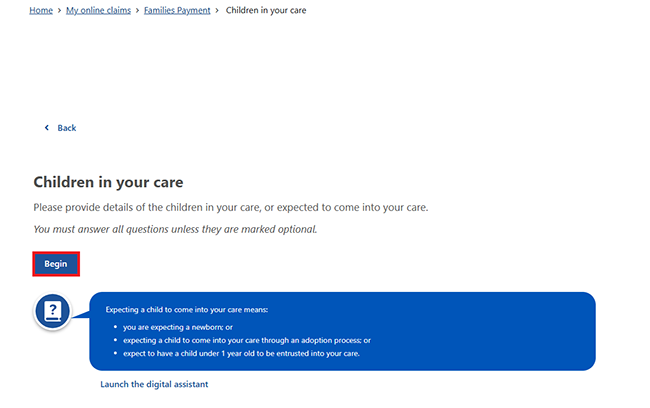
Select Begin to tell us about your circumstances.
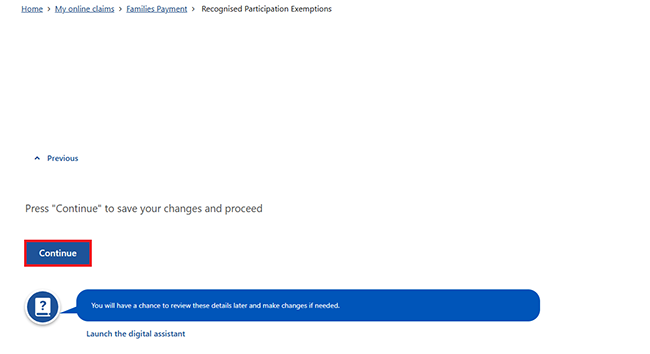
Answer the questions about your circumstances, then select Continue to save your changes and go back to your claim page.
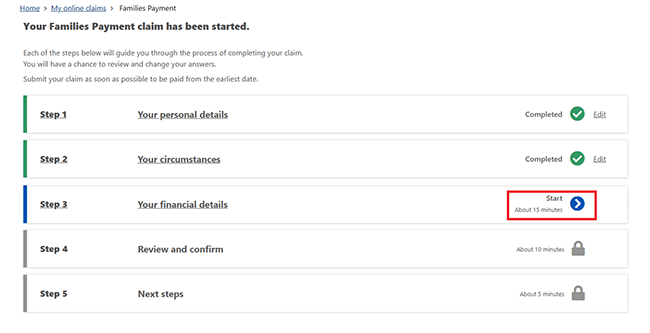
Select Start when you’re ready to complete Step 3.
Select Edit to give us information for the Updates required.
Then, select Continue to update or confirm your financial details.
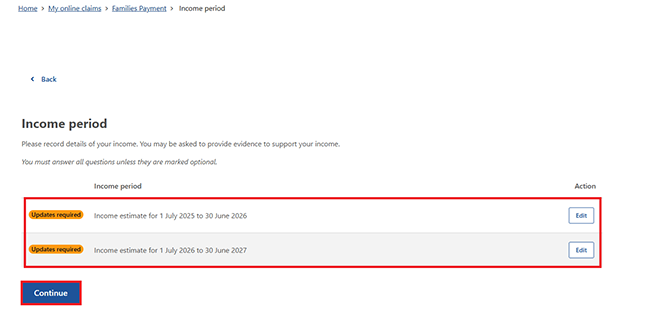
Update or confirm your financial details, then select Continue to save your changes and go back to your claim page.
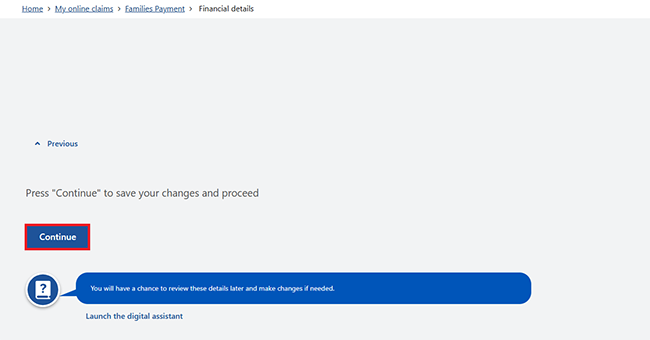
Step 4: review and confirm your claim
Select Start when you’re ready to review and confirm your claim.
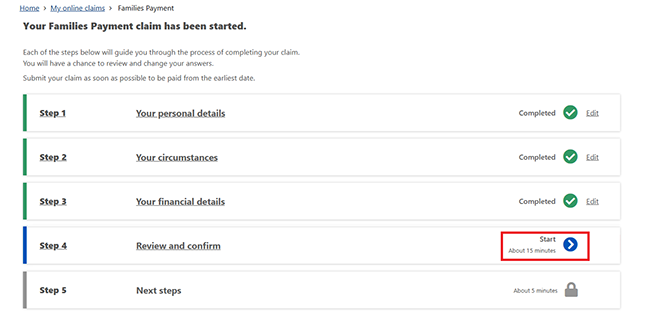
Select Begin to review the details you gave us.
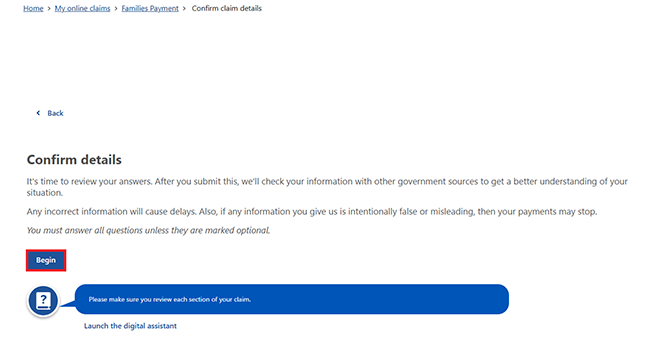
Select Next to review your answers.
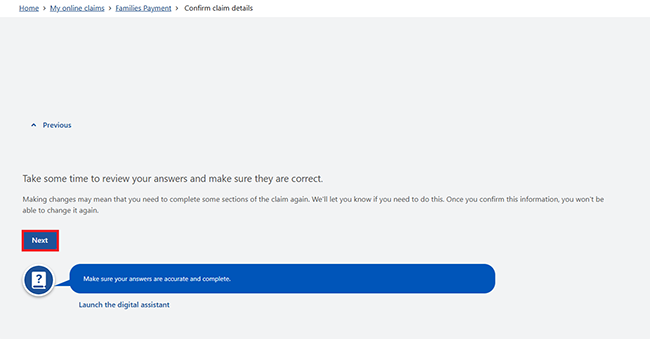
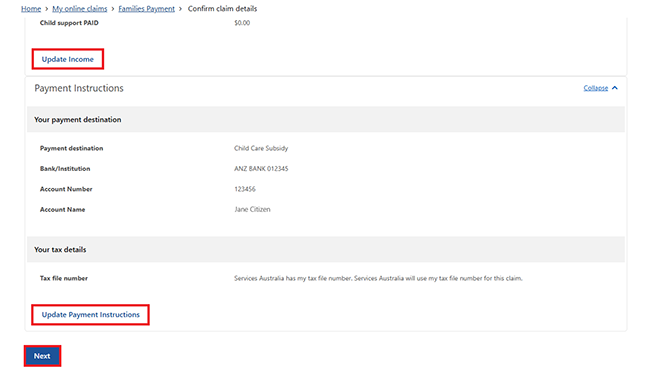
We’ll give you a summary of your claim. Review each section to check your details are correct. If you need to make changes, select the relevant Update button. For example, select Update Income to change your income details.
If your details are correct, select Next to read your obligations and terms of the claim.
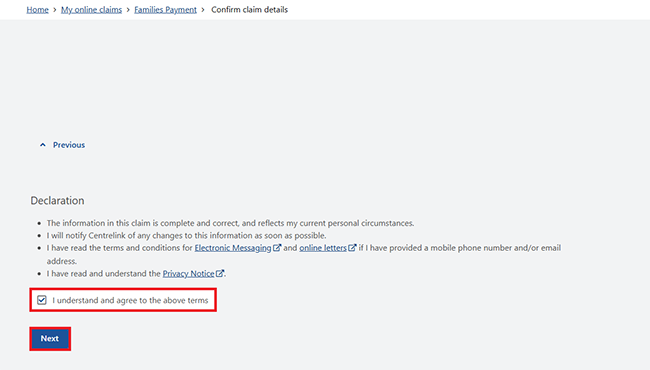
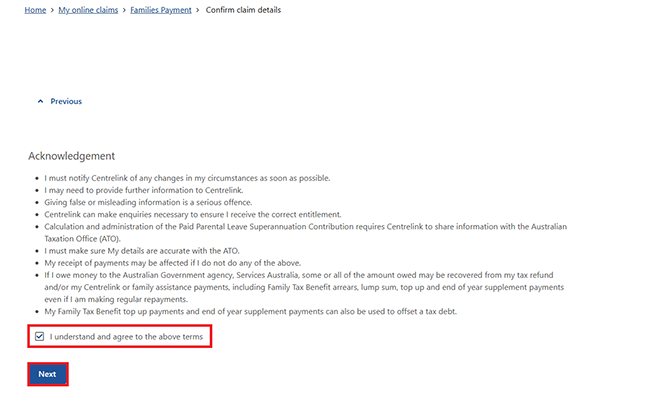
Read your obligations and terms of the claim. You’ll need to agree to both before you can submit your claim.
If you understand and agree with your obligations in the Declaration, select I understand and agree to the above terms. Then select Next.
If you understand and agree with the terms in the Acknowledgement, select I understand and agree with the above terms. Then select Next.
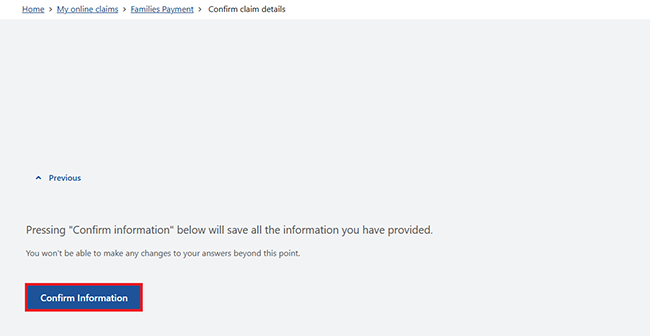
Select Confirm Information to save all the information you gave us and go back to your claim page. You won’t be able to make any changes to your answers after this point.
Step 5: complete extra tasks
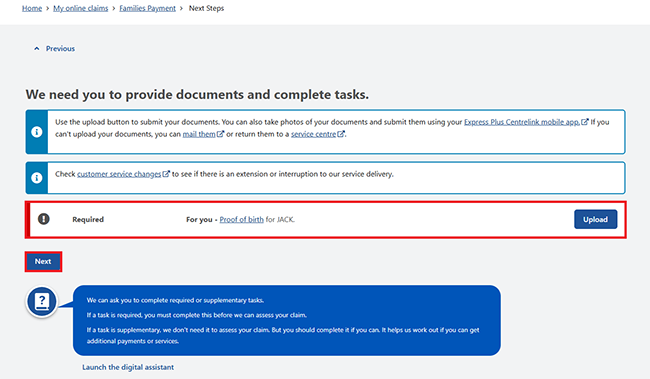
Before you can submit your claim, you may need to complete some extra tasks.
Tasks may include giving us documents to support your claim. If you don’t have your documents ready, you can submit them later.
Find out how to upload documents using:
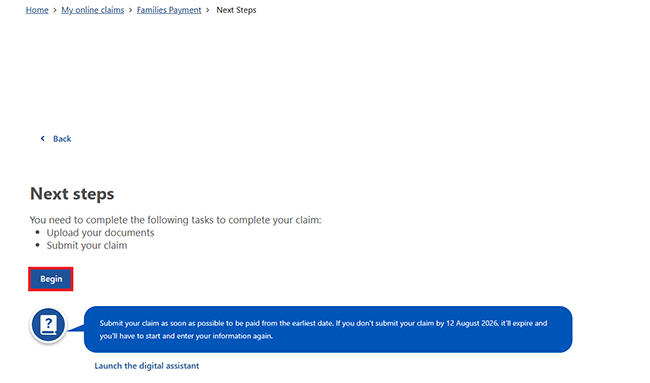
Select Begin to complete extra tasks for your claim.
Complete any outstanding tasks, then select Next.
Step 6: submit your claim
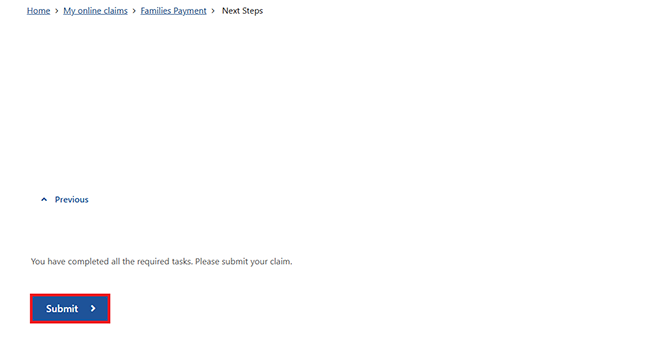
If you’ve completed all required tasks and you’re ready to submit your claim, select Submit.
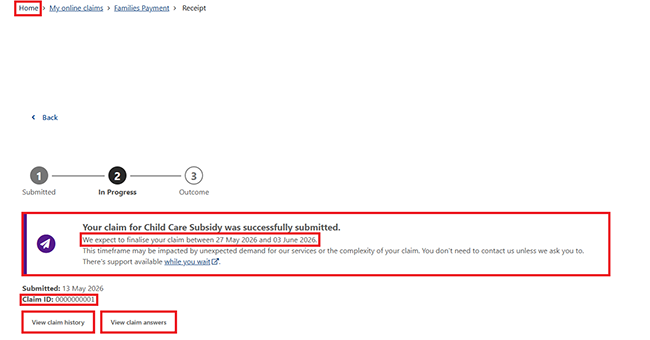
We’ll let you know if you’ve successfully submitted your claim.
Use your Claim ID if you need to talk to us about your claim.
We’ll also give you an estimated completion date range of when we’ll process your claim.
You don’t need to contact us about your claim unless we ask you to.
You can select any of these:
- Home to go back to your homepage
- View claim history to see the history of your claim, including any documents or tasks you’ve completed
- View claim answers to see the information you gave us.
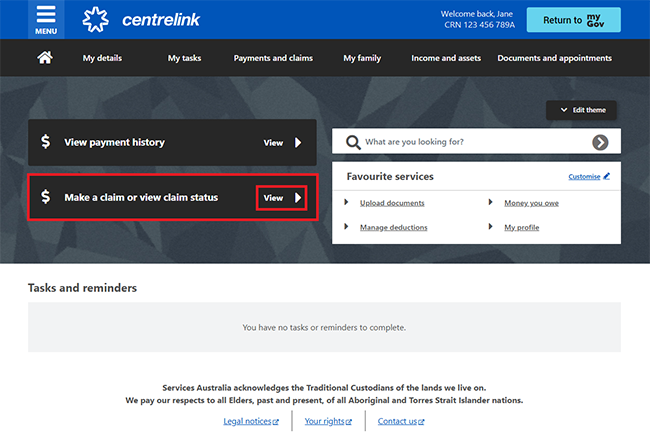
You can track the progress of your claim from your homepage. To check what stage your claim is at, select View.
Step 7: sign out
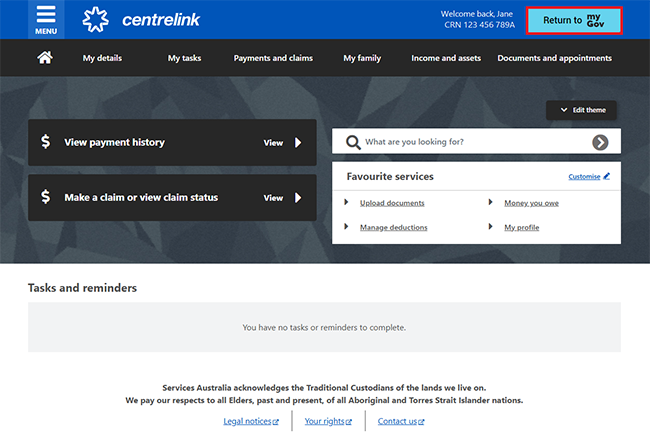
From your homepage, you can complete other transactions or select Return to myGov to go back to your myGov account.
For your privacy and security, sign out when you’ve finished using your myGov account.
View other online account and Express Plus mobile app guides and video demonstrations about using your online account.