in this guide
You can change your days and take them anytime within 2 years of your child’s birth or adoption. You can’t change days that have already passed.
You can take your days as any of the following:
- a block of payment
- a single day
- a combination of these.
You should choose days when you’re not working. If you worked on a day you chose to get Parental Leave Pay, please call our Families line.
You can also choose to increase or reduce the number of days you’re sharing with the other parent if you’re one of the following:
- birth mother
- first adoptive parent
- first gaining parent in a surrogacy.
If a day has passed and the other parent has already been paid, that day cannot be changed.
Step 1: get started
Sign in to myGov or the myGov app and select Centrelink.
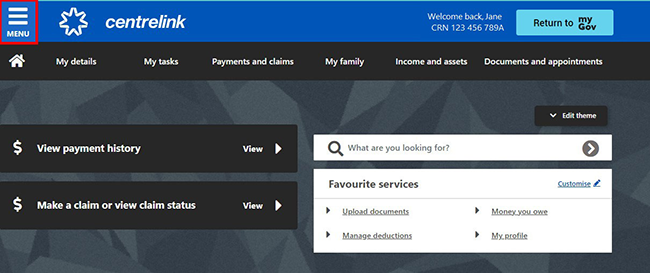
From your homepage, select MENU.
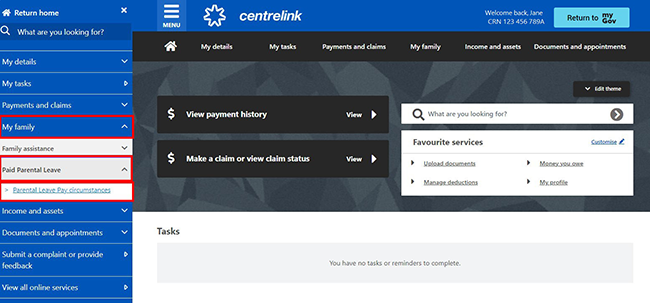
Select My family, then Paid Parental Leave and Parental Leave Pay circumstances.
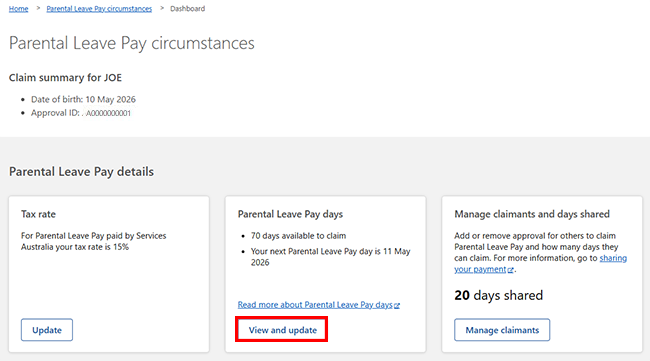
We’ll give you a summary of your circumstances. Select View and update in Parental Leave Pay days.
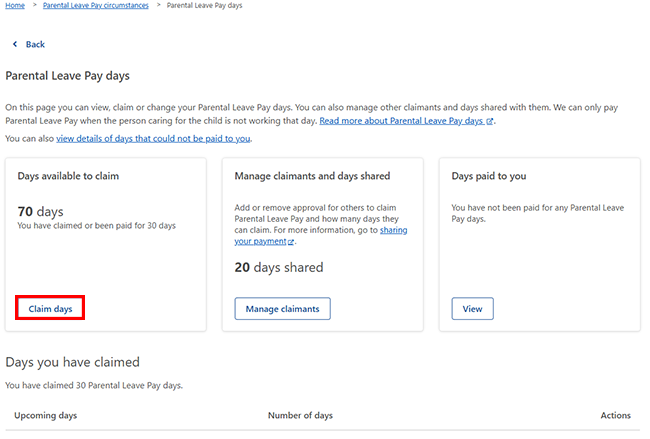
We’ll give you a summary of your Parental Leave Pay days, including:
- the number of days you have available to claim
- details of the number of days you’ve shared with someone else
- the number of days already paid to you.
Select Claim days in Days available to claim.
Step 2: add, change or remove Parental Leave Pay days
You can choose to add an individual day, days, a date range or setup a recurring day or days.
You can’t change or delete days that have already passed.
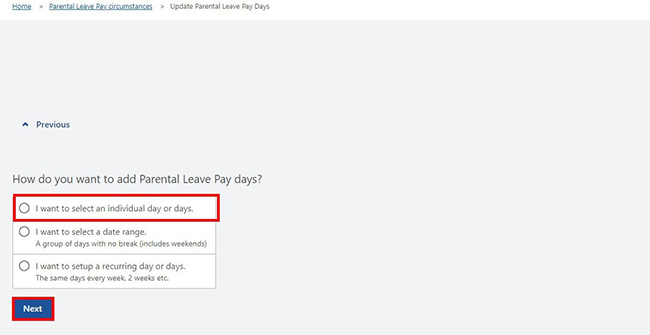
In this example we’re allocating an individual day.
Select I want to select an individual day or days, then Next.
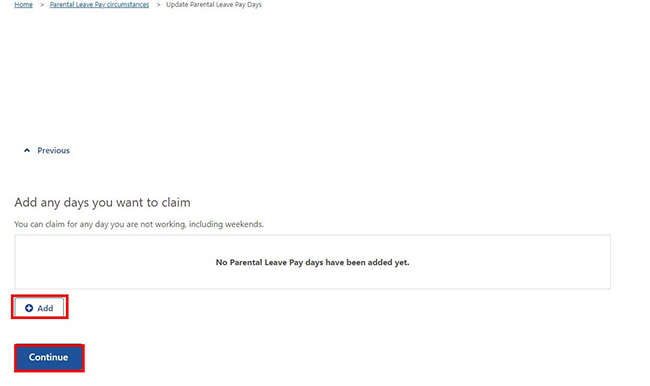
Select Add to add any days you want to claim, then Continue.
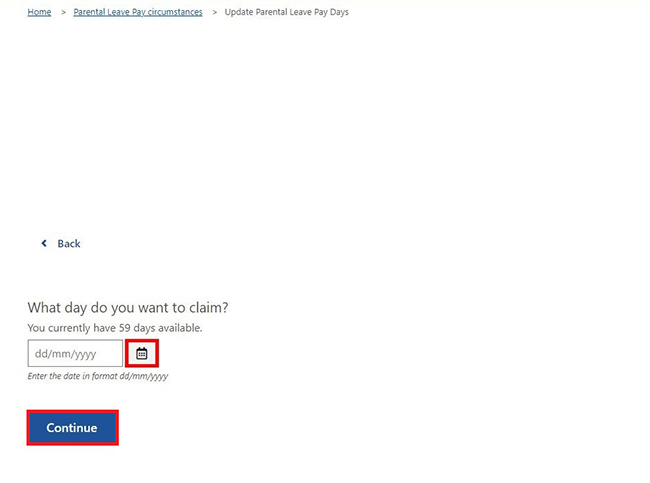
You can then choose the day you want to claim for. Select the calendar icon, enter the date and then select Continue.
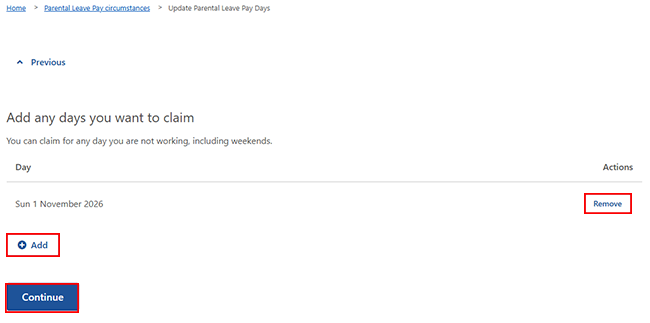
In this example, we’ve selected 1 November 2026.
You can then Add further days or Remove days you’ve previously selected. When you’ve finished, select Continue.
Step 3: review and submit
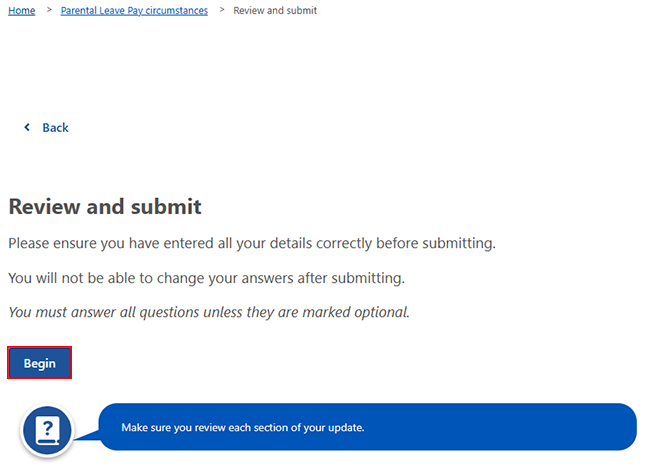
Select Begin to check your updates are correct.
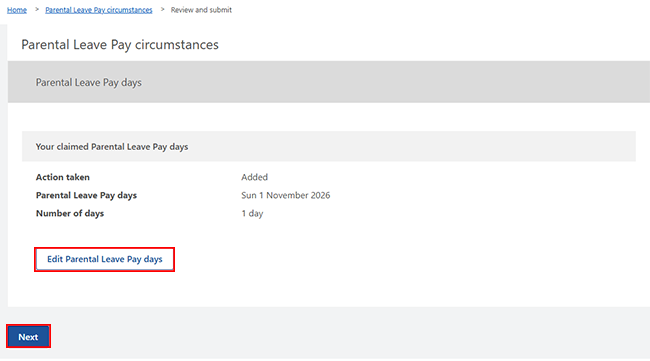
If you need to make changes, select Edit Parental Leave Pay days.
If all the details are correct, select Next.
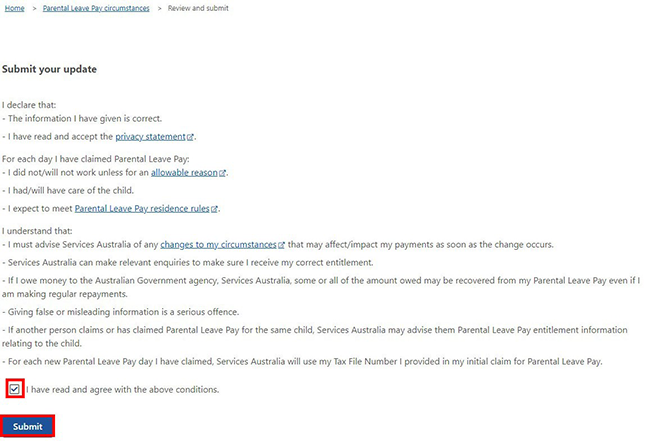
Read the declaration. If you understand and agree with the declaration, select I have read and agree with the above conditions, then Submit.
We’ll give you a receipt when you submit your update. Make a note of the Receipt ID for your records.
Select any of the following:
- Return to Parental Leave Pay days to change or allocate more days
- Return to summary to go back to your Paid Parental Leave circumstances summary page
- Return to home page to go back to your online account homepage
- Save your receipt to keep a copy of your receipt.
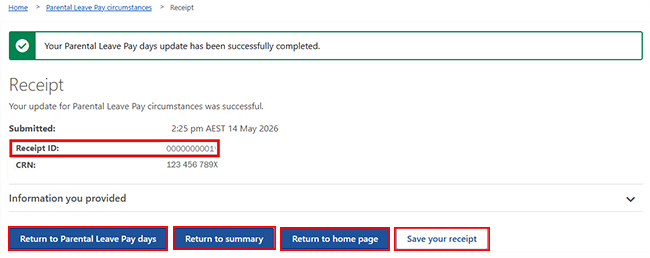
To change your shared days, select Return to Parental Leave Pay days. Go to Step 4.
Else, go to Step 6
Step 4: change your shared days
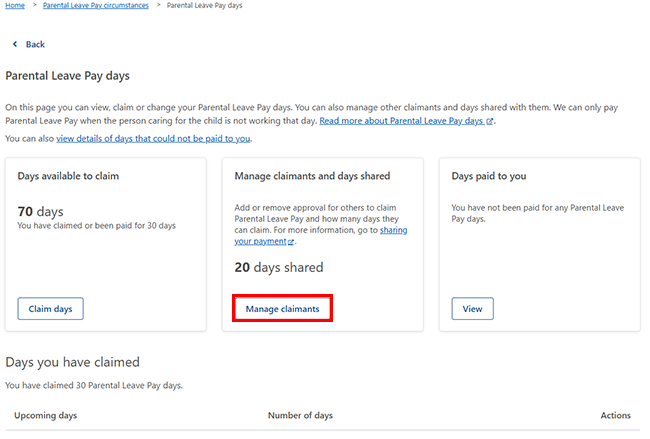
You can also choose to increase or reduce the number of days you’re sharing. If a day has passed and the other parent has already been paid, that day cannot be changed.
Select Manage claimants to change your shared days.
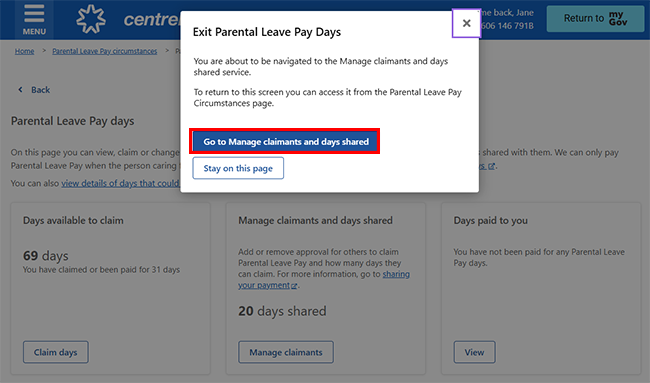
In the pop-up window, select Go to Manage Claimants and days shared.
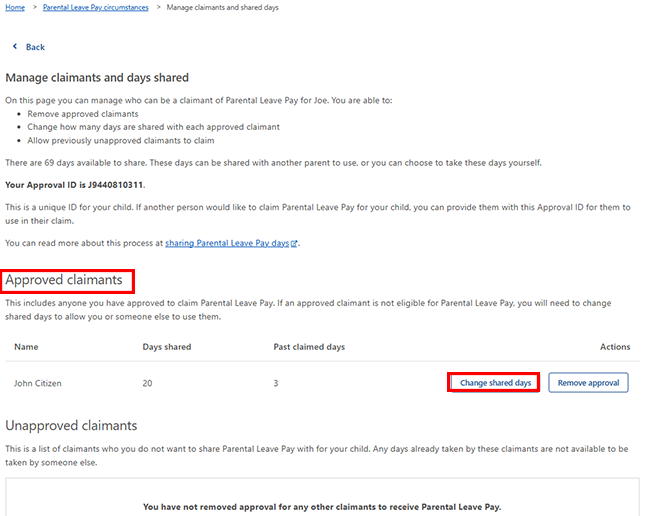
Find the name of the person you have approved to claim Parental Leave Pay under Approved Claimants. Select Change shared days.
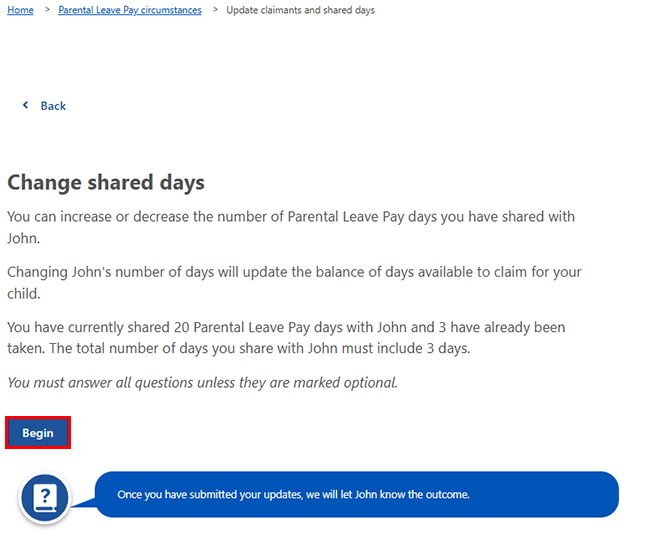
To change the number of shared days, select Begin.
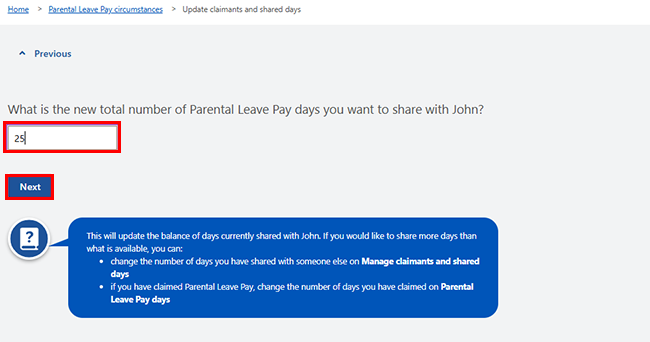
Enter the new total number of Parental Leave Pay days you want to share, then select Next.
To increase the number of days, you add the new days to the existing days you have already shared. For example, if you shared 20 days and you want to give them an additional 5 days, you need to enter total number of Parental Leave pay days as 25.
To reduce the number of days, you need to change the number of days you previously shared to the new amount. For example, if you shared 50 days and want to reduce to 30 days, you need to enter total number of Parental Leave pay days as 30.
Step 5: review and submit
Select Begin to check your updates are correct.
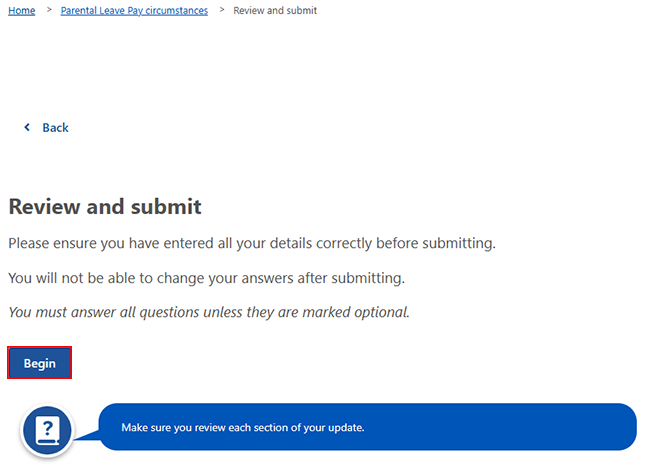
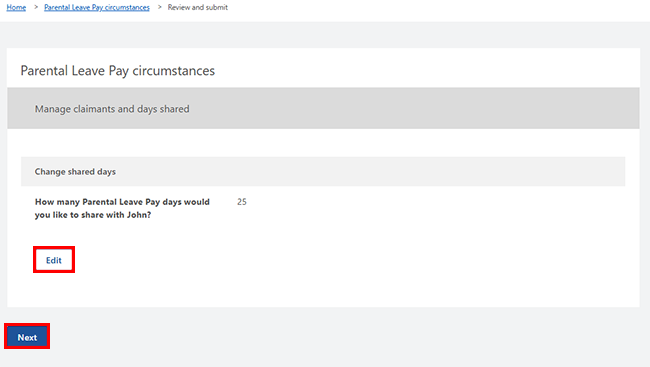
If you need to make changes, select Edit.
If all the details are correct, select Next.
Read the declaration. If you understand and agree with the declaration, select I have read and agree with the above conditions, then Submit.
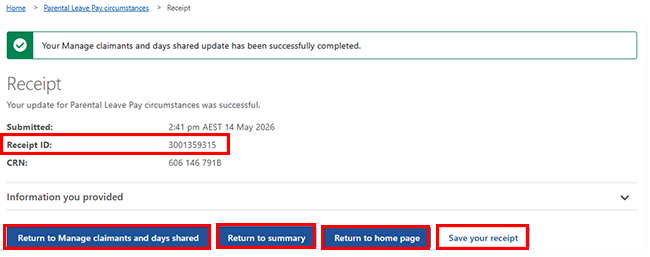
We’ll give you a receipt when you submit your update. Make a note of the Receipt ID for your records.
Select any of the following:
- Return to Manage claimants and days shared to change shared days or remove approval to claim
- Return to summary to go back to your Paid Parental Leave circumstances summary page
- Return to home page to go back to your online account homepage
- Save your receipt to keep a copy of your receipt.
Step 6: sign out
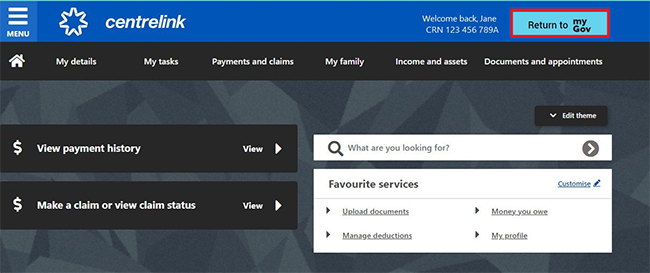
From your homepage, you can complete other transactions or select Return to myGov to go back to your myGov account.
For your privacy and security, sign out when you’ve finished using your myGov account.
View other online account and Express Plus mobile app guides and video demonstrations about using your online account.