in this guide
The screenshots in this guide are from a computer. The page layout will look different if you’re using a mobile device.
Step 1: get started
Sign in to myGov or the myGov app and select Centrelink.
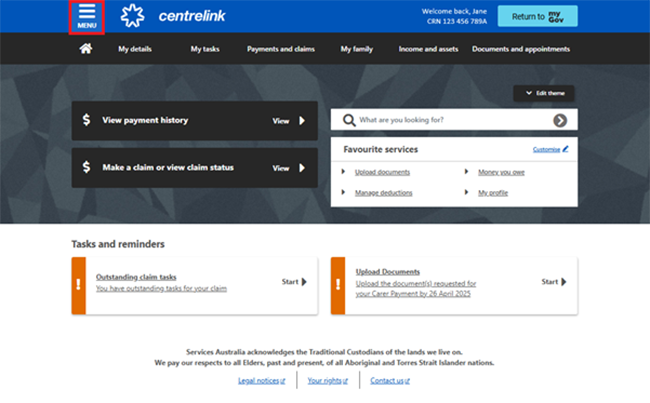
From your homepage, select MENU in the bar at the top of the screen on the lefthand side.
Step 2: view your current Centrepay deductions
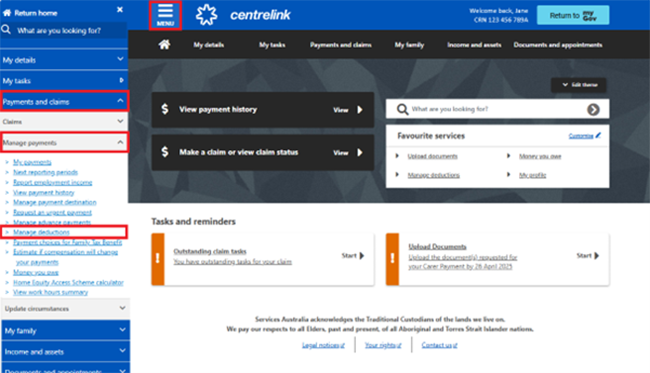
From the dropdown menu, select Payments and claims, then select Manage payments, then Manage deductions.
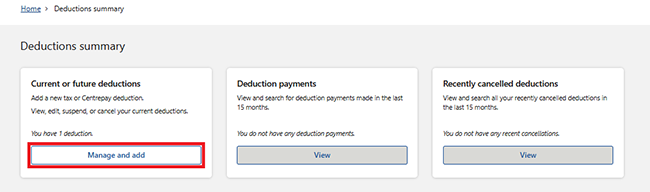
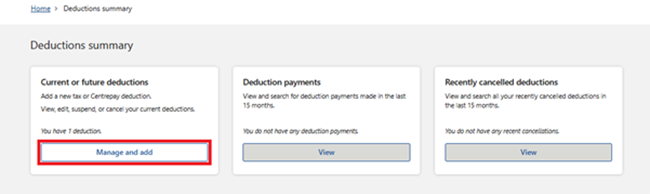
Select Manage and add on the Deductions summary page to view your current deductions.
Step 3: choose to update or suspend a current Centrepay deduction
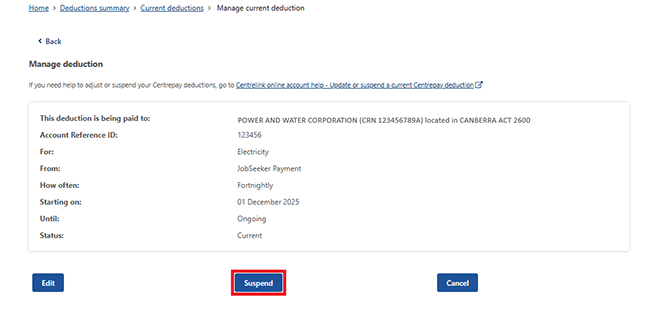
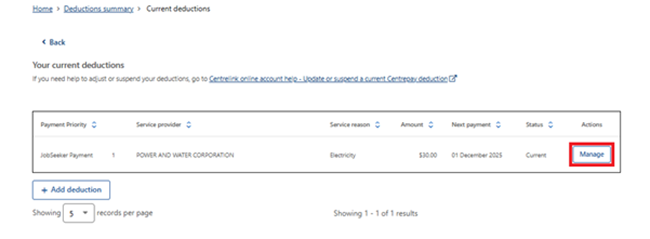
Select Manage to edit, suspend, or cancel your current deduction.
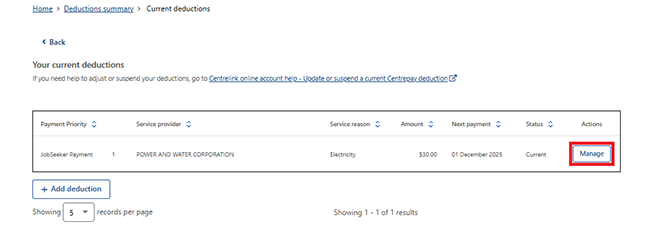
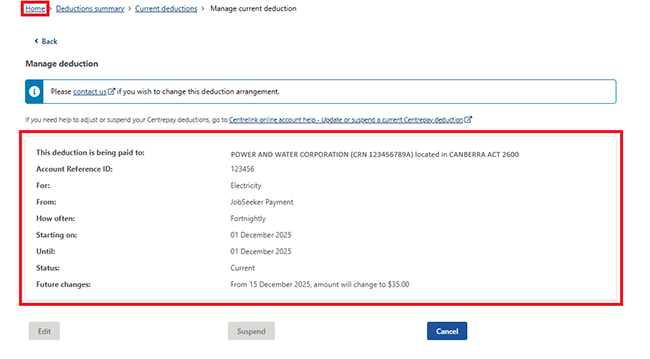
You will have the option to either update or suspend.
To edit your deduction, select Edit and go to Step 4.
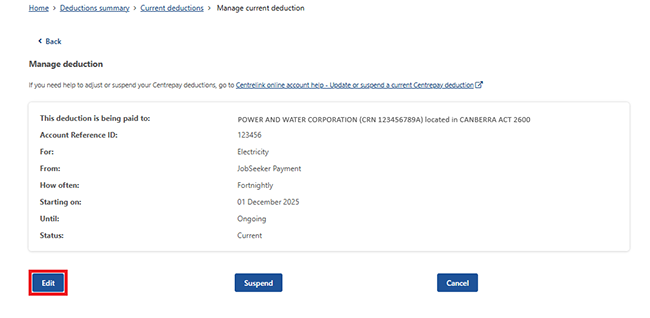
To suspend your deduction, select Suspend and go to Step 5: suspend a current Centrepay deduction.
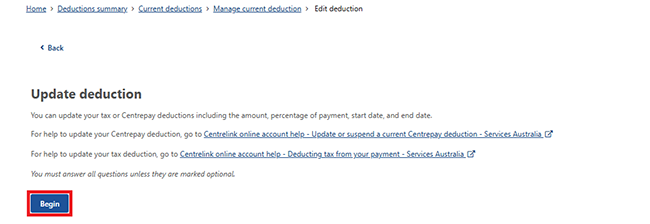
Step 4: edit a current Centrepay deduction
Select Begin.
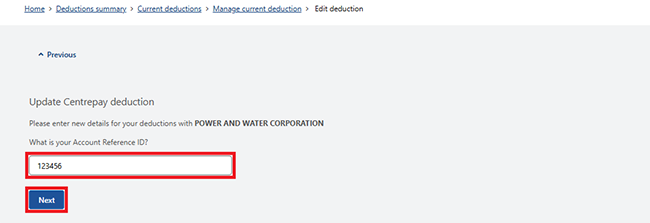
Enter your new Account Reference ID if it’s changed, then select Next.
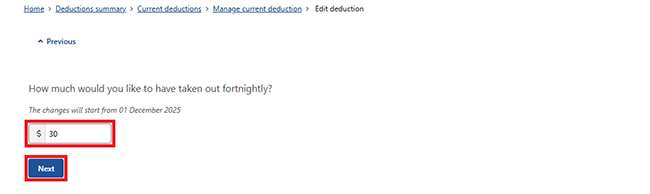
Enter a new amount if you want to change it, then select Next.
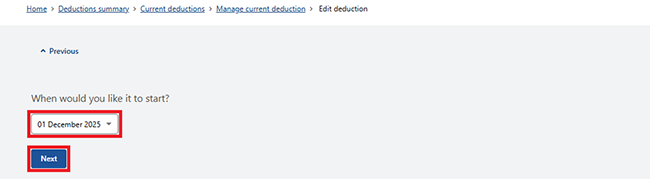
From the dropdown menu, select the date you’d like the deduction to start, then select Next.
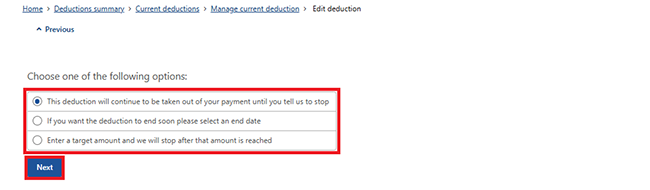
To finish updating the deduction, choose from these options:
- This deduction will continue to be taken out of your payment until you tell us to stop.
- If you want the deduction to end soon, please select an end date.
- Enter a target amount and we will stop after that amount is reached.
Then select Next.
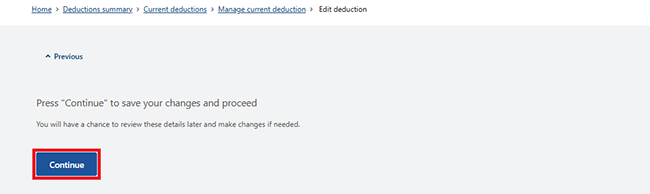
Select Continue and go to Step 6: review and submit.
Step 5: suspend a current Centrepay deduction
Select Begin.
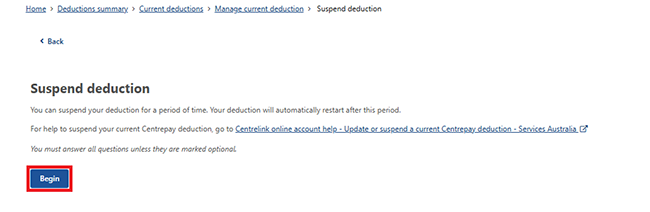
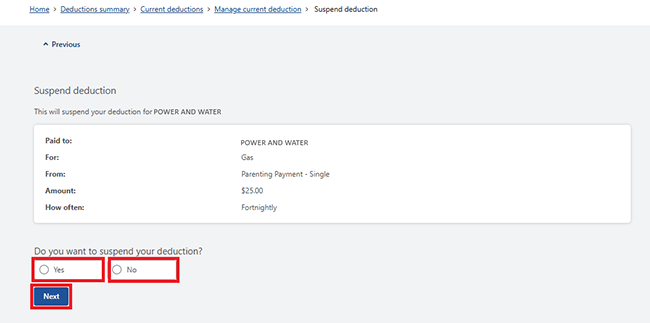
Select Yes or No, then Next.
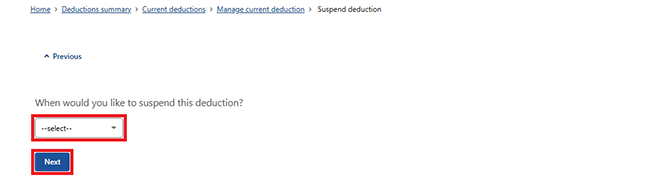
From the dropdown menu, select the date you’d like to suspend the deduction, then select Next.
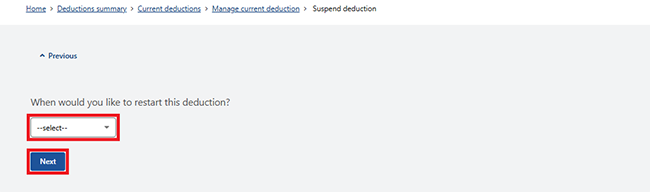
From the dropdown menu, select the date you’d like to restart the deduction, then select Next.
Step 6: review and submit
Select Continue.
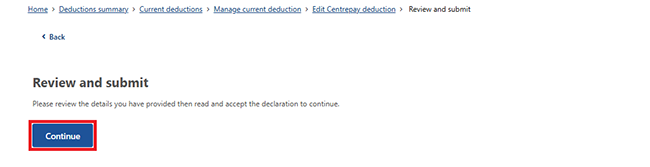
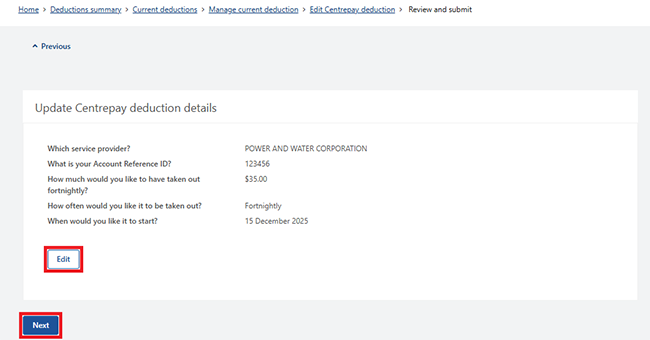
We’ll give you a summary of the details you’ve provided.
Read the details on the page and make sure they’re correct. If the details are:
- wrong, select Edit to make changes
- correct, select Next.
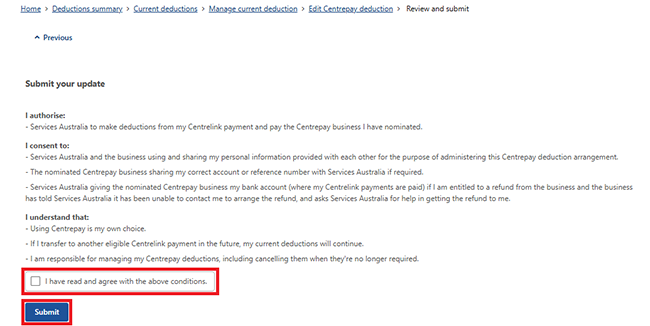
Read the declaration. If you understand and agree with the declaration, select I have read and agree with the above conditions, then Submit.
Get your receipt
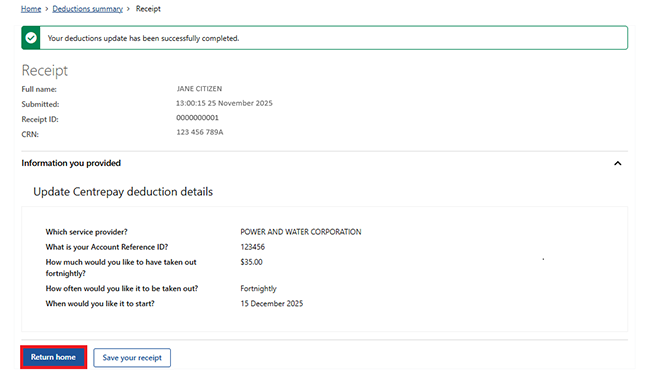
We’ll give you a Receipt ID to let you know your update was successful. Make a note of this number for your records.
You don’t need to contact us unless we ask you to.
Select:
- Information you provided to view a summary of the details you’ve given us
- Save your receipt, to keep a copy of your receipt.
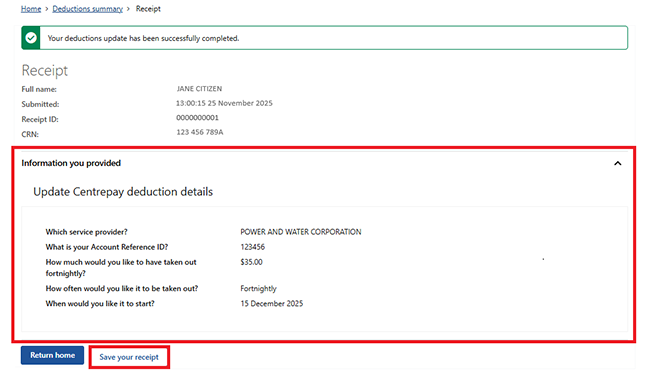
Select Return home to go back to the Deductions summary page.
Managing your deductions
Select Manage and add to view your current deductions.
Select Manage for the current deduction you updated.
The Manage deduction page shows the full details of the deduction. Select Home to go back to your online account homepage.
Step 7: sign out
From your homepage, you can complete other transactions or select Return to myGov to return to your myGov account.
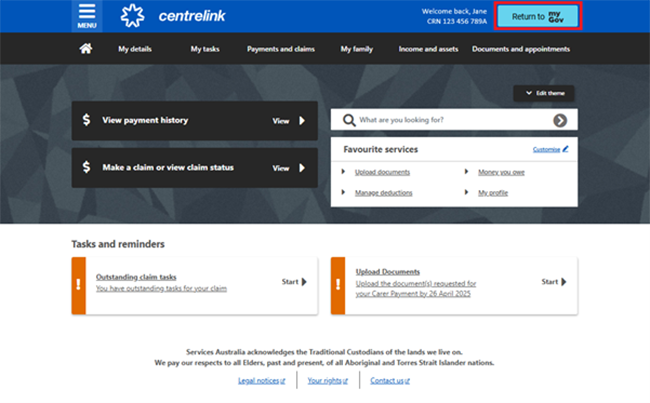
For your privacy and security, sign out when you have finished using your myGov account.
View other online account and Express Plus mobile app guides and video demonstrations about using your online account.