in this guide
We’ll send you a letter if you’re getting Carer Payment, Carer Allowance or both and your payments are current. We’ll send it to your online account, if you have one. If you don’t have one, we’ll post it to you. We’ll send you this letter when the child you provide care for reaches either:
- 15 years and 6 months of age
- 17 years and 9 months of age, if your child has a terminal illness.
The letter will let you know when the payments for the child you provide care for will stop.
Read more about when the child you care for is going to turn 16.
The screenshots in this guide are from a computer. The page layout will look different if you’re using a mobile device.
Step 1: get started
Sign into myGov and select Centrelink.
From the Child to Adult Transfer task and reminders, select Start. You can also access your Child to Adult Transfer task under Payments and claims and selecting Update circumstances.
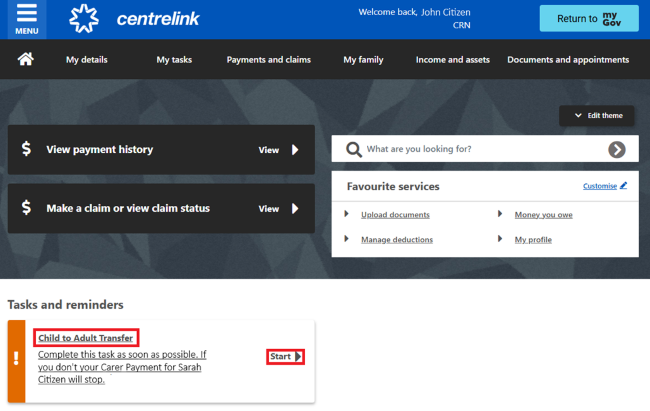
You can also go to myGov if you get your Centrelink letters there and select the link we sent you.
Step 2: tell us about your personal details
In each section we’ll ask questions to confirm your eligibility for a transfer. You can select Save and Exit in any section if you want to complete your transfer request later.
We’ll give you a transfer number. Use this if you need to follow up with us over the phone or in person at a service centre.
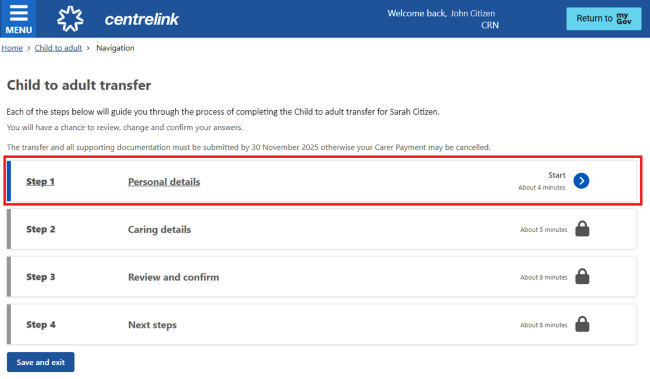
Select Start in Personal details.
Answer all the questions on Residence, then select Continue.
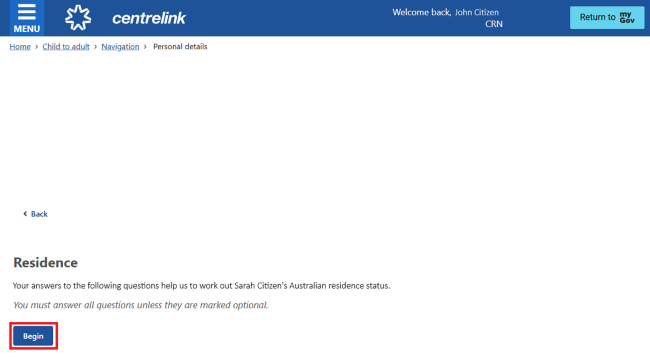
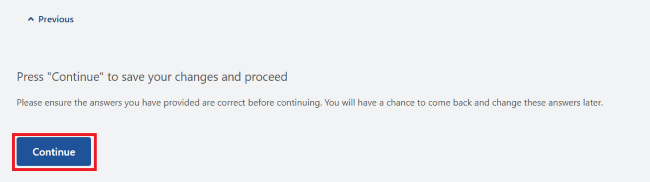
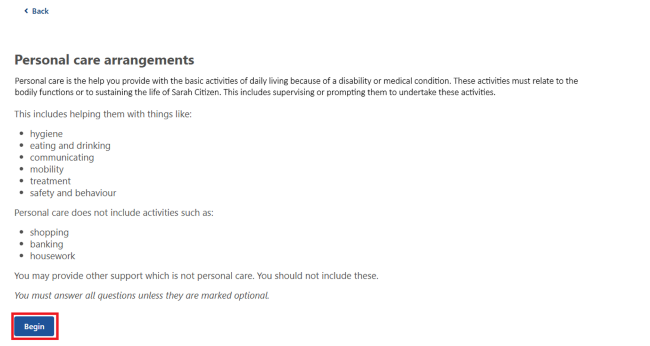
Answer all the questions on Personal care arrangements, by selecting Begin. Answer all questions then select Continue.
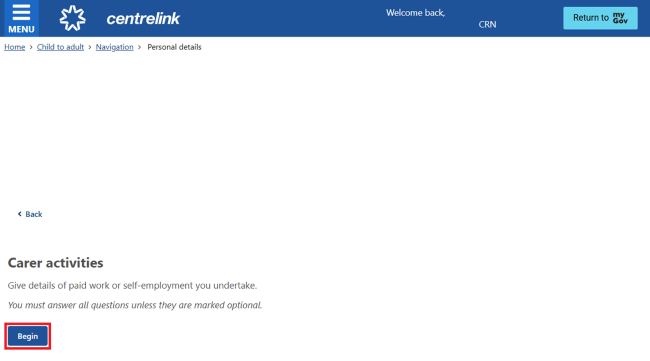
Answer all questions on Carer activities by selecting Begin, then select Continue.
Step 3: tell us about your caring details
The next section on your screen will be to tell us about the day to day care needed, unless the child you provide care for has a terminal condition. In this case you don’t need to complete Step 3. Go to Step 4 to review your transfer.
Select Start in Caring details.
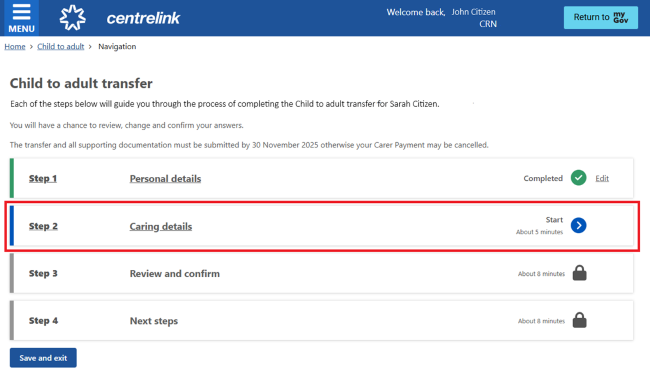
We’ll ask questions about the help you provide to the person you care for daily. This help must relate to their disability or medical condition. Answer all the questions, then select Continue.
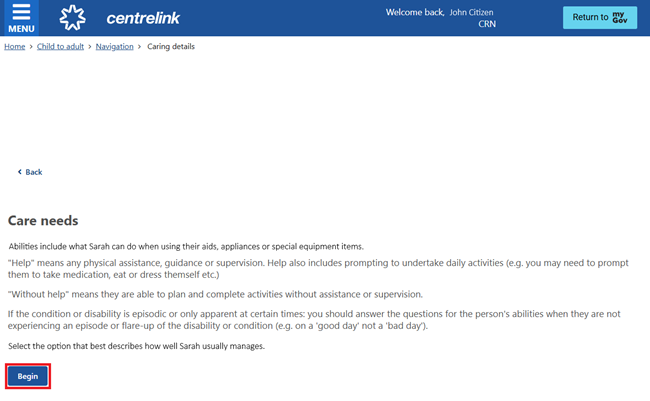
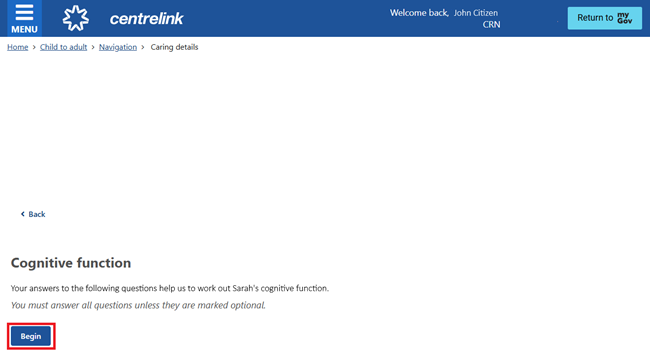
Answer all the questions in Cognitive function, then select Continue.
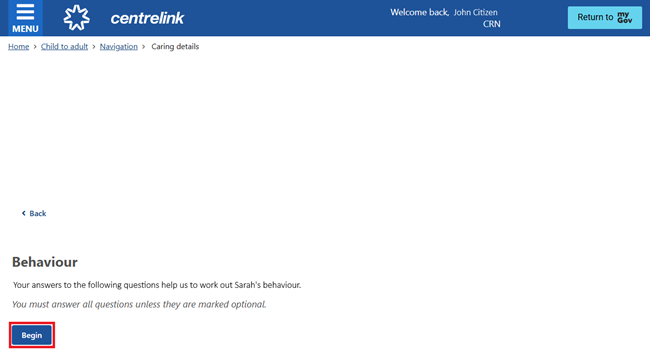
Answer all the questions in Behaviour, then select Continue.
Step 4: review and confirm
Select Start in Review and confirm.
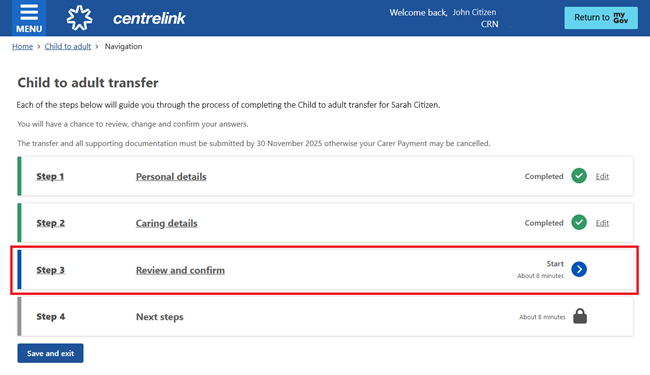
We’ll give you a summary of the details you’ve provided.
Read the details on this page and make sure they’re correct.
If you need to make changes, select Edit in the relevant section. If you make any updates, we may ask you to update other details.
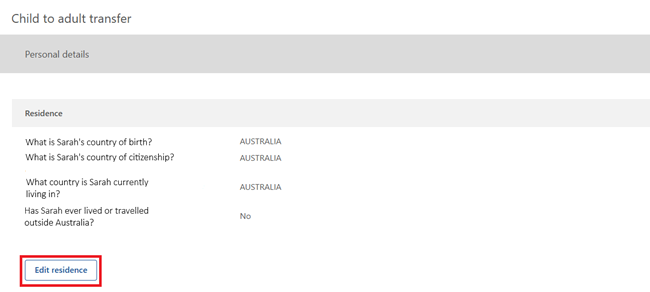
If all the information is correct, select Next to goto the Declaration.
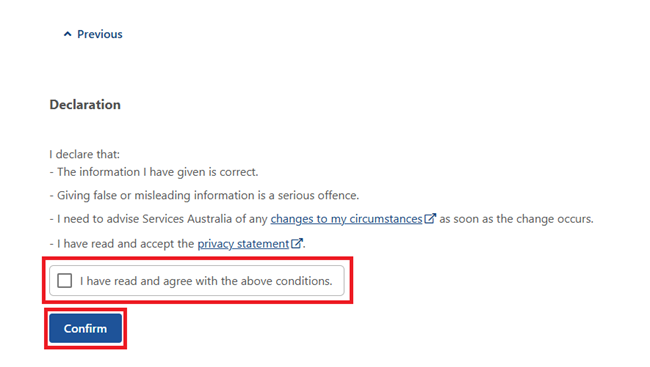
If you understand and agree with the declaration, tick the box I have read and agree with the above conditions then select Confirm.
Step 5: review next steps
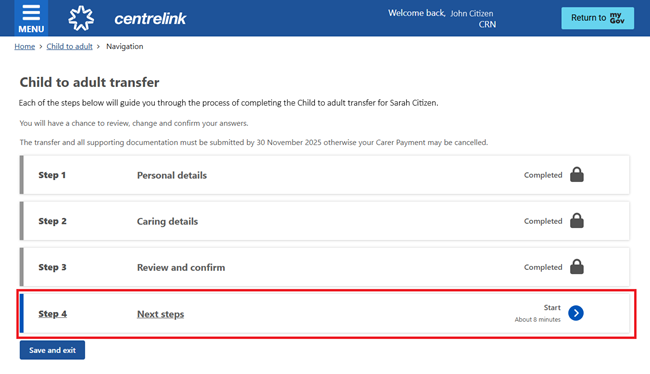
On the Next steps page we’ll tell you what documents you need to give us. We’ll also tell you how to get them to us. To ensure there are no delays in payment you need to do both of these:
- upload and submit required documents
- you will still need to provide identification if we ask for it, but it won’t stop you submitting your transfer if all required tasks are completed
- submit your transfer request by the due date.
If you don’t submit your transfer by the due date, you may not get your payment while we assess your transfer.
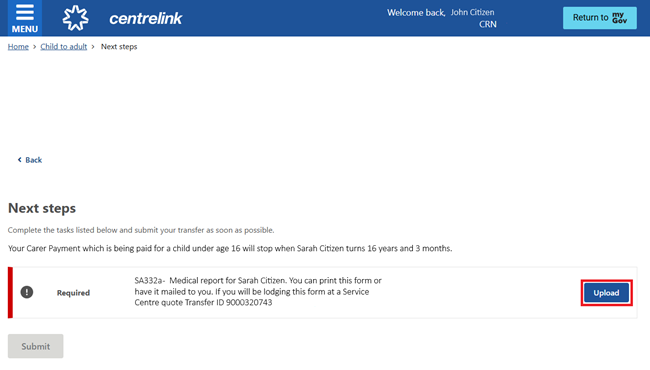
Download and print the medical report.
After your child’s treating health professional has filled out the form, you can upload it to your transfer request.
To upload your documents, select Upload next to the task you need to complete.
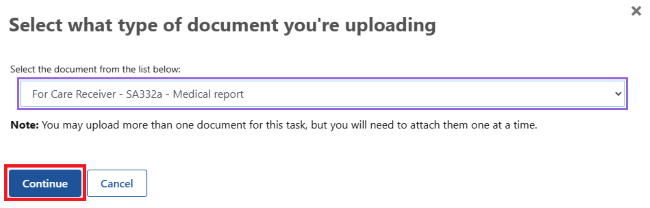
We’ll ask you to confirm which documents you are uploading from the dropdown list.
Select Choose files to find the document you want to upload.
Read the Declaration. If you understand and agree with the declaration, select I have read, understand and accept the declaration, then select Submit documents.
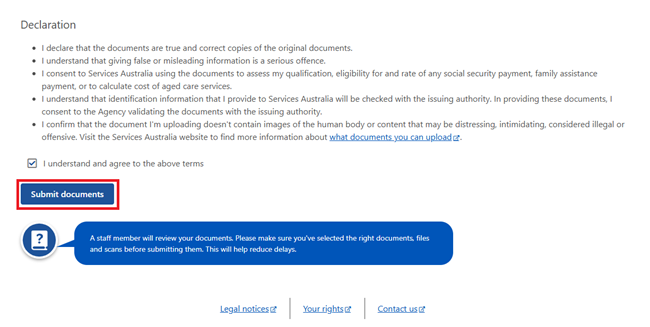
When you’ve uploaded and submitted all the required documents, select Submit to finish your transfer request.
If you are unable to upload your documents via your online account, you can take them to your local service centre. You will still need to select Submit in your online account to finish your Child to Adult transfer.
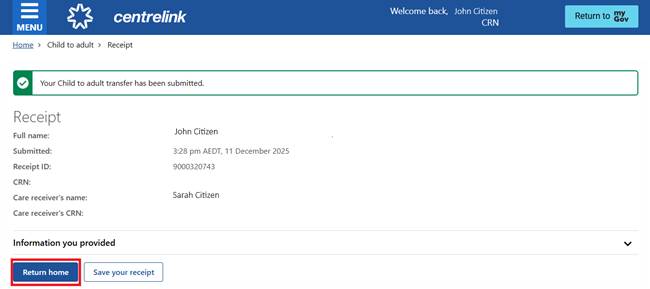
Make a note of the receipt details for your records.
Select Return home to go back to your homepage.
If you prefer, you can take all the documents we ask for to your nearest service centre. Remember to quote your transfer number so the Service Officer can attach the documents to your transfer request.
You’ll then need to submit your transfer request. You can do this from your own device or you can use one of our self-service terminals.
We’ll send you a letter when we’ve processed your request.
Step 6: sign out
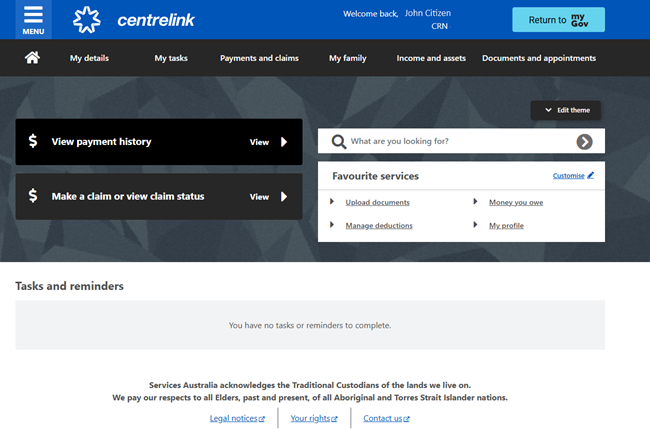
From your homepage you can complete other transactions or select Return to myGov to go back to your myGov account.
For your privacy and security, sign out when you’ve finished using your myGov account.
View other online account and Express Plus mobile app guides and video demonstrations about using your online account.
For your privacy and security, sign out when you’ve finished using your myGov account.
View other online account and Express Plus mobile app guides and video demonstrations about using your online account.