in this guide
The hours of subsidised child care you can get per fortnight depends on your hours of recognised participation and family circumstances.
If you have a partner, we’ll use the lower of your or your partner’s recognised participation to work out your hours of subsidised child care.
You can find out more about hours of subsidised child care.
The screenshots in this guide are from a computer. The page layout will look different if you’re using a mobile device.
Step 1: get started
Sign in to myGov or the myGov app and select Centrelink.
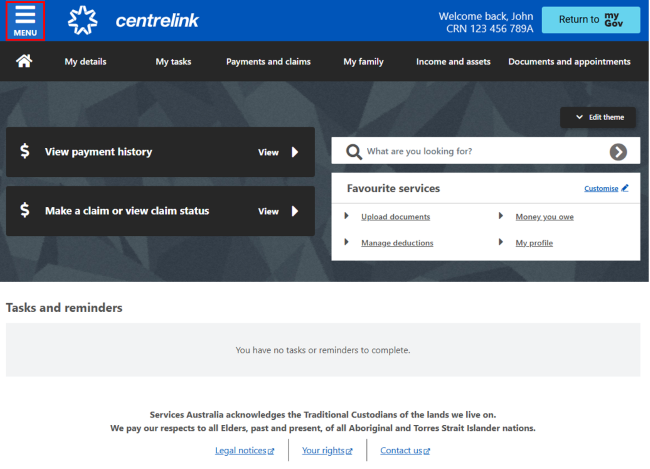
From your homepage, select MENU.
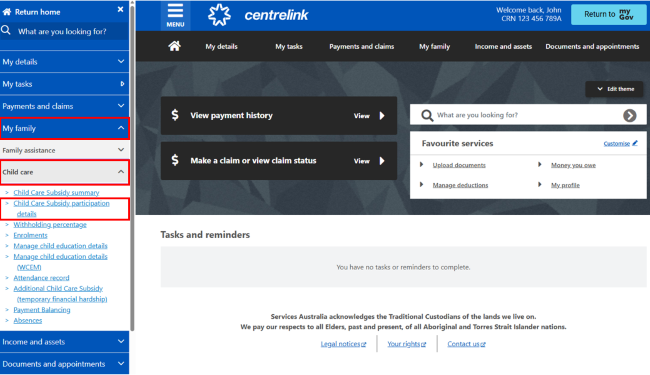
Select My family, then Child care and Child Care Subsidy participation details.
Step 2: add or update recognised participation details
Depending on your circumstances, you might need to add new recognised participation details or update existing information.
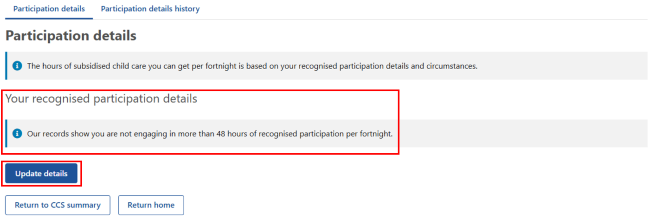
Select Update details.
Read the information, then select Begin.
The next page will show a summary of your participation details.
- Select Add to continue.
- Select Yes or No, then Next.
- Select the calendar icon and choose the Start date of your recognised participation. If there’s a known End date, enter this too. You can also enter the dates manually as dd/mm/yyyy. Then select Next.
- Select Add to continue.
- From the dropdown menu, select your recognised participation type.
- Read the information about your chosen recognised participation type, then select Next.
If you’ve selected Paid work (includes paid leave), you’ll need to confirm if you’re in casual employment. Select Yes or No, then Next.
- Enter the hours per fortnight you engage in the recognised participation type, then select Next. Select Continue to proceed.
The next page will show a summary of your recognised participation types. Make sure the details are correct. If you need to make a change, you can select any of the following:
- Edit to make changes
- Remove to delete your update.
- Add to add a new recognised participation type.
When your details are correct, select Next, then Continue.
The next page will show information for recognised participation exemptions.
Read the information, then select Begin.
If a recognised participation exemption doesn’t apply, select Next, then Continue and go to Step 3.
If a recognised participation exemption does apply, go to Add recognised participation exemptions.
Select Update details.
Read the information, then select Begin.
The next page will show a summary of your participation details.
The following steps will help you edit your recognised participation details. Based on your answers, you may get different questions to the following steps.
- Select Edit, then Next to continue.
- Update the Start date as required.
- Update the End date as required, then select Next.
- Select Edit next to the recognised participation type you want to update.
- Read the information, then select Next.
- Enter the hours per fortnight you engage in the recognised participation type, then select Next.
Select Continue to proceed.
The next page will show a summary of your recognised participation type or types. Make sure the edited details are correct, then select any of the following:
- Edit to make changes
- Mark for deletion to remove your update
- Add to add a new recognised participation type
- Next if the details are correct.
Select Continue to proceed.
The next page will show a summary of your participation details. Make sure the edited details are correct, then select any of the following:
- Edit to make changes
- Add to add new recognised participation details
- Next if the details are correct.
Select Continue to proceed.
The next page will show information for recognised participation exemptions.
Read the information, then select Begin.
If a recognised participation exemption doesn’t apply, select Next, then Continue and go to Step 3.
If a recognised participation exemption does apply, go to Add recognised participation exemptions.
Depending on your circumstances, you might need to edit an existing recognised participation exemption before adding a new one.
Select Update details.
Read the information, then select Begin.
The next page will show a summary of your participation details.
Select Next, then Continue to proceed.
The next page will show information for recognised participation exemptions.
Read the information, then select Begin.
- Select Add
- Select the circumstance that applies to you, then Next.
- Select the calendar icon and choose the Start date of your recognised participation exemption. If there’s a known End date, enter this too. You can also enter the dates manually as dd/mm/yyyy.
- Select Next, then Continue to proceed.
The next page will show a summary of your recognised participation exemptions. Make sure the new details are correct, then select any of the following:
- Edit to make changes
- Remove to delete your update
- Add to add a new recognised participation exemption
- Next if the details are correct.
Select Continue and go to Step 3.
Select Update details.
Read the information, then select Begin.
The next page will show a summary of your participation details.
Select Next, then Continue to proceed.
The next page will show you information for recognised participation exemptions.
Read the information, then select Begin.
To update your recognised participation exemptions, you need to:
- Select Edit and then update the Start date as required using the calendar icon.
- Update the End date as required. You can also enter the dates manually as dd/mm/yyyy.
- Select Next, then Continue to proceed.
The next page will show a summary of your recognised participation exemption/s. Make sure the edited details are correct, then select one of the following:
- Edit to make changes
- Add to add a new recognised participation exemption
- Next if the details are correct.
Select Continue and go to Step 3.
Step 3: review and submit
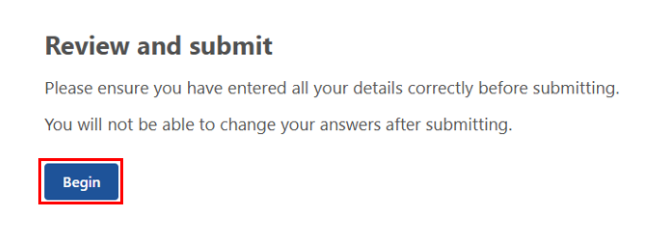
Select Begin to review and submit your updates.
We’ll give you a summary of the details you’ve given us. Review each section to check your details are correct.
If you need to make changes, select:
- Edit participation details
- Edit participation exemptions.
If all the details are correct, select Next.
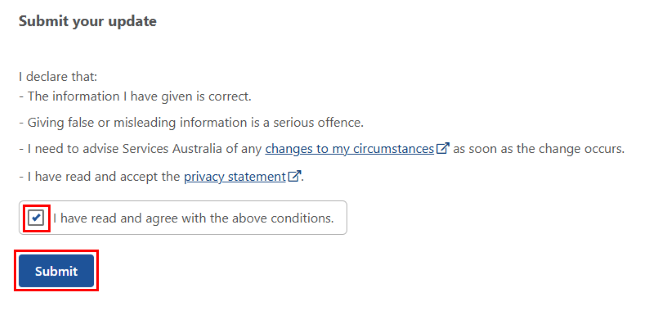
Read the declaration. If you understand and agree with the declaration, select I have read and agree with the above conditions, then select Submit.
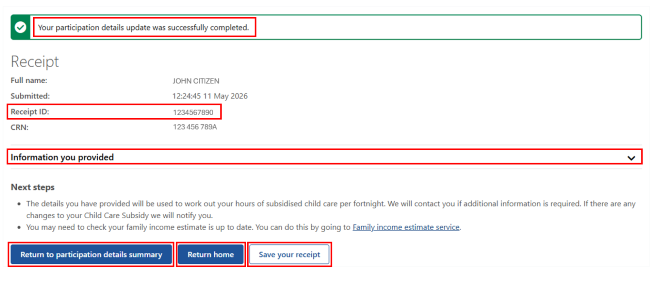
We’ll give you a receipt when you submit your update. Make a note of the Receipt ID for your records. You can select any of the following:
- Information you provided to view a summary of the details you’ve given us
- Return to participation details summary to go back to your participation details summary page
- Return home to go back to your homepage
- Save your receipt to keep a copy of your receipt.
Step 4: sign out
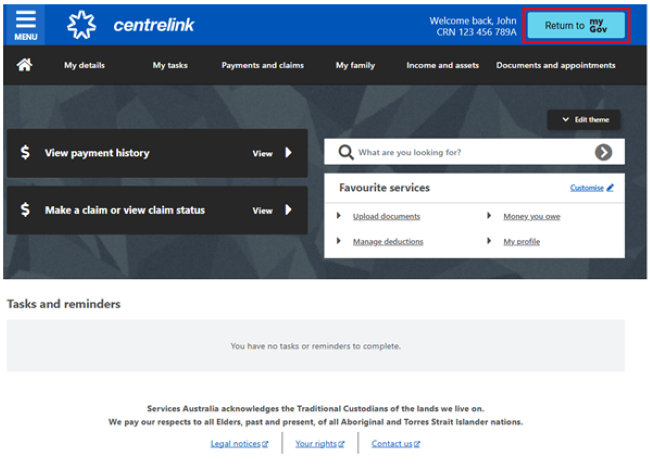
Go back to your home page.
From your homepage, you can complete other transactions or select Return to myGov to go back to your myGov account.
For your privacy and security, sign out when you’ve finished using your myGov account.
View other online account and Express Plus mobile app guides and video demonstrations about using your online account.