in this guide
You need to tell us when your child starts primary school and secondary school. We’ll use this information to work out your rate of child care fee assistance.
Find out more about school levels for child care assistance.
The screenshots in this guide are from a computer. The display will look different in the app, but the steps you need to complete are the same.
Step 1: get started
Sign in to myGov and select Centrelink.
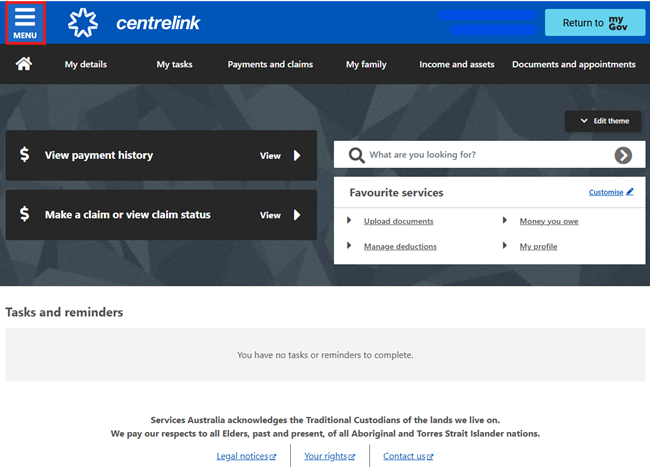
Select MENU from your homepage.
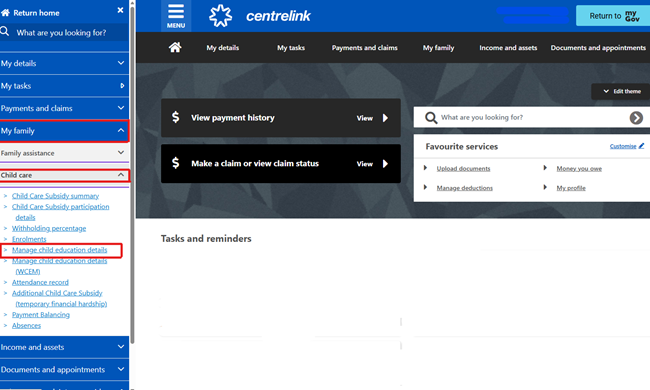
Select My Family, followed by Child care, and Manage child education details.
Step 2: view or update your child’s education details
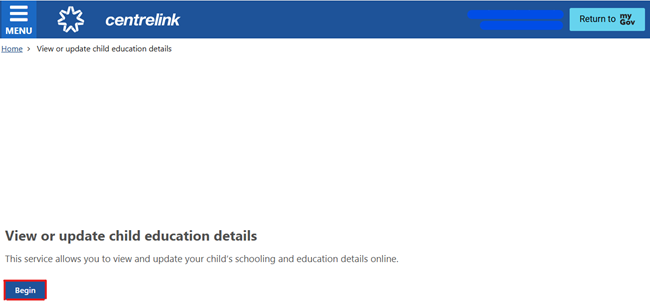
You need to let us know the date your child started or is due to start primary or secondary school. For this example, we have selected to update secondary school details.
Select Begin.
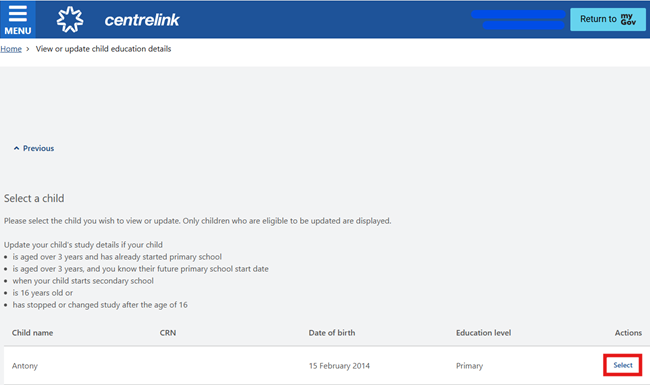
Select the child you wish to view or update.
Select Begin to proceed.
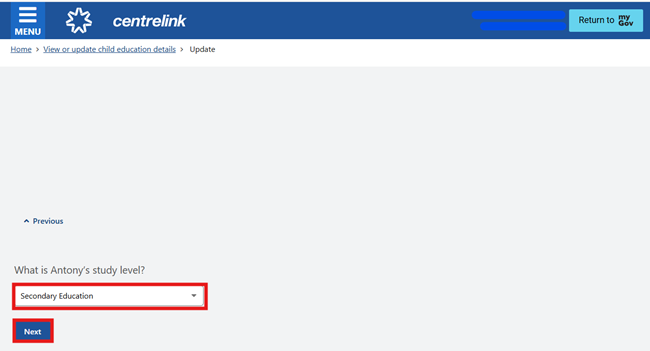
From the dropdown menu, select Secondary Education for our child’s study level, then select Next.
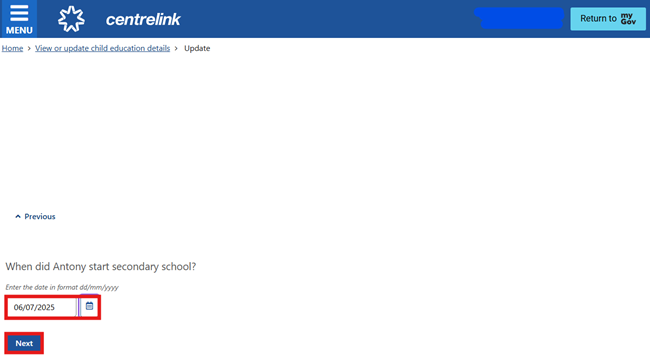
Select the calendar icon and choose the date your child started secondary school, then select Next. You can also enter the date manually as dd/mm/yyyy.
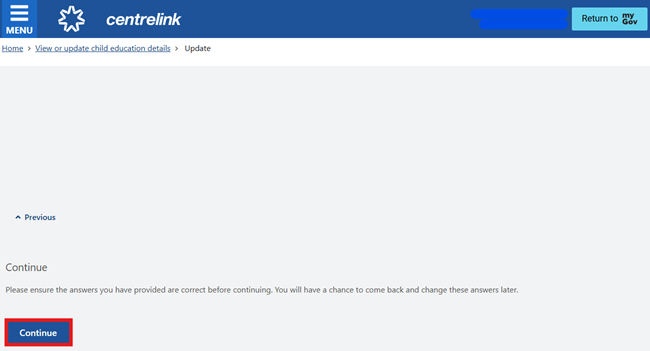
Select Continue.
If you’ve selected primary education, go to step 3.
If you’ve selected secondary education, you’ll be asked some additional questions to check if you’re still eligible for Child Care Subsidy.
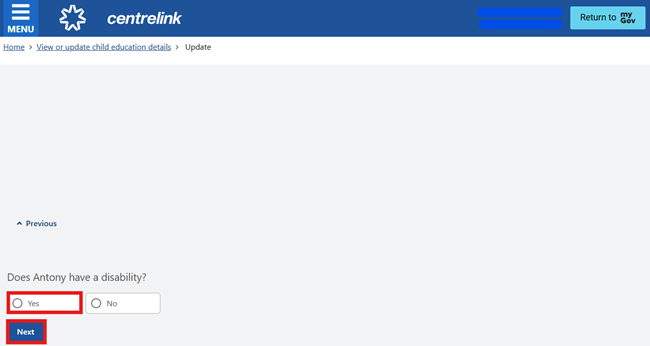
This includes a question about whether your child has a disability. A disability means any continuing condition that may impact your child’s everyday activities.
Select Yes or No, to tell us if your child has a disability.
In this example, we’ve selected Yes, then select Next.
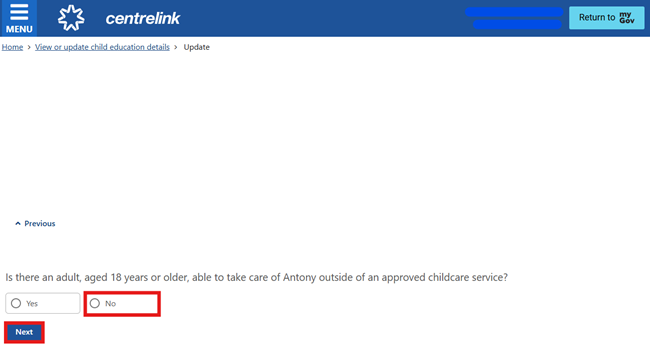
You’ll need to confirm if there’s an adult, aged 18 years or older, able to care for your child outside of approved childcare services. Select Yes or No, then select Next.
In this example, we’ve selected No.
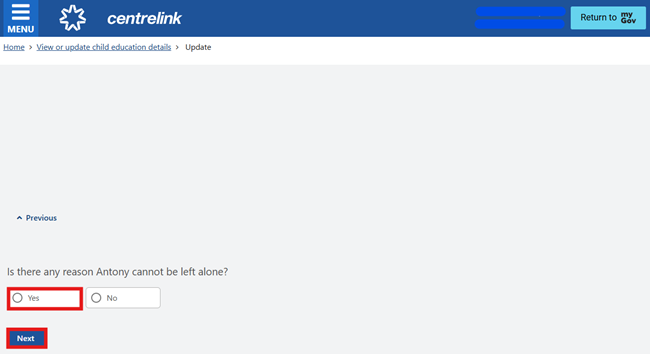
Select Yes or No to tell us if there’s a reason your child can’t be left alone, then select Next.
In this example, we’ve selected Yes. If you select Yes, you’ll need to provide supporting evidence after you update your child’s details.
When all questions are completed select Continue. Go to step 3.
Step 3: review and submit
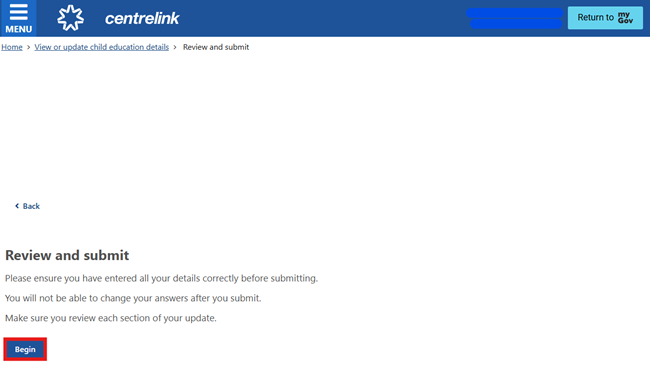
Select Begin.
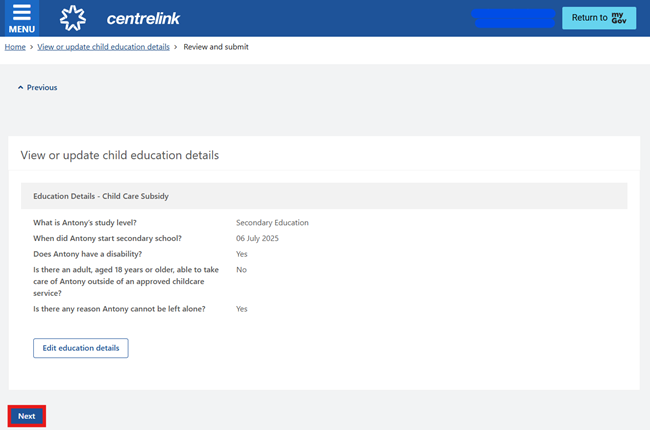
The next screen will show a summary of your child’s updated education details.
Review the information and check the details are correct, then select Next.
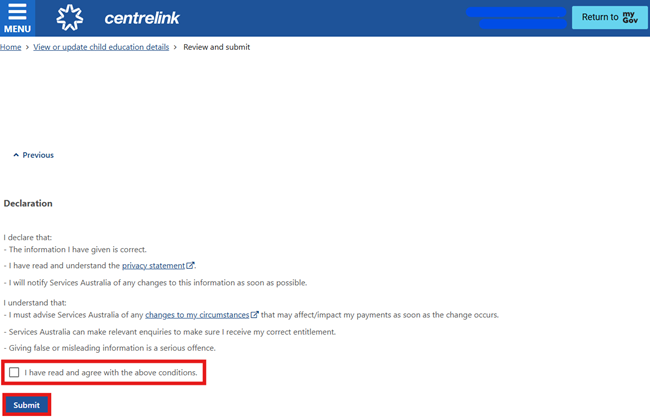
Read the Declaration. If you understand and accept the declaration, select I have read and agree with the above conditions, then select Submit.
Step 4: get your receipt
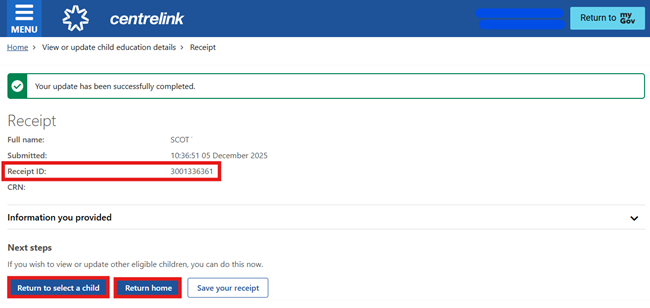
We’ll give you a Receipt ID to confirm your update. Make a note of this number for your records, then select one of the following:
- Return to select a child to update the education details for another child
- Return home to go back to your homepage.
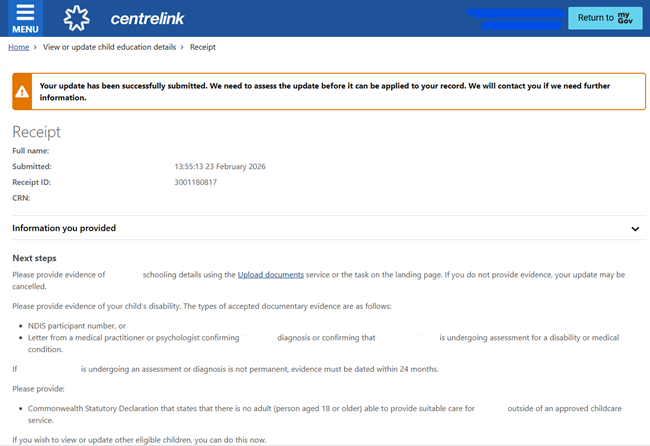
If you have updated your child as attending secondary school with disability, you’ll need to upload documents. Select Upload documents.
Find out more about how to upload documents using your Centrelink online account.
Step 5: return to myGov home page
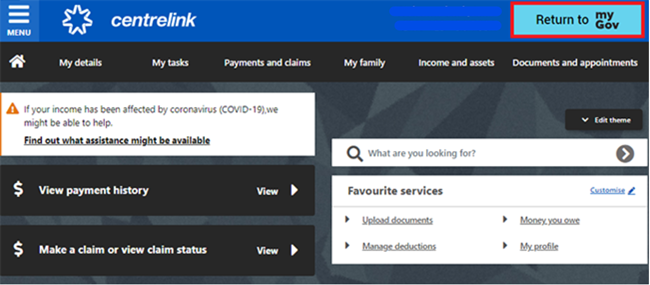
Return to your home page.
You can complete other transactions or select Return to myGov to go back to your myGov account.
For your privacy and security, sign out when you’ve finished using our myGov account.
View other online account and Express Plus mobile app guides for more step-by-step information and some video demonstrations.