in this guide
It’s important to keep your income details up to date. This makes sure your child support assessment and child support payments are accurate.
We assess your adjusted taxable income from a previous year to determine how much child support you need to pay.
Read more about how your income affects your payment.
The screenshots in this guide are from a computer. The page layout will look different if you’re using a mobile device.
Step 1: get started
Sign into myGov or the myGov app and select Child Support.
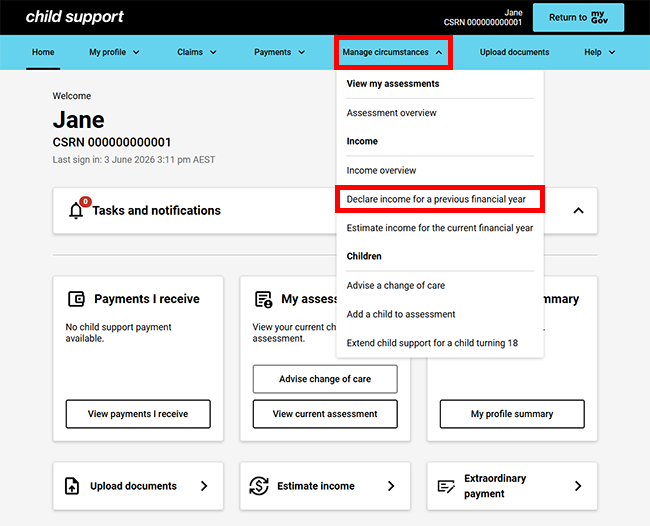
From the menu, select Manage circumstances then Declare income for a previous financial year.
Step 2: declare income details
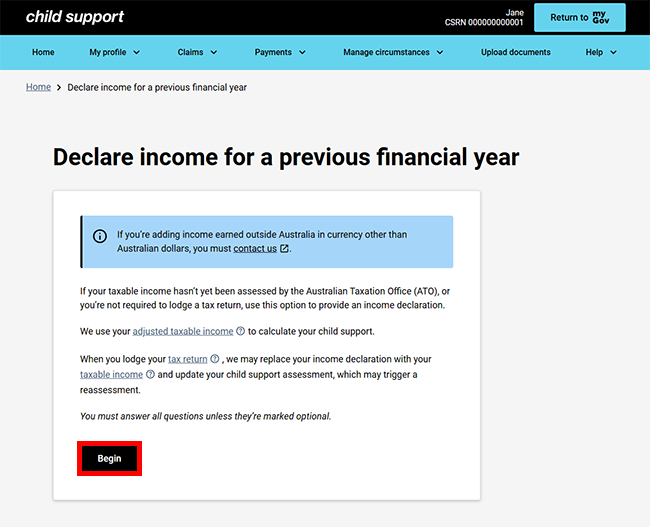
You’ll start with the Declare income for a previous financial year page. Read the information to help you update your income.
Select Begin to continue.
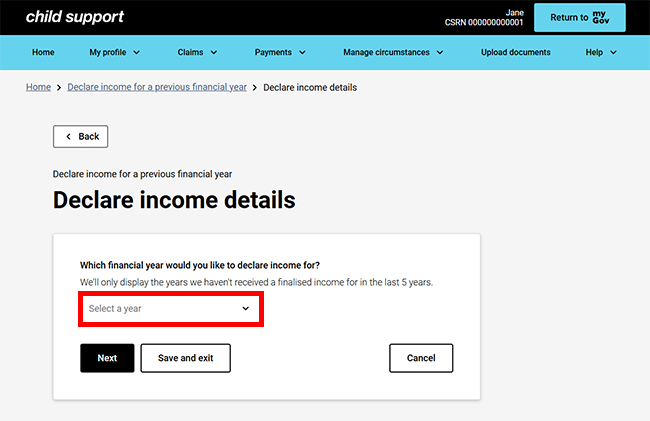
On the Declare income details page, use the dropdown menu to select a previous financial year.
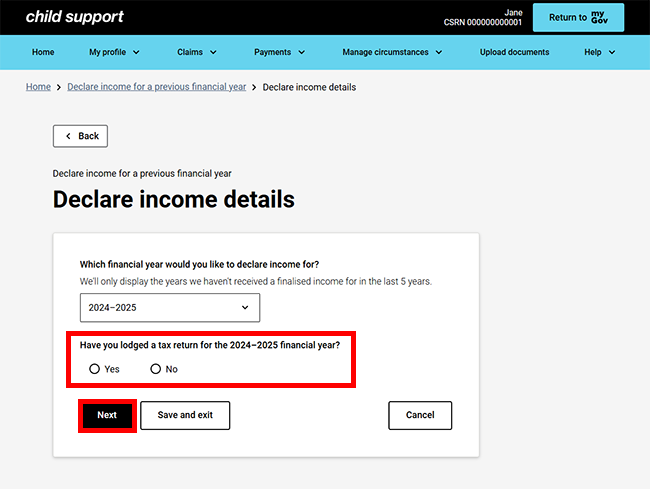
We’ll ask you if you’ve lodged a tax return for the relevant year. Based on your answers, different questions will display. When you’ve provided all your details, select Next.
Step 3: provide income details
We’ll ask you about the following income sources individually:
- employment income
- pensions and benefits
- business income
- investments and other supplementary income
- deductions.
You’ll need to repeat the following steps for each source of income. First we’ll ask you about Employment income.
If you select:
- No then Next, you’ll move to the next income source.
- Yes, we’ll ask you more questions.
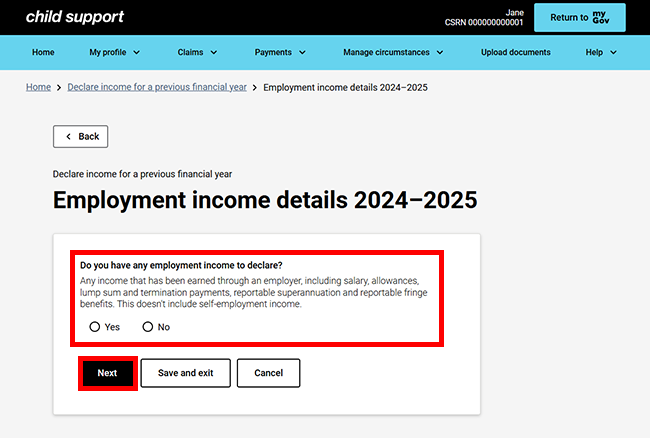
In this example, we’ll demonstrate selecting Yes to Employment income.
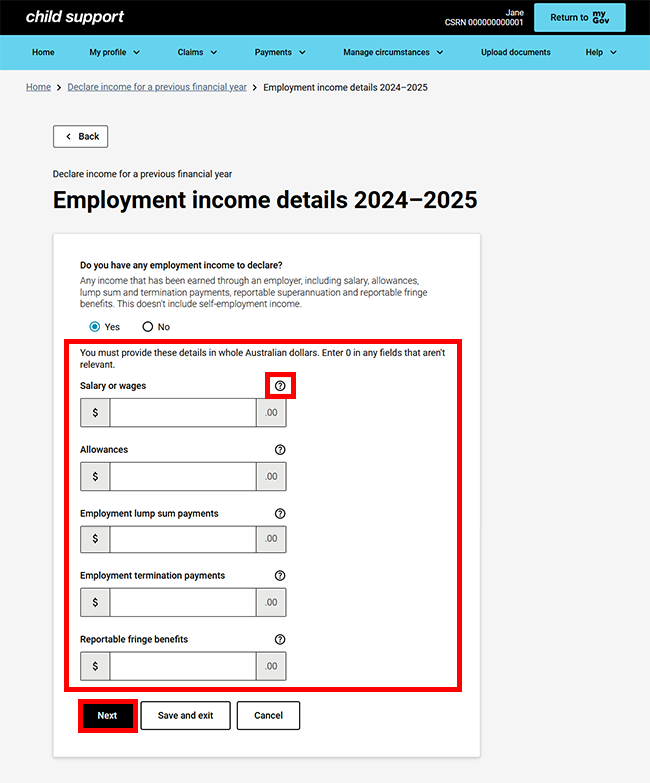
Answer the questions about your income. You’ll need to enter 0 in any field that doesn’t apply to you.
If you’re not sure what we’re asking for, select the question mark.
When you finish answering all the questions, select Next. You’ll then be taken to the next income component.
Step 4: review and submit
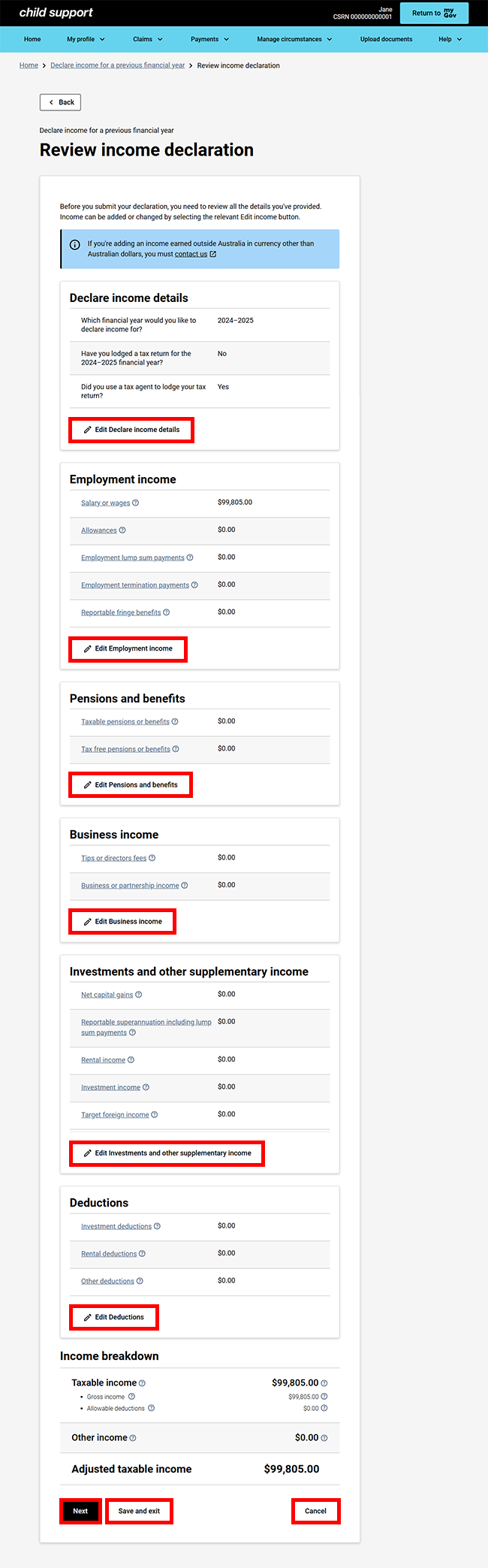
When you’ve finished providing details for all the income components, we’ll give you a summary of the details you’ve given us. Review the details you’ve provided, and if you need to change your details, select Edit for the relevant section.
Select:
- Next to continue
- Save and exit to save your details and come back later
- Cancel if you no longer want to update your previous income.
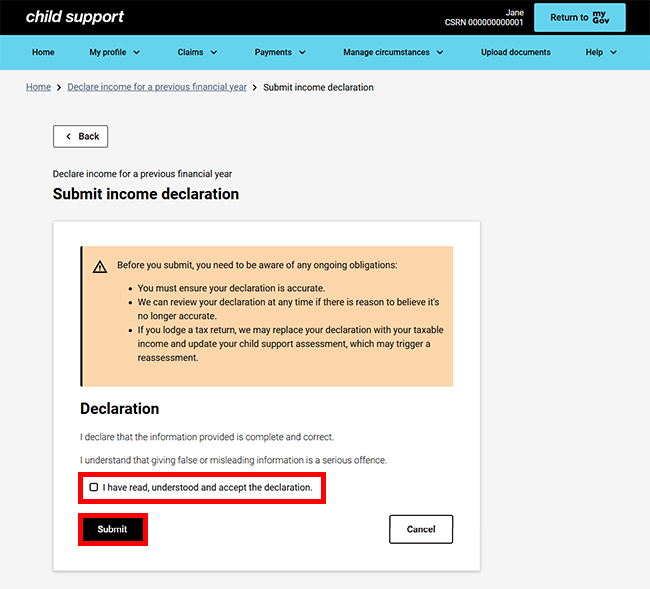
Read the information on the Submit income declaration page.
If you understand and agree with the declaration, select I have read, understood and accept the declaration.
Select Submit.
Step 5: receipt
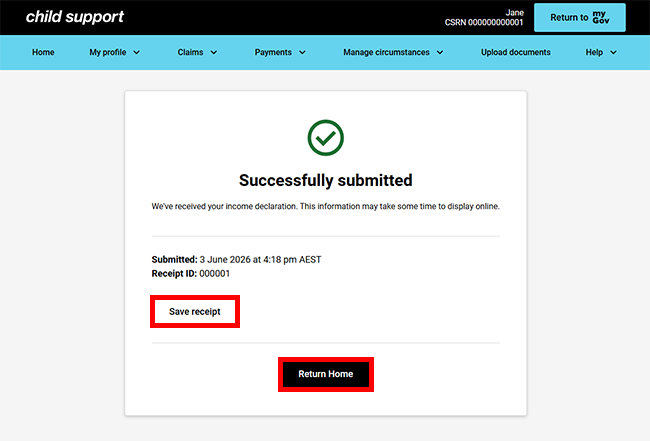
We’ll give you a receipt to confirm your update. Make a note of the Receipt ID for your records.
Select either:
- Save receipt to keep a PDF copy of your receipt
- Return Home to go back to your online account homepage.
Step 6: sign out
From your homepage you can complete other transactions or select Return to myGov to go back to your myGov account.
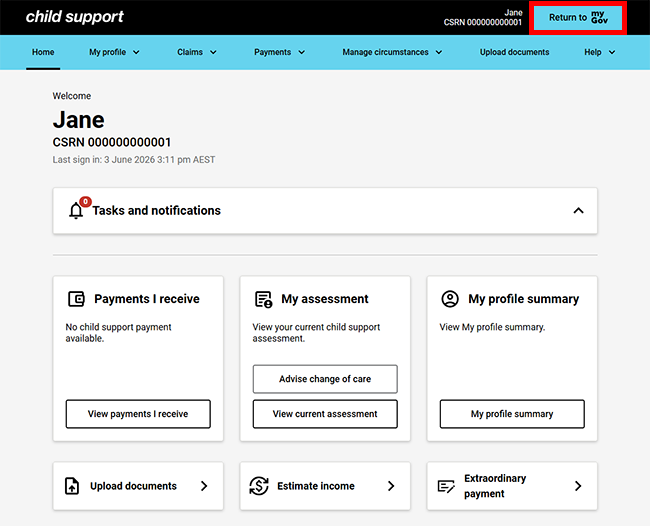
For your privacy and security, sign out when you’ve finished using your myGov account.
We have other guides to help you. Read about help for myGov, online accounts and mobile apps.