in this guide
If your child is 17 and will still be attending secondary school when they turn 18 and you have 35% or more care, you may be able to extend child support. If you’re not sure if you can extend child support, read more about Child support when your child turns 18.
The screenshots in this guide are from a computer. The page layout will look different if you’re using a mobile device.
Step 1: get started
Sign in to myGov or the myGov app and select Child Support.
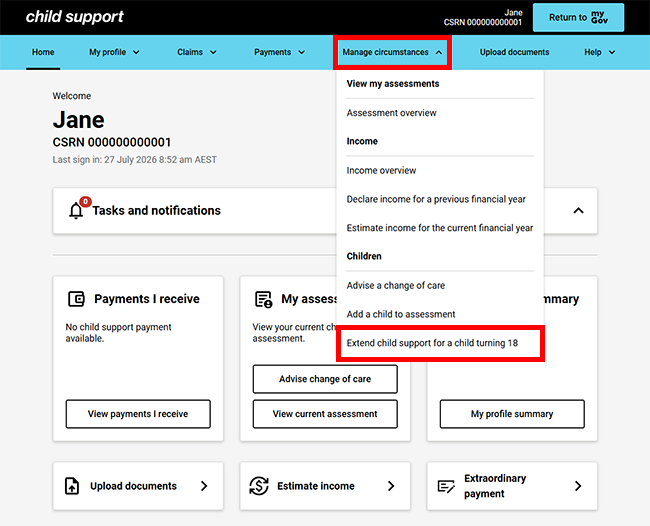
From the menu, select Manage circumstances then Extend child support for a child turning 18.
Step 2: complete the application
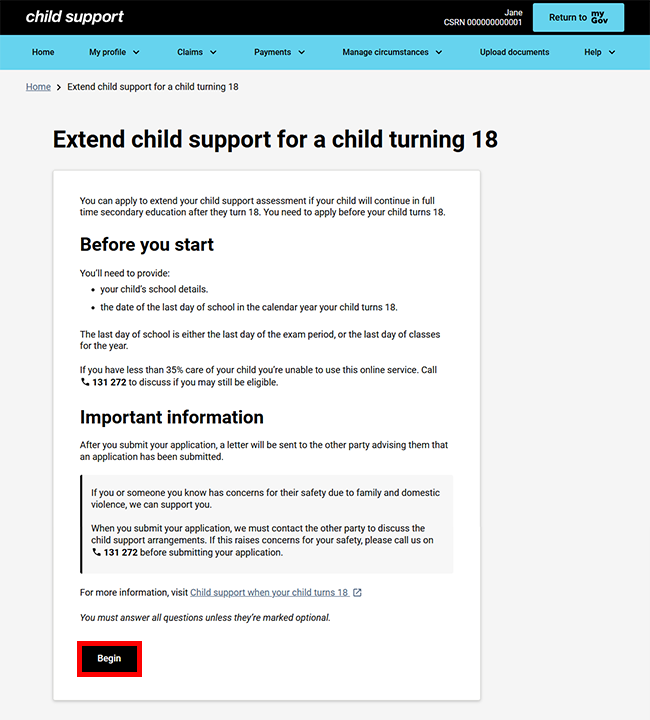
Read the information on this page to help you complete your update, then select Begin.
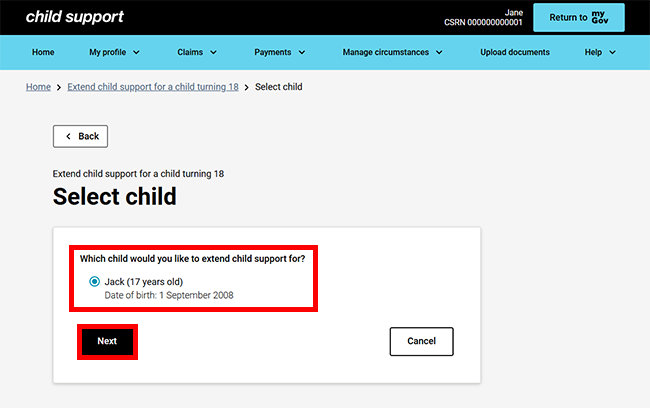
On the Select child page, select the child you want to extend child support for. If you want to extend the case for more than one child, complete separate applications for each child. Select Next to continue.
On the Eligibility page, we’ll ask if the child is in full time secondary education.
Select either:
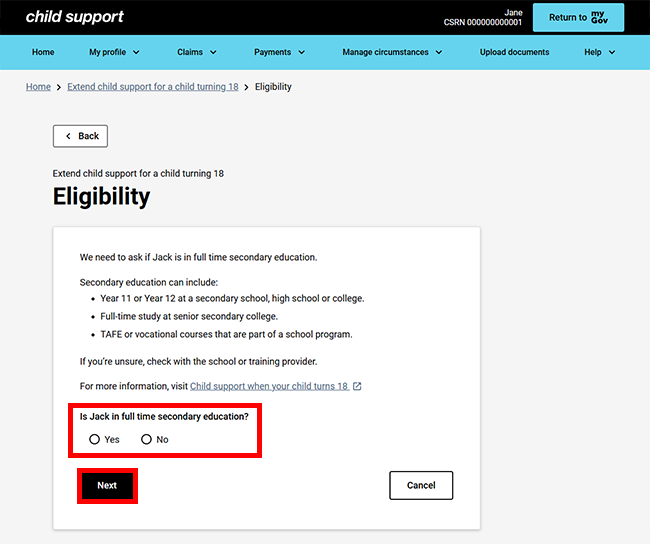
Yes, my child is in secondary education
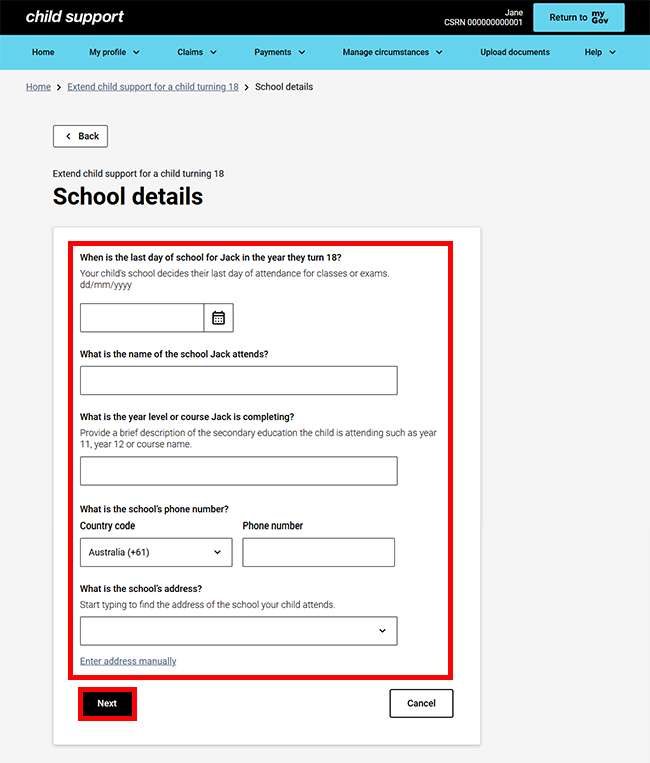
If you selected Yes to your child being in full time secondary education, the School details page will display. When you’ve finished providing all the details, select Next and go to step 3.
No, my child isn’t in secondary education
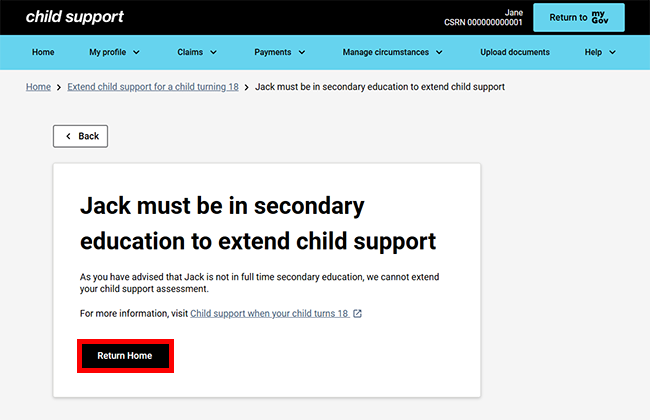
If you selected No, we’ll let you know your child needs to be in secondary education for you to extend child support. The process ends here, select Return Home to return to your homepage.
Step 3: review and submit
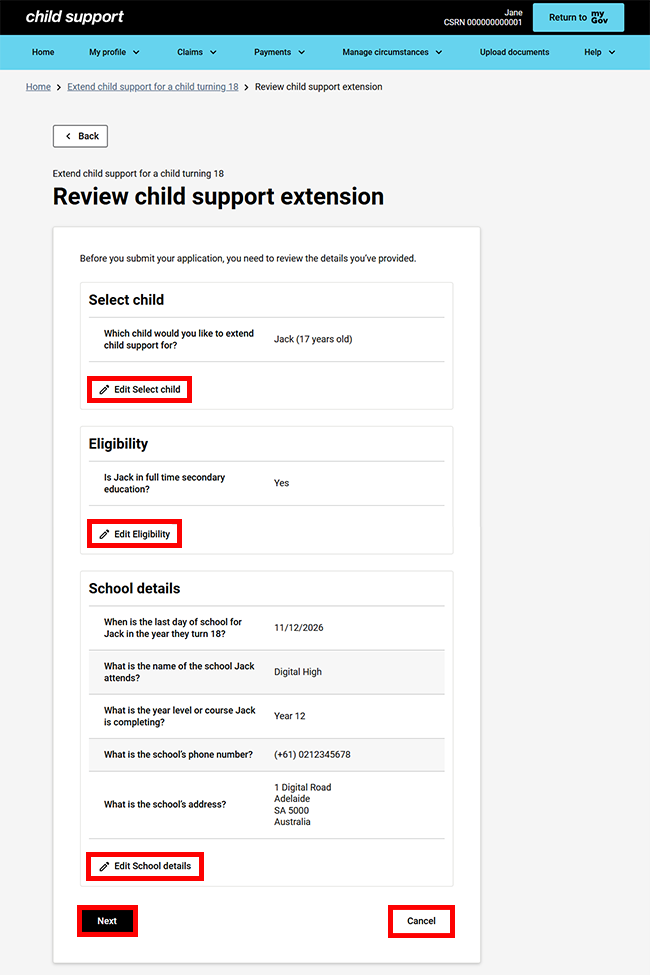
We’ll display a summary of the details you’ve given us. Review the details you’ve provided, and if you need to change your details, select Edit for the relevant section.
Select:
- Next to continue
- Cancel if you no longer want to extend child support for a child turning 18.
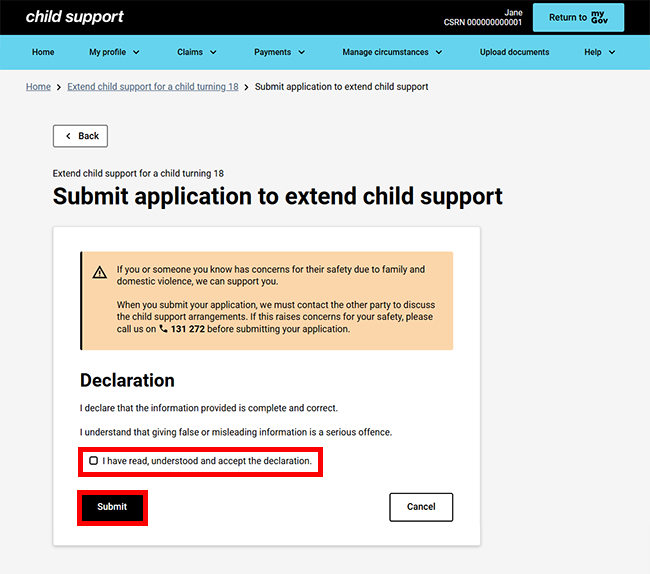
Read the information on the Submit application to extend child support page. If you understand and agree with the declaration, select I have read, understood and accept the declaration. Then select Submit.
Step 4: receipt
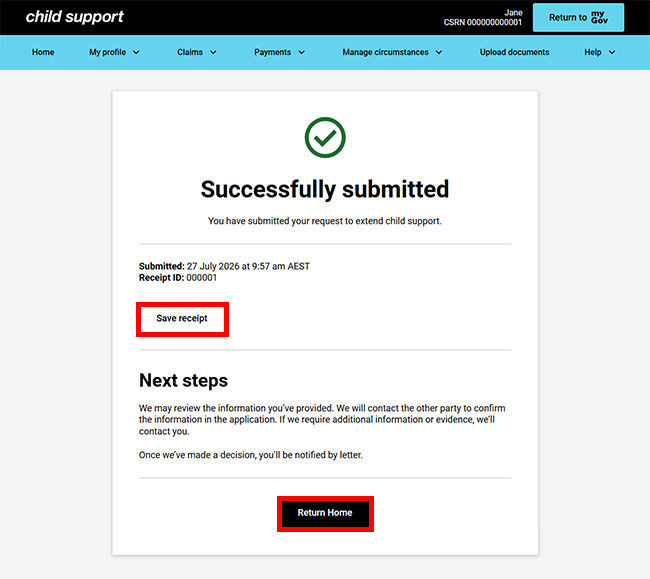
We’ll give you a receipt to confirm your update. Make a note of the Receipt ID for your records.
We may review the information you’ve provided and if we need more information or evidence, we’ll contact you.
Select either:
- Save receipt to keep a PDF copy of your receipt
- Return Home to go back to your online account homepage.
Step 5: sign out
From your homepage you can complete other transactions or select Return to myGov to go back to your myGov account.
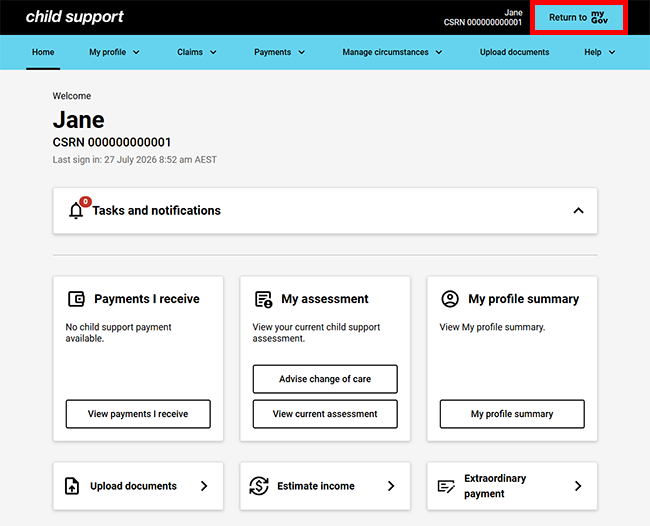
For your privacy and security, sign out when you’ve finished using your myGov account.
We have other guides to help you. Read about help for myGov, online accounts and mobile apps.