in this guide
When we collect and transfer your payments, you may want to tell us about a private child support payment that was made. We call these payments extraordinary payments or non-agency payments (NAPs).
Read more about how to pay child support.
The screenshots in this guide are from a computer. The page layout will look different if you’re using a mobile device.
Step 1: get started
Sign into myGov or the myGov app and select Child Support.
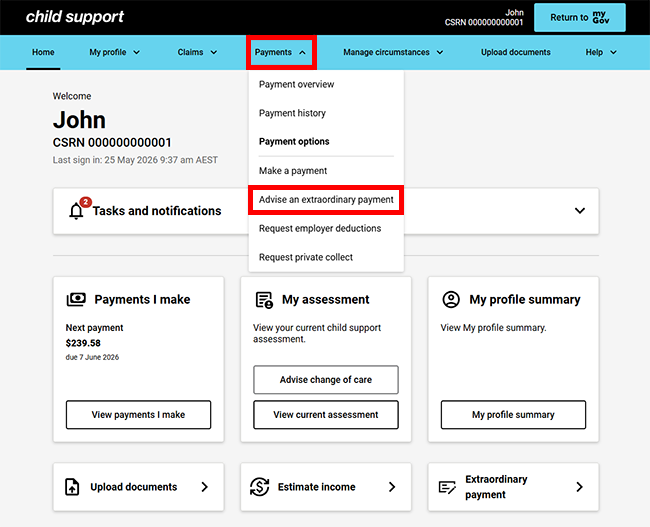
From the menu, select Payments then Advise an extraordinary payment.
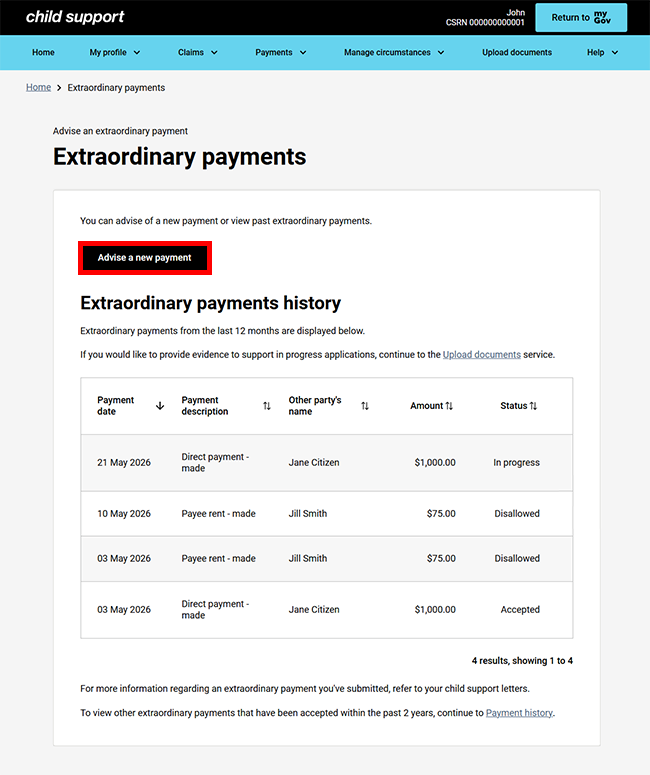
We’ll show you extraordinary payments from the last 12 months. Select Advise a new payment to continue.
Step 2: add payment details
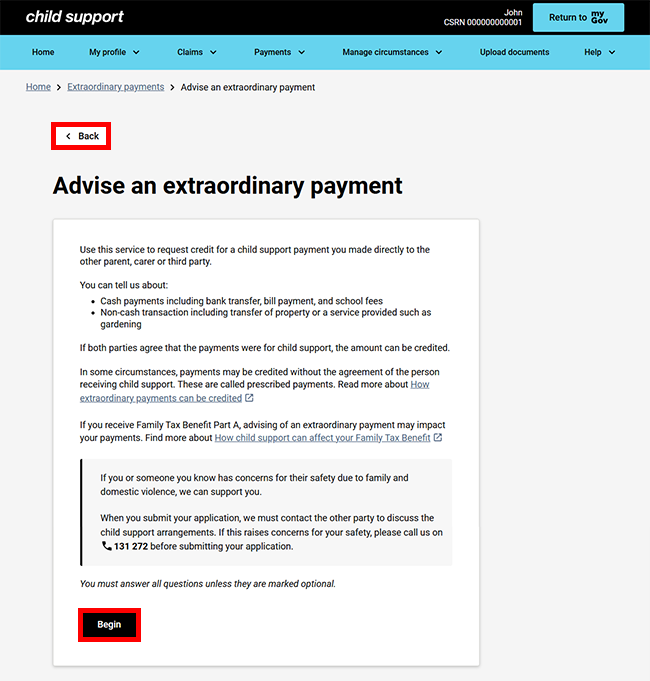
Read the information on this page to help you complete your update, then select Begin.
Select Back if you either:
- no longer want to advise of an extraordinary payment
- want to go back to your Extraordinary payment history.
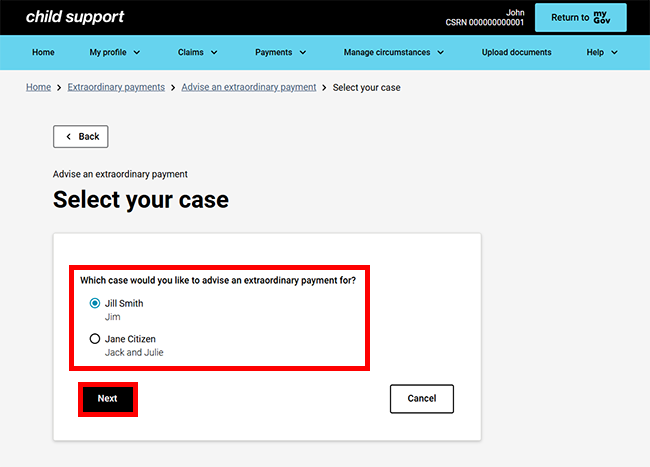
If you have one case, we’ll pre-select the case details for you. If you have more than one case, select which case the extraordinary payment is for, then select Next.
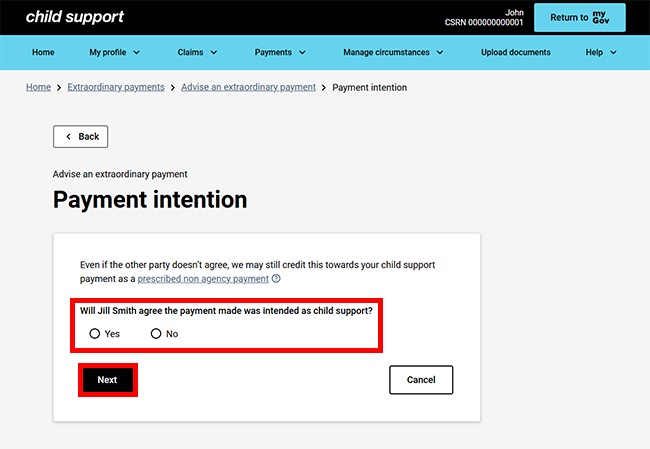
Tell us if the other party will agree the payment made was intended as child support, then select Next.
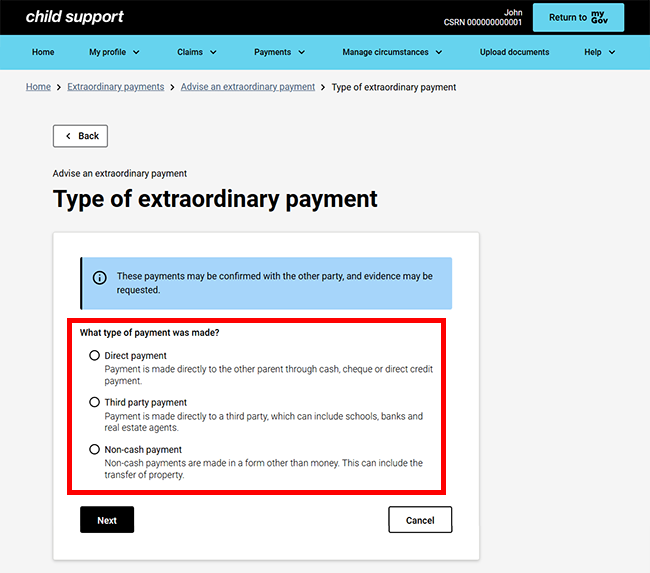
On the Type of extraordinary payment page, select what type of payment was made.
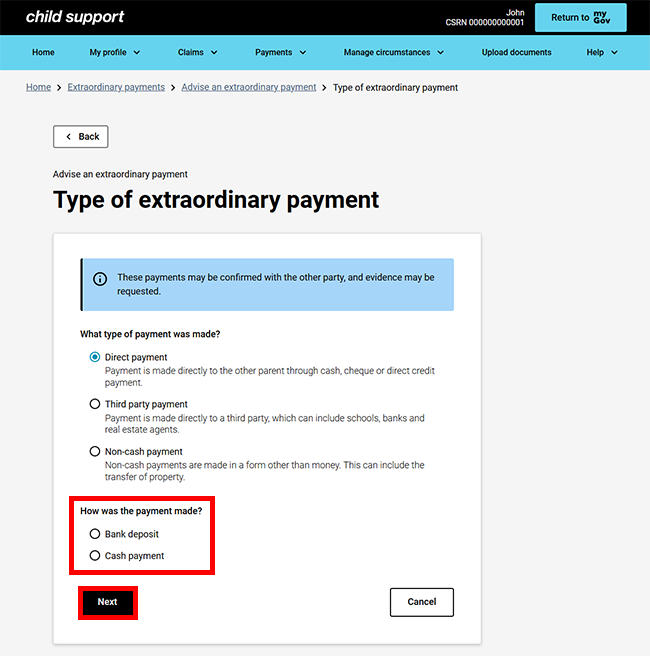
If you select Direct payment or Third party payment we’ll ask you for more information about how the payment was made or what the payment was for.
When you’ve made your selections, select Next.
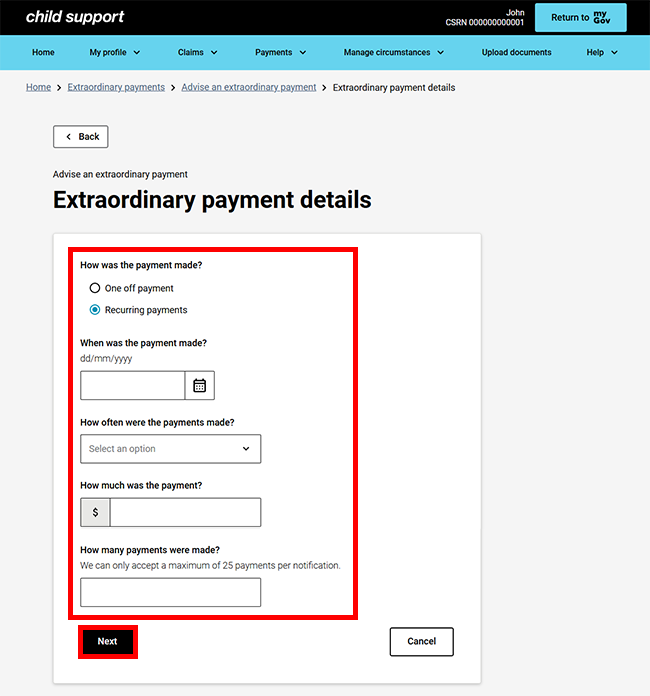
On the Extraordinary payment details page, enter the details and answer the questions. The questions we ask may vary depending on your answers.
When you’ve finished adding the payment details, select Next.
Step 3: review and submit
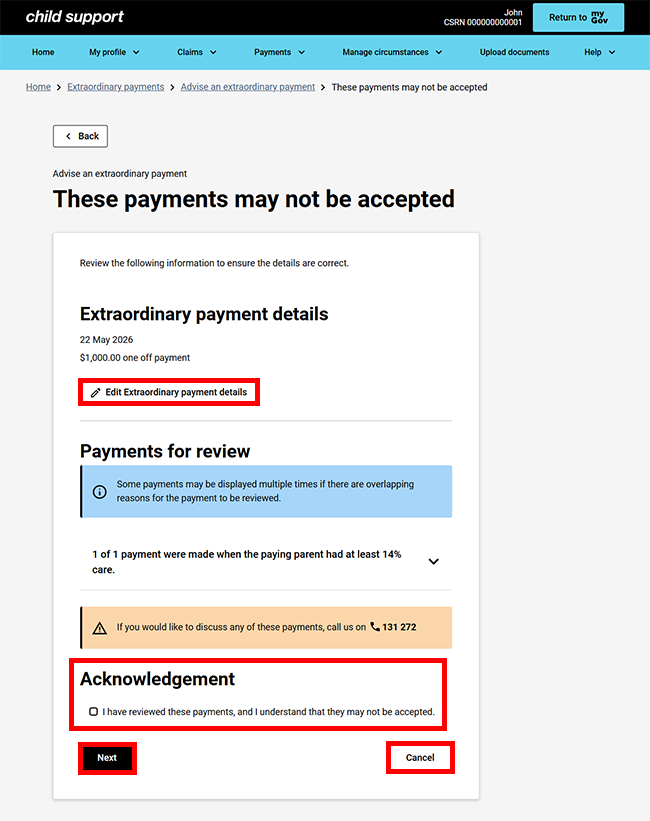
Depending on the circumstances of the payment, we may let you know that the payments may not be accepted. If we do this, you should review the payment details. You can either:
- Edit Extraordinary payment details if you need to make changes
- Cancel if you don’t want to continue.
If the details are correct, you can continue by selecting the Acknowledgement checkbox, followed by Next.
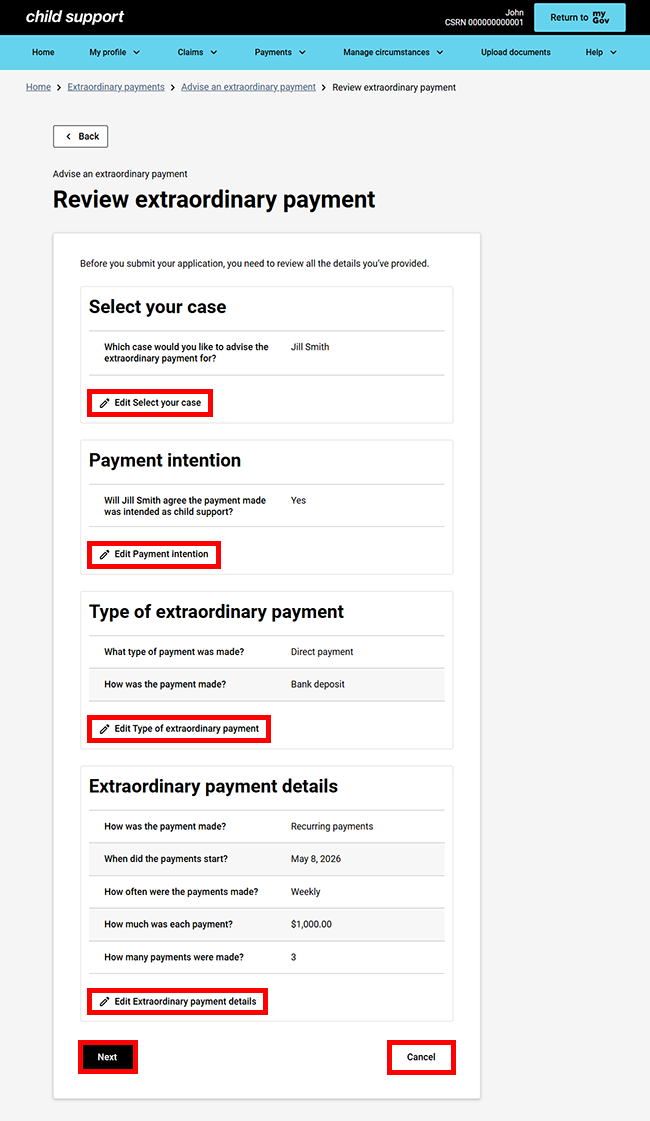
We’ll give you a summary of your updates.
Review the details to make sure they’re correct.
Select any of the following:
- Edit for any of the relevant fields if you need make any changes
- Next to continue
Cancel if you don’t want to continue.
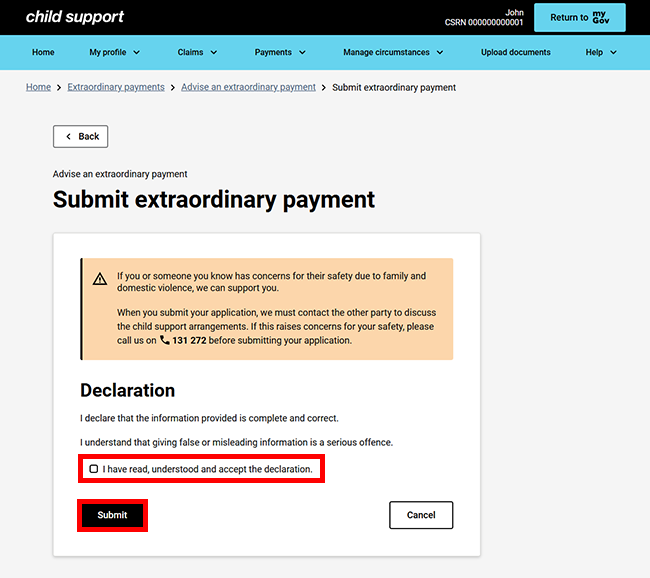
Read the information and declaration. If you understand and agree with the declaration, select I have read, understood and accept the declaration.
Select Submit.
Step 4: receipt
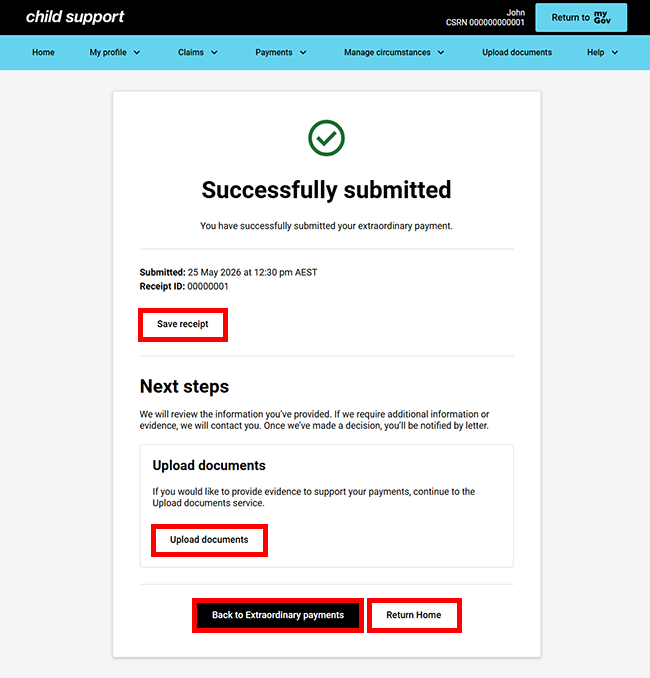
We’ll give you a receipt when you submit your update. Make note of the Receipt ID for your records.
We’ll review the information you’ve provided and if we need more information or evidence, we will contact you.
You can provide evidence to support your payments by selecting Upload documents. For more information read Upload your Child Support documents online.
Select any of the following:
- Save receipt to keep a PDF copy of your receipt
- Back to Extraordinary payments to submit another payment or go to the Extraordinary payments history page
Return Home to go back to your online account homepage.
Step 5: sign out
From your homepage you can complete other transactions or select Return to myGov to go back to your myGov account.
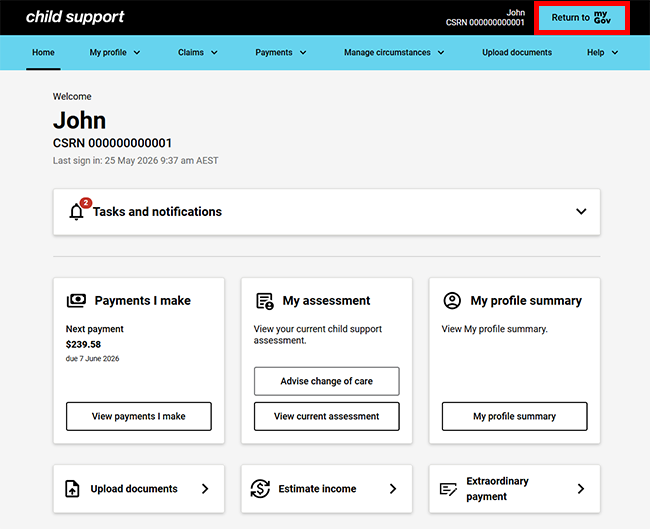
For your privacy and security, sign out when you’ve finished using your myGov account.
We have other guides to help you. Read about help for myGov, online accounts and mobile apps.