Child Support online account help - Advise name change

Instructions on how to tell us about a change to your name using your Child Support online account.

We’re redesigning the Child Support online account. Some things in your account will look different to what you’re used to. You can choose to access Advise name change by selecting either:

  • My profile summary in the redesigned Child Support online account
  • your existing Child Support online account.

My profile summary in the redesigned Child Support online account

Step 1: get started with My profile summary in the redesigned Child Support online account

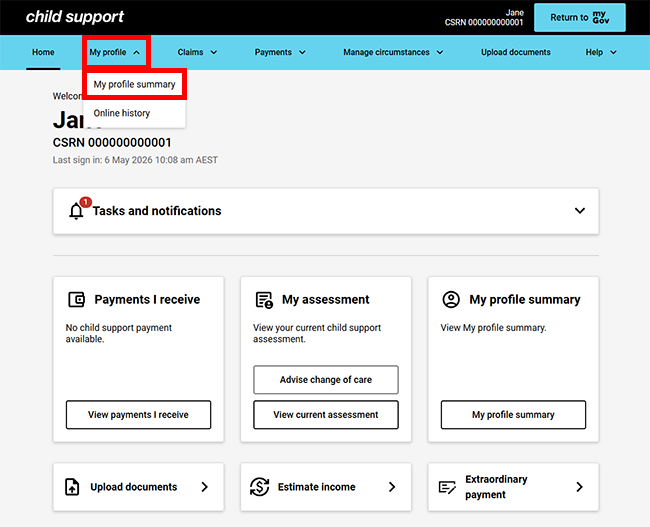
Sign into myGov or the myGov app and select Child Support.

Select My profile summary.

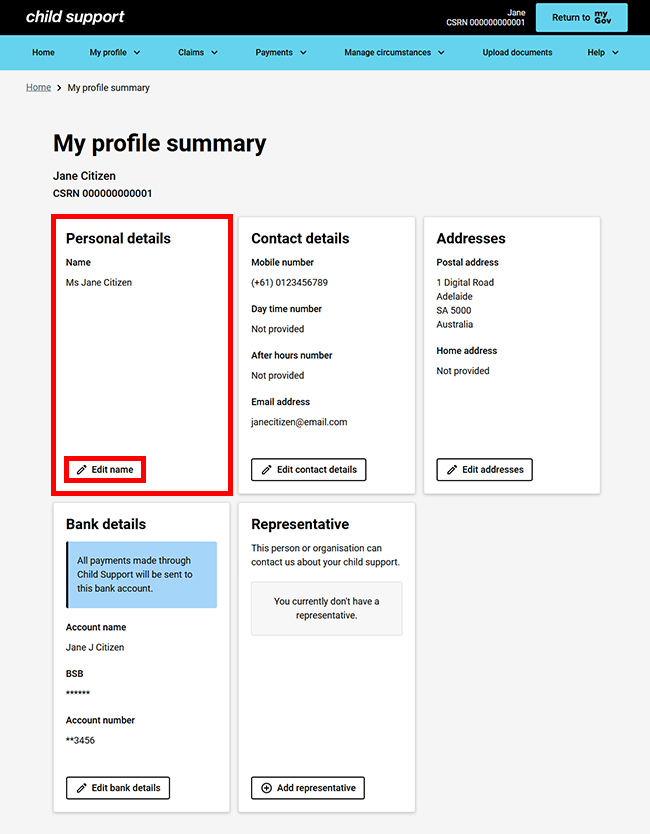
From the My profile summary page, select Edit Name.
Step 2: update name details with My profile summary in the redesigned Child Support online account

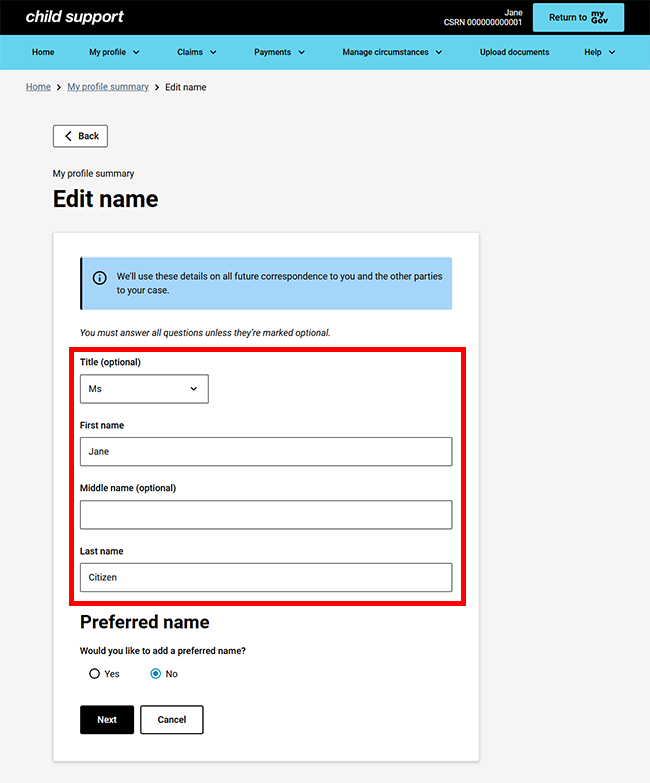
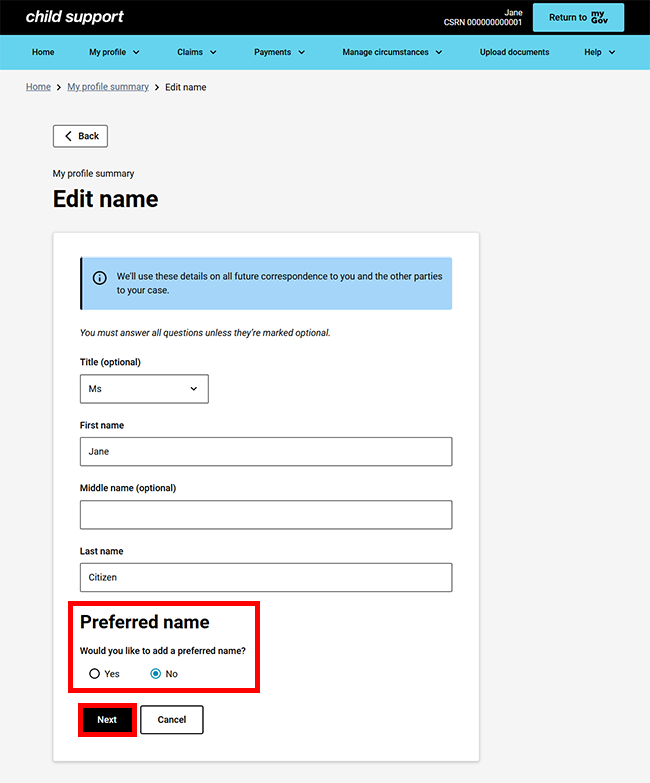
On the Edit name page, enter your new details, including your:

  • Title (optional)
  • First name
  • Middle name (optional)
  • Last name.

Tell us if you’d like to add a preferred name. Select either:

  • Yes, to tell us you want to add a preferred name and go to step 3
  • No, to tell us you don’t want to add a preferred name, then select Next and go to step 4.
Step 3: update preferred name with My profile summary in the redesigned Child Support online account

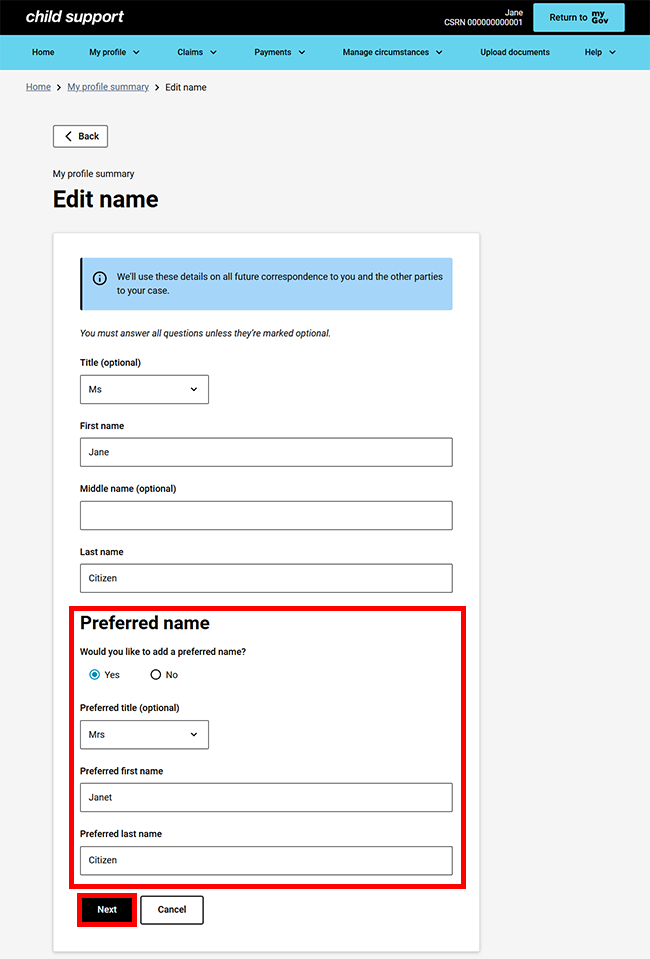
If you selected Yes to add a preferred name, provide your details, including your:

  • Preferred title (optional)
  • Preferred first name
  • Preferred last name.

Select Next and go to step 4.
Step 4: review and submit with My profile summary in the redesigned Child Support online account

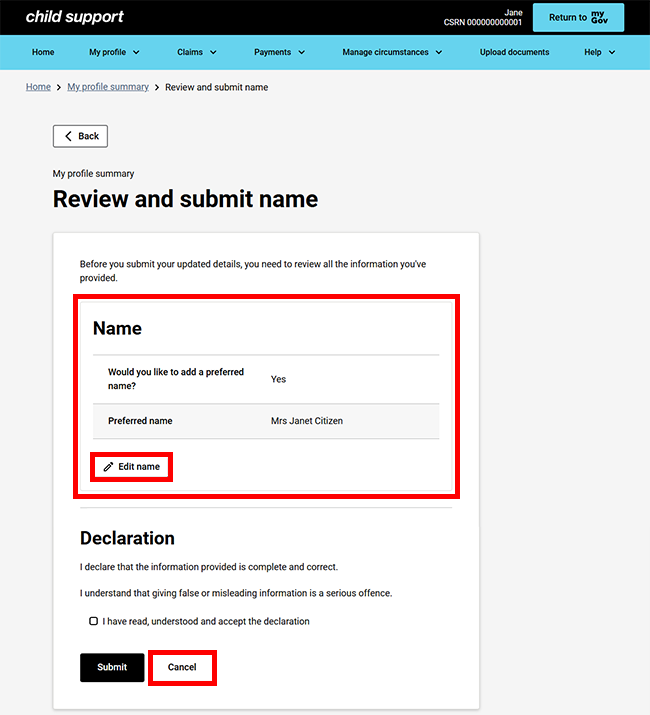
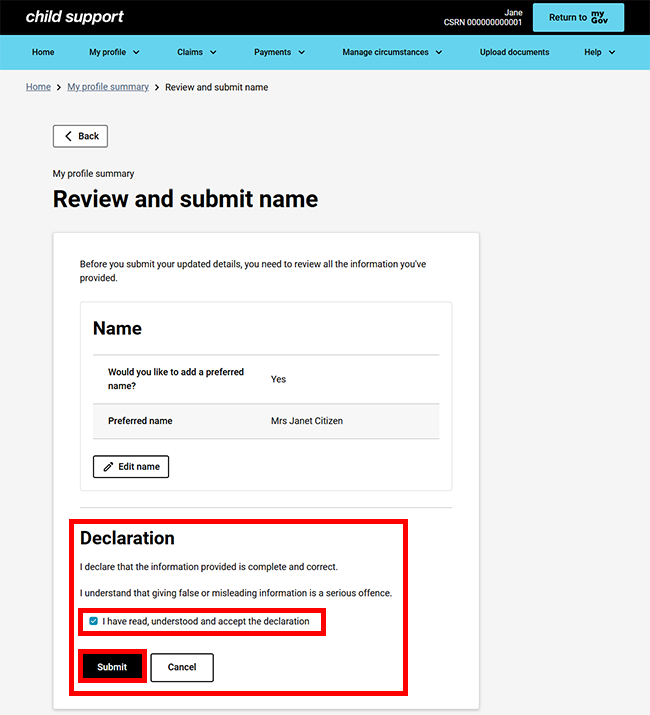
We’ll give you a summary of the details you’ve told us about.

Check the Name details to make sure they’re correct.

Select either:

  • Edit name if you need to make any changes
  • Cancel if you don’t want to continue.

If all of the details are correct, read the declaration. If you understand and agree with the declaration, select I have read, understood and accept the declaration. Then select Submit.
Step 5: receipt from My profile summary in the redesigned Child Support online account

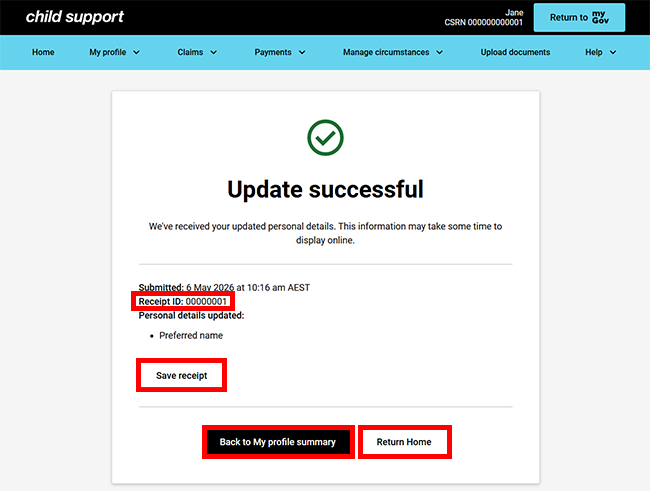
We’ll give you a receipt when you submit your update. Make note of the Receipt ID for your records.

The information you’ve updated may not appear in your online account straight away.

Select any of the following:

  • Save receipt to keep a copy of your receipt
  • Back to My profile summary to view and edit other details
  • Return Home to go back to your online account homepage.
Step 6: sign out

From your homepage, you can complete other transactions or select Return to myGov to go back to your myGov account.
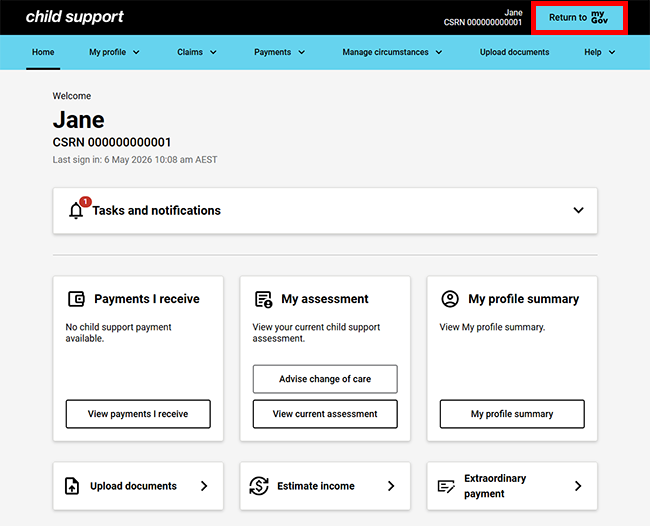
For your privacy and security, sign out when you have finished using your myGov account.

We have other guides to help you. Read about help for myGov, online accounts and mobile apps.

Your existing Child Support online account

Step 1: get started with your existing Child Support online account

Sign into myGov or the myGov app and select Child Support.

Select Child Support online account.

From your homepage, select Update my name from the My profile section.

Or, select MENU, then My profile, then Update my name.

Step 2: update name details with your existing Child Support online account

On the Name details page, enter the details of your new name, including your:

  • Title
  • First name
  • Middle name/s
  • Last name.

Tell us if you’d like to add a preferred name. Select either:

  • Yes, to tell us you want to add a preferred name
  • No, to tell us you don’t want to add a preferred name.

Then select Next and go to Step 3 to review and submit your details.

If you choose Yes, answer the additional questions then select Next.

Step 3: review and submit with your existing Child Support online account

We’ll give you a summary of your new details.

To display the full summary, select Name details. The information will expand.

Read the Name details on this page and make sure they’re correct.

Select either:

  • Back, if you need to make changes
  • Exit, if you don’t want to continue or need to start again.

If all of the details are correct, read the declaration. If you understand and agree with the declaration, select I have read, understood and accept the declaration.

Select Submit.

Step 4: receipt from your existing Child Support online account

We’ll give you a receipt to let you know your update has been successful. Please make a note of the Receipt ID for your records.

The updated information may not appear in your online account straight away.

Select Finish to go back to your My profile page.

From your My profile page, select the ChildSupport icon to return to your online account homepage.

Step 5: sign out

From your homepage, you can complete other transactions or select Return to myGov to go back to your myGov account.

For your privacy and security, sign out when you’ve finished using your myGov account.

We have other guides to help you. Read about help for myGov, online accounts and mobile apps.

Page last updated: 27 April 2026.
QC 37416