in this guide
To start you’ll need a myGov account. If you don’t have one, you can go to the myGov website to create one.
If you’re not enrolled in Medicare, you won’t be able to link it to your myGov account. Find out how to enrol in Medicare.
To link Medicare to your myGov account, your name recorded with myGov must match your name with Medicare.
If your name doesn’t match or isn’t up to date, you’ll need to update it. If you need to update your name with Medicare, you can call Medicare.
We’ll ask you some questions to make sure we match the correct Medicare record to your myGov account.
You’ll need to have all of the following:
- your Medicare card number, including your Individual Reference Number (IRN)
- answers to some questions specific to you, based on information provided to Medicare in the past.
To link Medicare, you can use Digital ID as a way to prove who you are online.
Go to the Digital ID website for more information about Digital ID and the identity strength options available for you to choose.
If you don’t have a Digital ID, you can create one while you link Medicare. You’ll need to:
- download an app
- enter details from some of your identity documents
- scan your face with your device.
Make sure you have this information ready before you begin.
The screenshots in this guide are from a computer. The page layout will look different if you’re using a mobile device.
Step 1: sign in to myGov
Go to myGov and sign in.
Select either:
- Link a service
- View and link services.
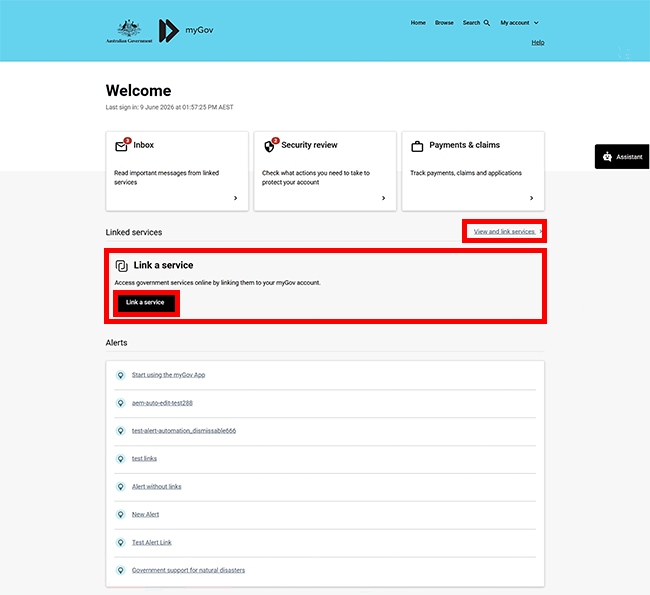
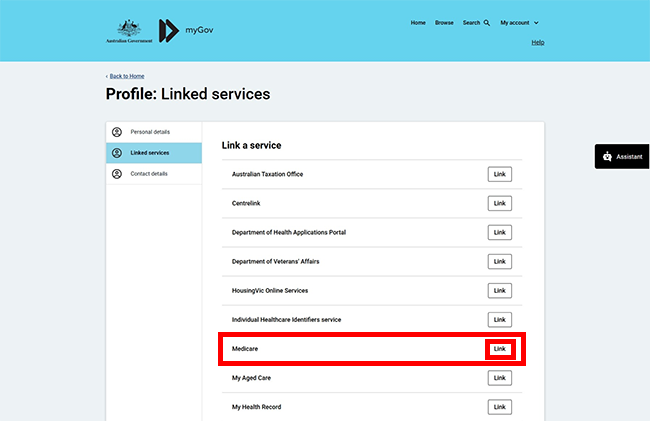
From the list, select Link for the service you want to link.
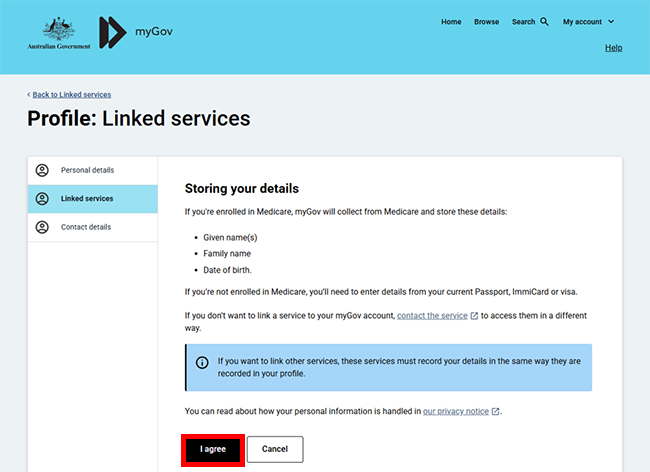
If you haven’t already linked Centrelink or your Digital ID to your myGov account, we’ll ask you to agree to myGov storing your personal details.
If you agree to myGov storing your Given names, Family name and Date of birth in your myGov profile, select I agree.
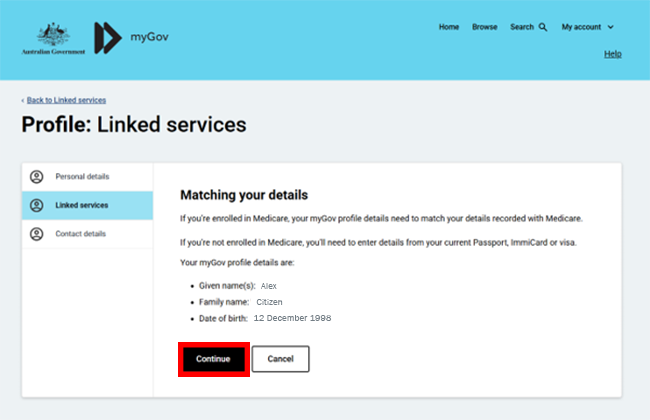
If you’ve already linked Centrelink or your Digital ID to your myGov account, we’ll show your myGov profile details. To link Medicare, these details must match the details shown on your Medicare record.
Select Continue to proceed.
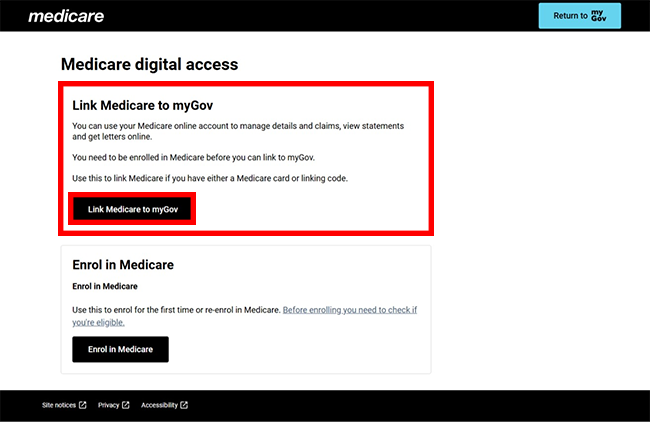
Select Link Medicare to myGov.
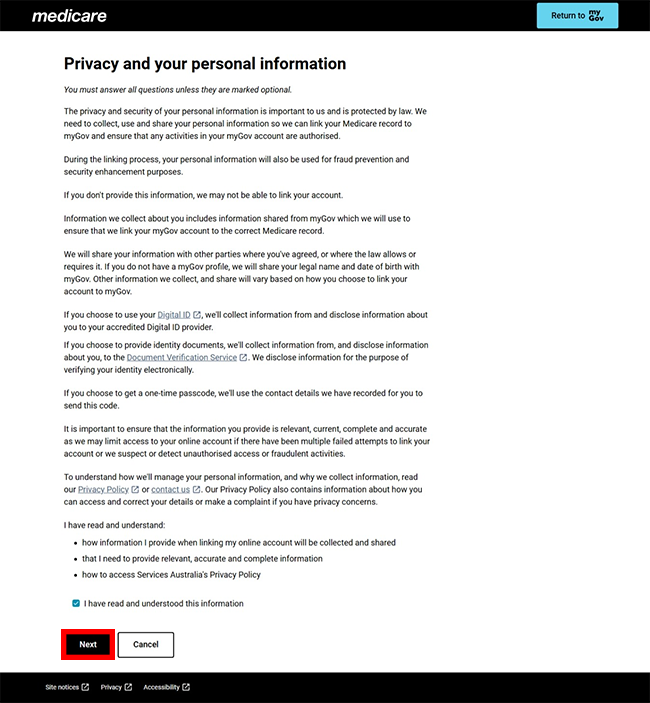
Read the privacy and your personal information message, confirm you have read and understood the information by selecting the check box, then select Next.
Step 2: get started
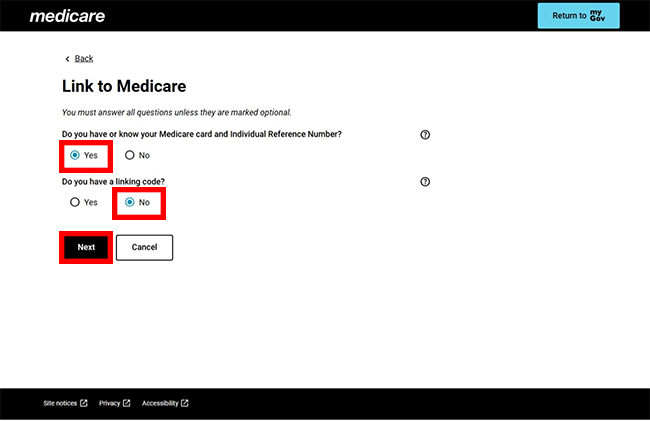
We’ll ask you if you know your Medicare card and Individual Reference Number (IRN) and if you have a linking code.
To link this service, you must provide your Medicare card and Individual Reference Number (IRN). If you don’t have your Medicare card and Individual Reference Number (IRN), you can try to link later once you have located it. Contact us if you need help.
Select Yes to Do you have or know your Medicare card and Individual Reference Number (IRN)?
Select No to Do you have a linking code? Then select Next to continue.
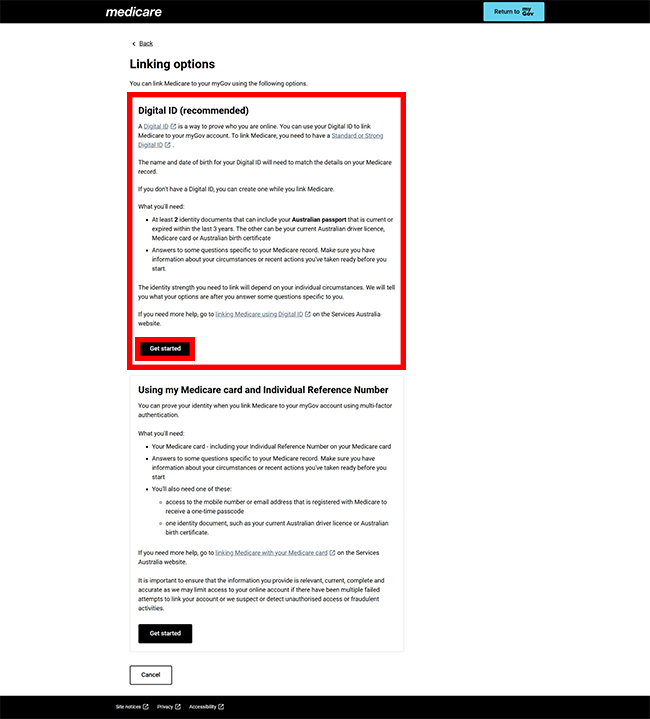
Select Get started in the Digital ID (Recommended) box.
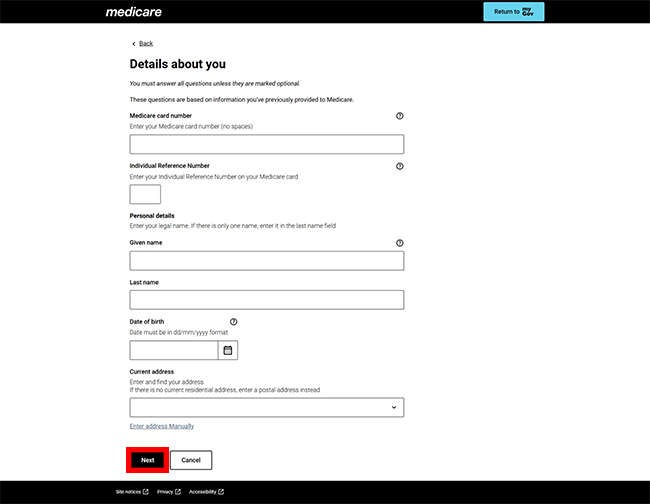
Step 3: enter details about you
We’ll ask you to answer some questions specific to you, to make sure we match the correct record to your myGov account. We base these questions on information provided to Medicare in the past.
Answer the questions, then select Next.
We’ll redirect you to the Digital ID System website where you can select your identity provider.
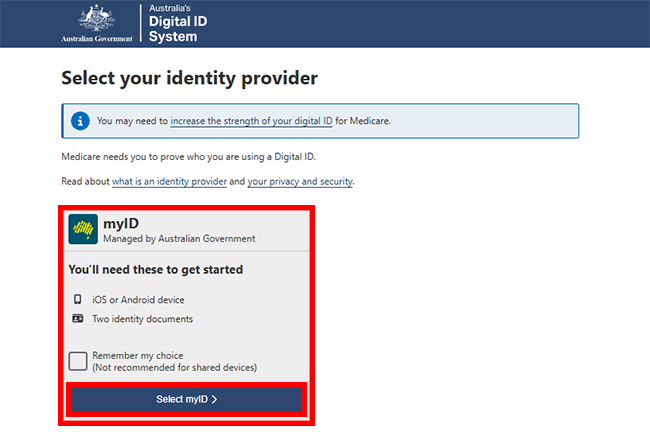
If you:
Step 4: create your Digital ID
Download the myID app from the App Store or Google Play.
Open the app and follow the prompts to set up your Digital ID. You’ll need to enter an email address, details from your identity documents and/or scan your face with your device depending on the identity strength option you choose. A Strong Digital ID offers the highest level of protection.
When you’ve set up your Digital ID, come back to your browser and go to step 5. If you’ve timed out, go back to step 1.
Go to the myID website for help with the myID app.
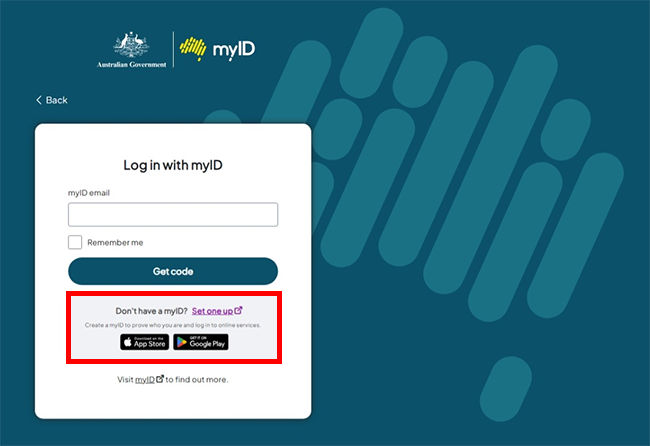
Step 5: share your Digital ID details to prove who you are
Enter the email you used to create your Digital ID email address, then select Get code.
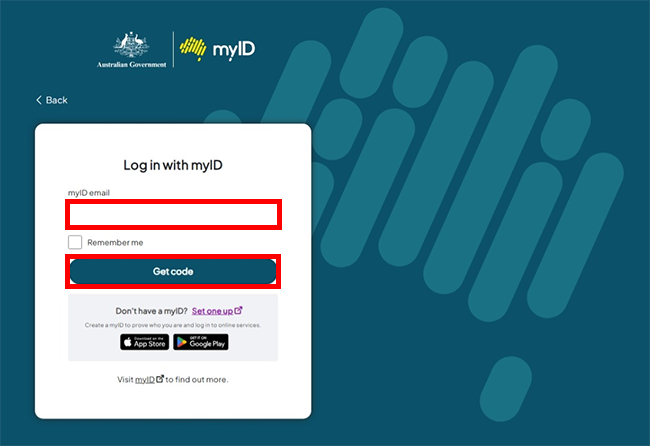
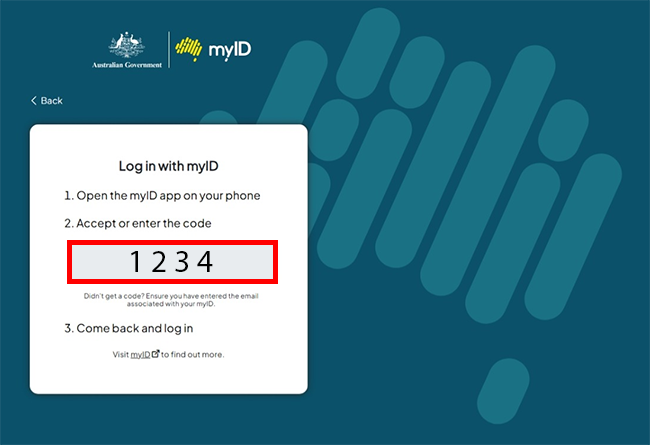
The myID website will give you a 4 digit code. Open the myID app to enter the code.
Enter the code, then select Accept.
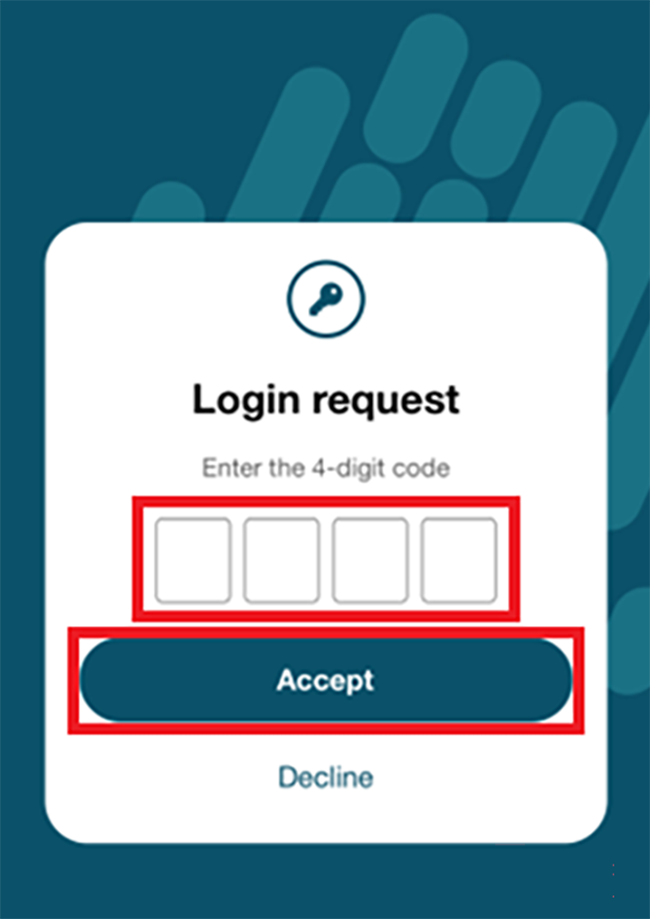
Close the myID app and come back to your browser.
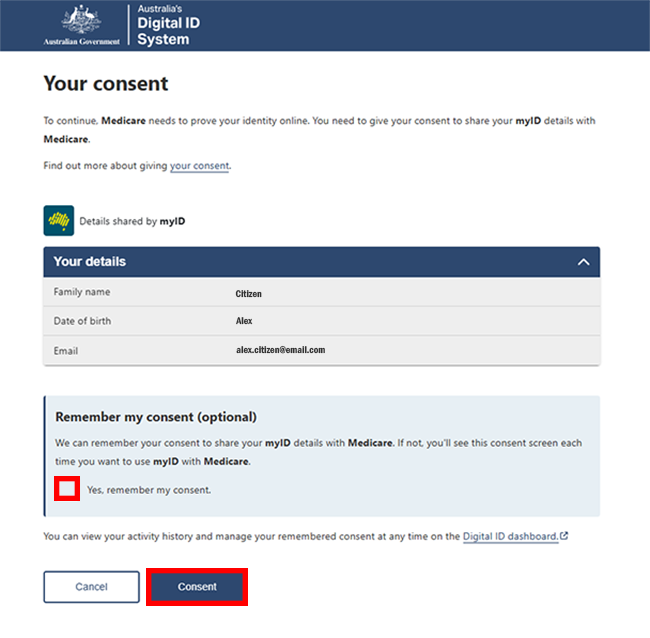
We’ll ask you to consent to share your details with
- Medicare, to prove who you are, and to continue linking Medicare to your myGov account.
Select Yes, remember my consent if you don’t want to see this consent page each time you want to share your details with Medicare.
Check your details are correct, then select Consent.
Step 6: more details about you
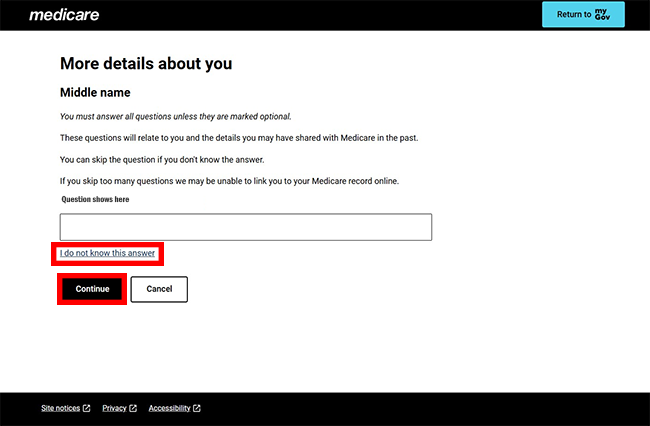
We may you to answer some more questions to make sure we match the correct record to your myGov account. Select I don’t know the answer where you are not sure of the correct response, so we can ask you a different question.
Answer the question, then select Next.
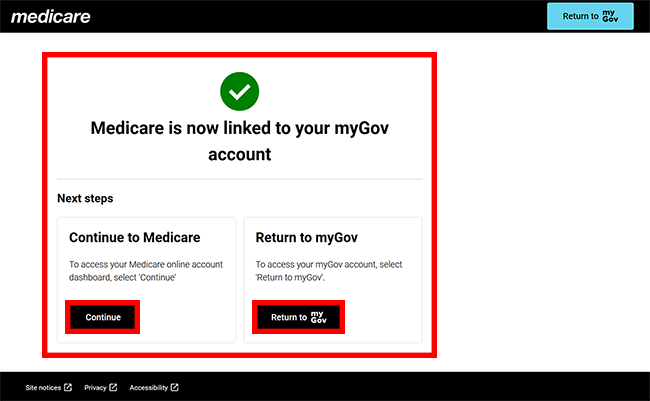
You’ve now linked Medicare to your myGov account.
You can select either:
- Continue to go to your Medicare online account
- Return to myGov to go to your myGov account.
For your privacy and security, select My account, then Sign out when you’ve finished using your myGov account.
View other online account and Express Plus mobile app guides and video demonstrations about using your online account.
Contact numbers available on this page.
Medicare program
Use this line if you need help with a claim, enrolments, safety nets, ordering a new card or have a Medicare general enquiry. Let us know if you need an interpreter and we’ll arrange one for free.
There are other ways you may want to contact us.