Video chat appointments are available by offer only. If you’ve been offered a video chat appointment, there are some things you need to do before your video chat appointment.
Your computer or mobile device must have a microphone, camera and access to the internet or data. If you’re using a mobile device, it needs enough battery for a video call. It’s a good idea to have a charger close by. Make sure you have these before joining a video appointment.
Your physical location may be clearly visible to Services Australia staff during your video chat appointment. To protect your privacy, make sure you’re in a private location and you’re comfortable with what’s being displayed.
You don’t need to download any video conferencing apps to attend the appointment.
Video chat won’t work on all internet browsers. Our video chats work best on Microsoft Edge, Google Chrome, Safari or Samsung Internet.
If you don’t have one of these browsers, you might need to download one if you’re experiencing issues.
We may ask you for feedback about your experience. This is optional.
The screenshots and instructions in this guide are for using your myGov account through the myGov website. If you use a mobile device for your video appointment, you may want to use the myGov app. Read more about how to use video chat for mobile app appointments.
Step 1: get started
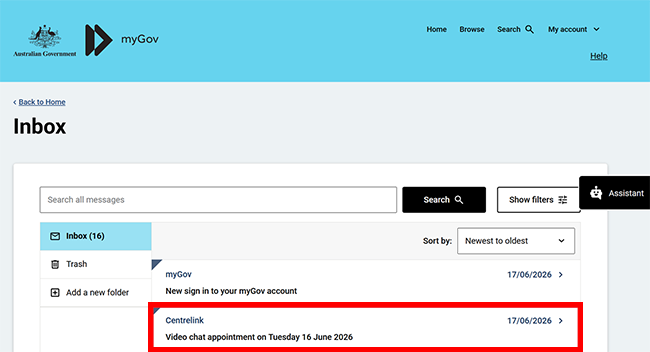
Sign in to myGov and go to your Inbox to access the video chat appointment details.
Do this a few minutes before your appointment time.
Select the video chat appointment letter.
Step 2: open the video chat appointment
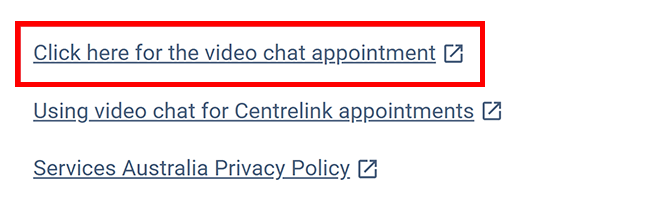
Select Click here for the video chat appointment.
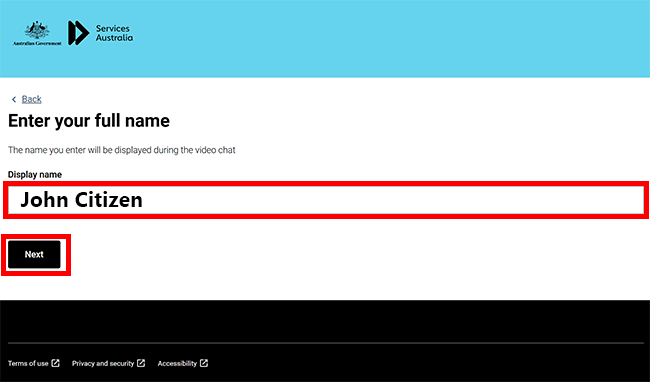
Accept the Terms and Conditions, then enter your full name and select Next.
Depending on your internet browser, you may need to enable your microphone and camera.
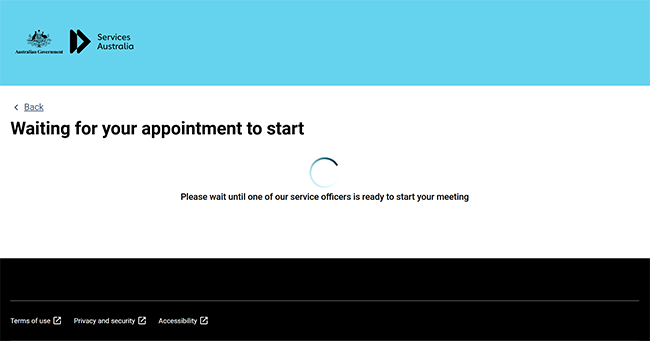
Sometimes our staff may be delayed in joining your video chat. If we haven’t joined within 15 minutes of your appointment start time, call us on the number provided in your appointment letter.
Step 3: sign out
To finish your appointment, select Leave session to end the call. This will take you back to your myGov account.
Note: Selecting the red leave icon doesn’t end the call.
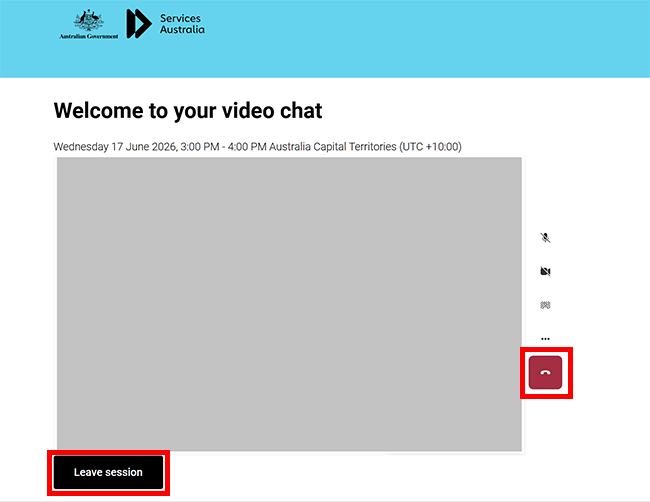
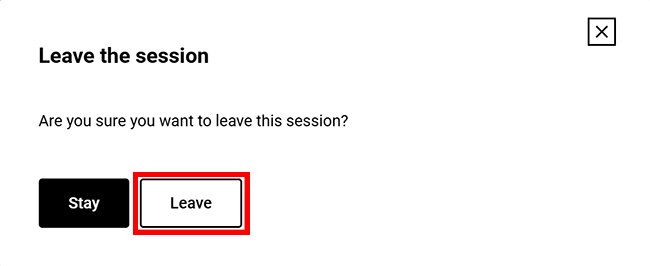
After you select Leave session, we’ll ask you to confirm if you want to either:
- Stay and go back to the call
- Leave and go back to your myGov account.
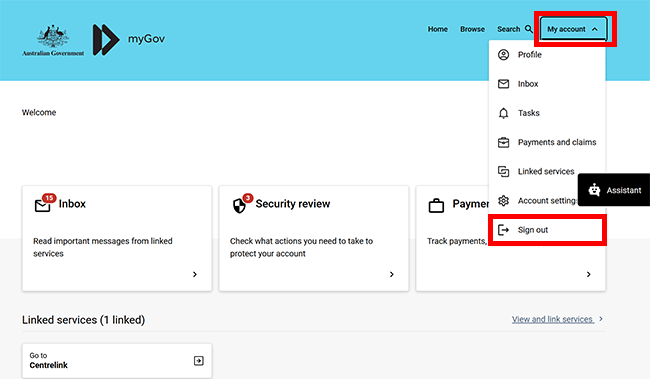
For your privacy and security, select My account, then Sign out when you’ve finished using your myGov account.
View other online account and mobile app guides and video demonstrations about using your online account.