in this guide
To start you’ll need a myGov account. If you don’t have one, you can go to the myGov website to create one.
If you’re not an existing Child Support customer, you won’t be able to link to your myGov account. You can go to the Services Australia website to find out more about applying for a child support assessment.
To link your Child Support record to your myGov account, your name recorded with myGov must match your name with Child Support.
If your name doesn’t match or isn’t up to date, you’ll need to update it. You can do this by contacting Child Support.
We’ll ask you some questions to make sure we match the correct Child Support record to your myGov account.
You’ll need to have all of the following:
- your Child Support Reference Number (CSRN)
- answers to some questions specific to you, based on information provided to Child Support in the past.
To link Child Support, you can use Digital ID as a way to prove who you are online.
Go to the Digital ID website for more information about Digital ID and the identity strength options available for you to choose.
If you don’t have a Digital ID, you can create one while you link Child Support. You’ll need to:
- download an app
- enter details from some of your identity documents
- scan your face with your device.
Make sure you have this information ready before you begin.
The screenshots in this guide are from a computer. The page layout will look different if you’re using a mobile device.
Step 1: sign in to myGov
Go to myGov and sign in.
Select either:
- Link a service
- View and link services.
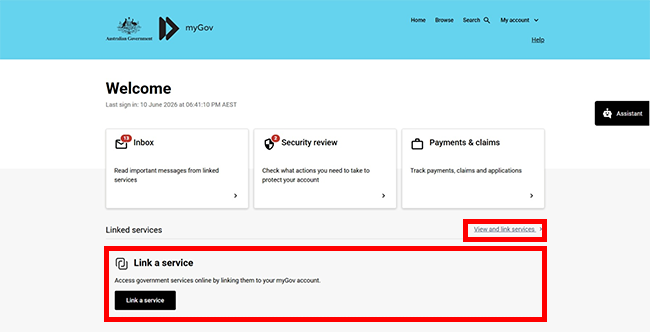
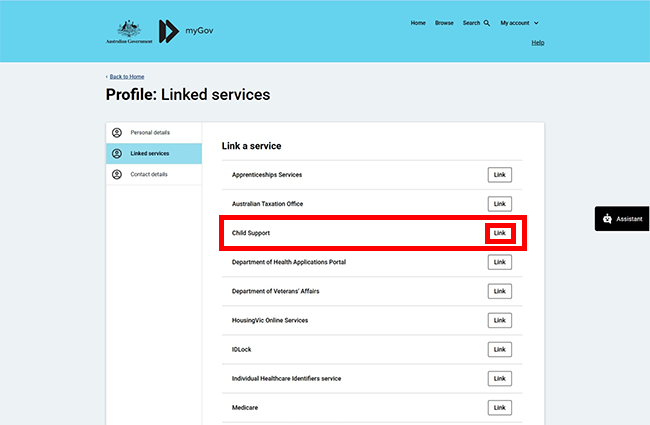
From the list, select Link for the service you want to link.
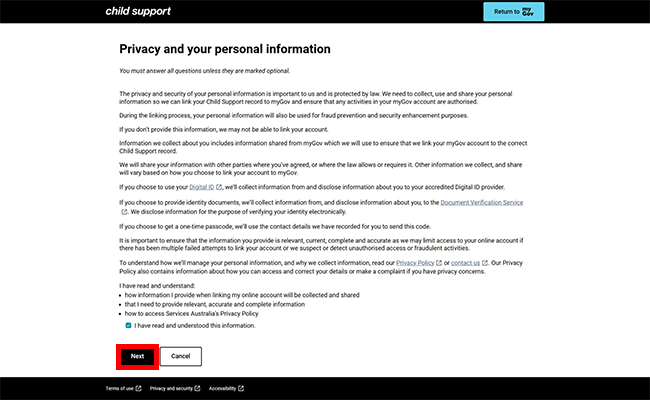
Read the privacy and your personal information message, confirm you have read and understood the information by selecting the check box, then select Next.
Step 2: get started
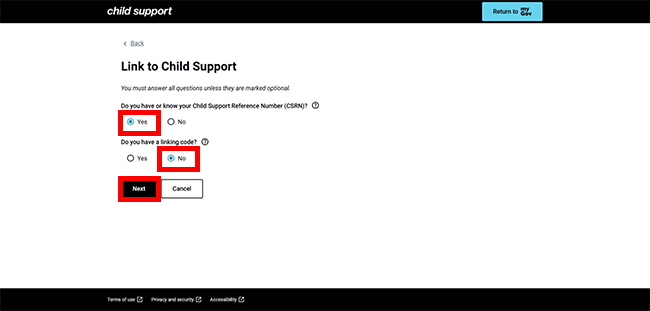
We’ll ask you if you know your Child Support Reference Number (CSRN) and if you have a linking code.
To link this service, you must provide your Child Support Reference Number (CSRN). If you don’t have your CSRN, you can try to link later once you have located it. Contact us if you need help.
Select Yes to Do you have or know your Child Support Reference Number (CSRN)?
Select No to Do you have a linking code? then select Next to continue.
Select Get started in the Digital ID (Recommended) box.
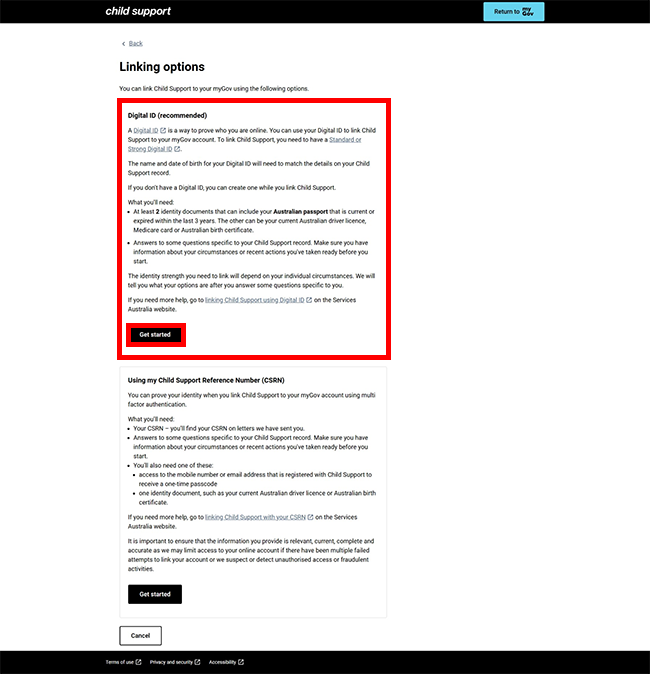
Step 3: enter details about you
We’ll ask you to answer some questions specific to you, based on information provided to Child Support in the past, to make sure we match the correct record to your myGov account.
Answer the questions, then select Next.
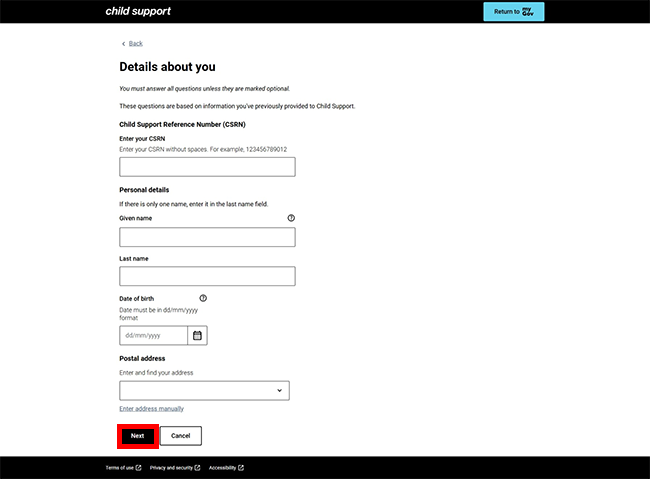
We’ll redirect you to the Digital ID System website where you can select your identity provider.
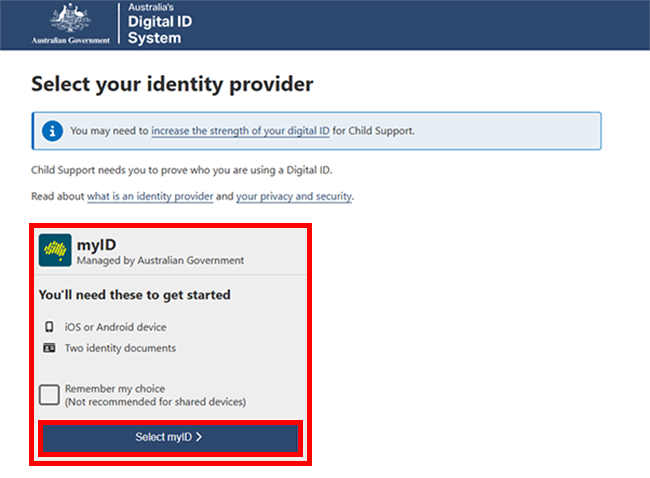
If you:
Step 4: create your Digital ID
Download the myID app from the App Store or Google Play.
Open the app and follow the prompts to set up your Digital ID. You’ll need to enter an email address, details from your identity documents and/or scan your face with your device depending on the identity strength option you choose. A Strong Digital ID offers the highest level of protection.
When you’ve set up your Digital ID, come back to your browser and go to step 5. If you’ve timed out, go back to step 1.
Go to the myID website for help with the myID app.
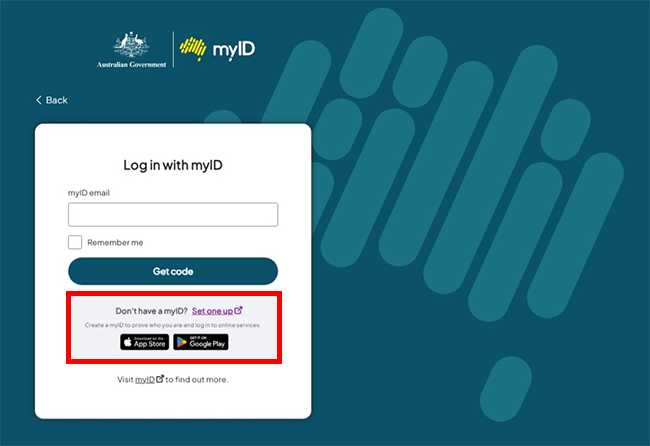
Step 5: share your Digital ID details to prove who you are
Enter the email you used to create your Digital ID email address, then select Get code.
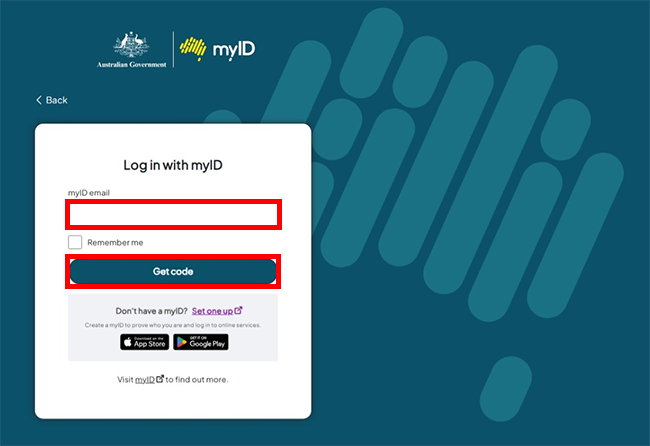
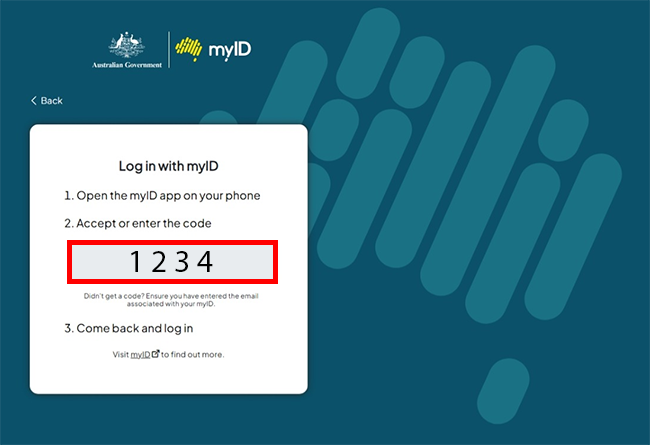
The myID website will give you a 4 digit code. Open the myID app to enter the code.
Enter the code, then select Accept.
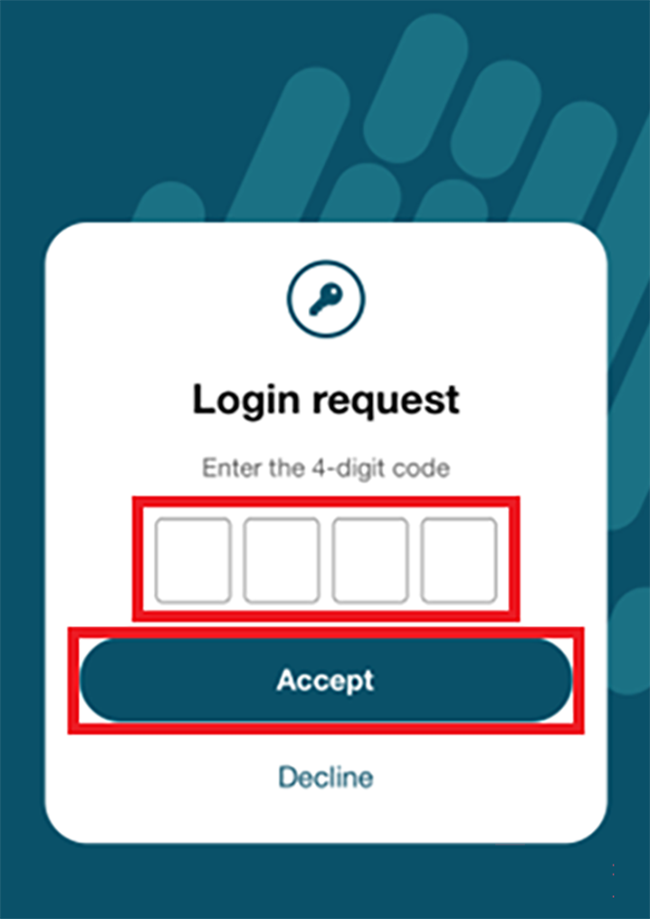
Close the myID app and come back to your browser.
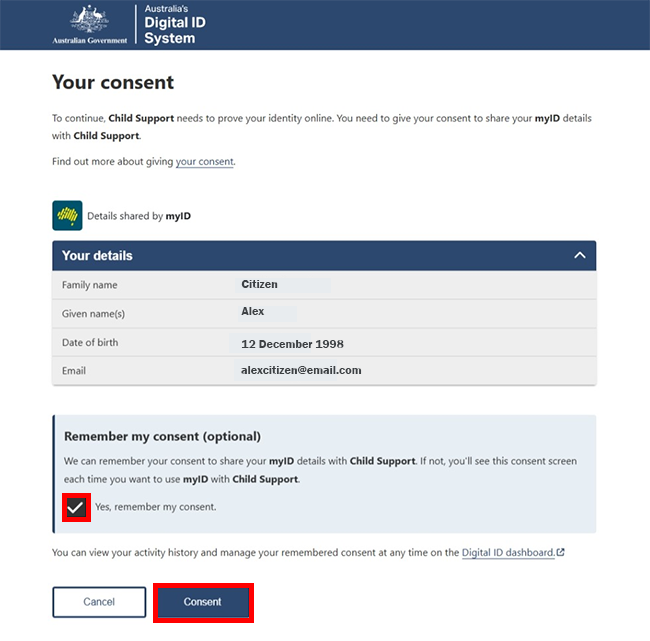
We’ll ask you to consent to share your details with Child Support, to prove who you are and to continuing linking Child Support to your myGov account.
Select Yes, remember my consent if you don’t want to see this consent page each time you want to share your details with Child Support.
Check your details are correct, then select Consent.
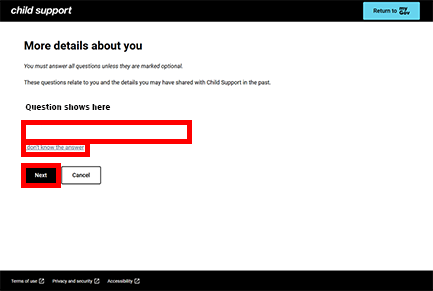
Step 6: more details about you
We may ask you to answer some more questions to make sure we match the correct record to your myGov account. Select I don’t know the answer where you are not sure of the correct response, so we can ask you a different question.
Answer the question, then select Next.
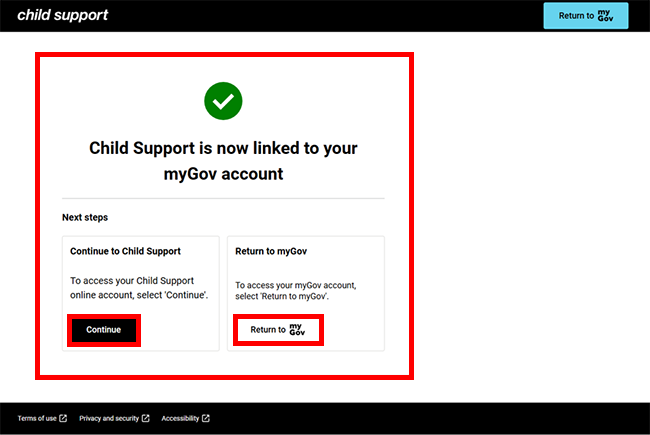
You’ve now linked Child Support to your myGov account.
You can select either:
- Continue to go to your Child Support online account
- Return to myGov to go to your myGov account.
For your privacy and security, select My account, then Sign out when you’ve finished using your myGov account.
View other online account and Express Plus mobile app guides.