on this page
Multi-factor authentication (MFA) helps protect your account.
You need to set up MFA next time you log in to Child Support Business Online Services (CSBOS), if you haven’t already.
You can set up MFA using either:
- passkeys
- an authenticator app on your mobile device or personal computer.
You can no longer use a one time password via email to log into CSBOS.
Watch this video to learn more about multi-factor authentication.
Log in to CSBOS
If you’ve already set up MFA for CSBOS, you can log in.
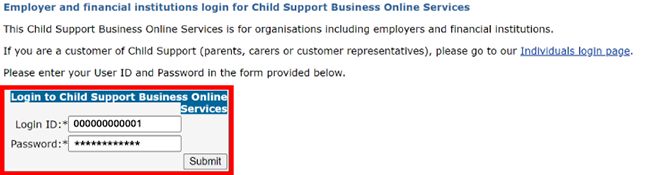
On the Employer and financial institutions login for Child Support Business Online Services page, enter your Login ID and Password.
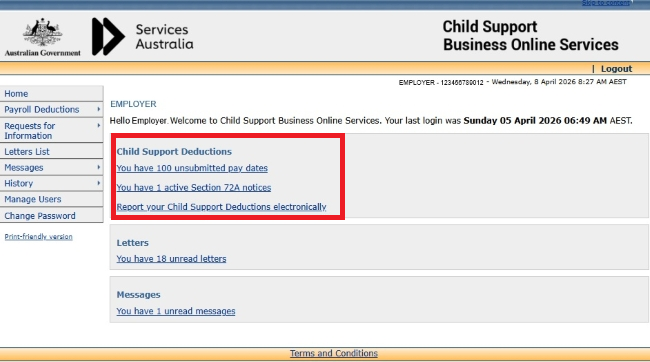
Once you have successfully logged in, the home page displays with a list of items for your attention.
Use passkeys for CSBOS
Passkeys are a more secure alternative to passwords.
A passkey lets you use the security features on your phone, computer or tablet to log in to apps and websites. Passkeys can work by using:
- your biometrics, such as fingerprint recognition or facial recognition
- your screen lock, such as a PIN or swipe pattern
- a physical security key.
A security key is a physical USB device that needs to be inserted into or close to the device you’re logging in to. If you use a security key, we recommend you create more than one passkey in CSBOS to help you access your account if the security key is lost or stolen.
The passkey icon is a trademark of FIDO Alliance, Inc.
Before you create a passkey
You’ll need to create a passkey using a compatible device. To create a passkey, you’ll need either:
- an Apple device with iOS 16, iPadOS 16, macOS Ventura or higher
- an Android device with Android 9 or above.
You’ll also need one of these options:
- Microsoft Edge or Google Chrome on Windows
- Microsoft Edge, Safari or Google Chrome on macOS
- ChromeOS.
You may also need to enable these functions on your device:
- screen lock to create a synced passkey
- Bluetooth if you’re using your device to log in on another device
- iCloud Keychain if you have iOS or macOS.
Find out more about how to set up iCloud Keychain on the Apple website.
Some corporate devices may not allow you to change some settings or use USB devices.
If you use a device that other people use, we recommend following the steps for Use another device to create a passkey.
Synced and non-synced passkeys
A synced passkey is saved to a password manager and is available to all devices using that password manager. For example, an iPhone or iPad signed in to the same Apple account can use the same passkey.
A non-synced passkey is saved on a physical security key or device, not in a password manager. It can only be used on that device and can’t be shared across devices.
Create a passkey for CSBOS
Only create passkeys on a device you trust.
You can have up to 3 passkeys registered in your CSBOS account.
If you want to add additional passkeys, you must do this when you create your initial passkey. To add them later, you’ll need to contact Services Australia.
Use your device
To create a passkey in CSBOS, follow these steps:
- Log in to CSBOS.
- Select Create a Passkey.
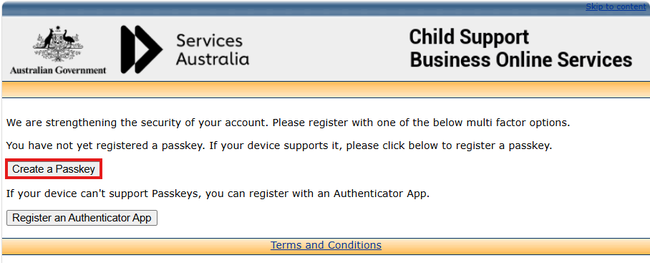
Follow the device prompts.
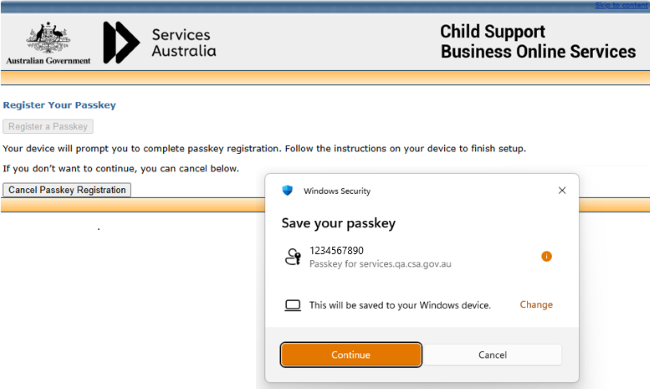
- CSBOS will assign a passkey name. Select Continue.
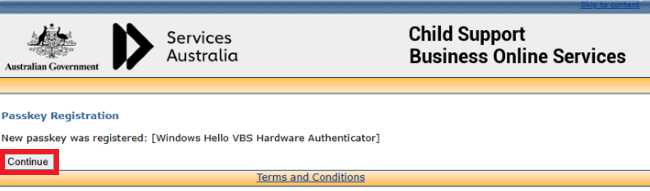
- Select Add another Passkey to add additional passkeys.
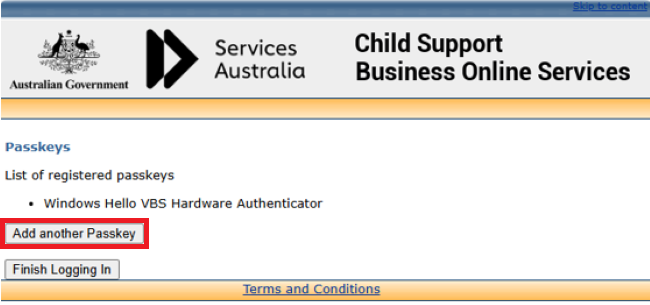
Once you’ve created a passkey, you can use it to log in to your CSBOS account. The next time you log in to CSBOS, select Log in with Passkey.
You’ll still need your password to view or update some account settings and if you need to recover your account.
Use another device to create a passkey
You can use a shared or public device to create a passkey on your trusted device using the QR code option.
To create a passkey using another device, follow these steps:
- Log in to CSBOS.
- Select the Create a Passkey option.
- Select iPhone, iPad or Android device.
- Use your trusted device to scan the QR code.
- Follow the device prompts.
Use a security key
To create a passkey using a security key, follow these steps:
- Log in to CSBOS.
- Select the Create a Passkey option.
- Select Security key.
- Follow the Security key device instructions.
Log in to the CSBOS website using a passkey
Using the device you created a passkey on, log in to CSBOS and follow these steps:
- Go to CSBOS and select Log in.
- Select Log in with Passkey.
- Follow the prompts on your device.
Use an authenticator app for CSBOS
You can use an authenticator app to authenticate to CSBOS. Authenticators use a time-based one-time passcode (TOTP) For the code to work, the device your authenticator is on needs to accurately show your local time.
If you already use an authenticator app you may be able to use it for CSBOS, such as Google Authenticator or Apple Passwords.
Download an app on your mobile device
If you don’t already have an authenticator app, follow these steps:
- Open your mobile device’s app store (App Store for iOS, Google Play Store for Android).
- Search for your desired authenticator app. An example of a free authenticator app that is compatible with CSBOS is Google Authenticator. Services Australia does not have its own authenticator app.
- Follow the on-screen instructions to download and install it.
Microsoft Authenticator doesn’t currently meet our cyber security requirements and isn’t available for use with CSBOS.
Register an authenticator app
To register an authenticator app, follow these steps:
- Log in to CSBOS.
- Select Register an Authenticator App.
- Scan the QR code or enter the code manually.
- Select I’ve scanned the QR.
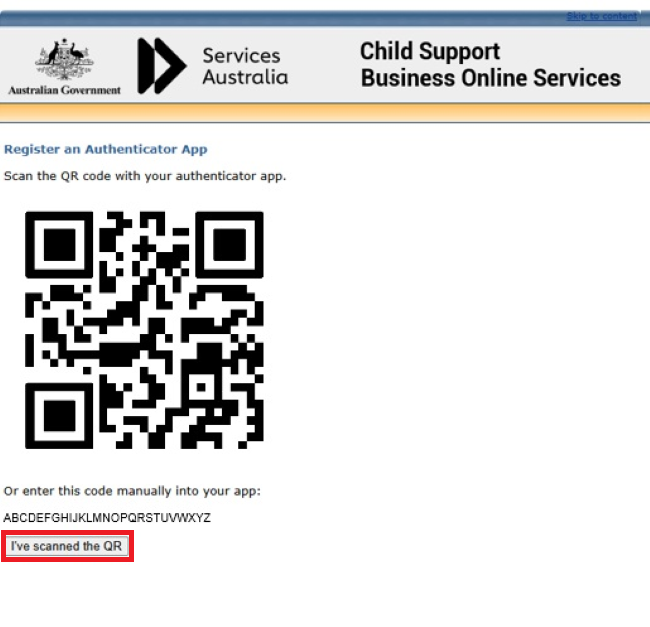
- Enter the code from your app to confirm it works.
- Select Validate.
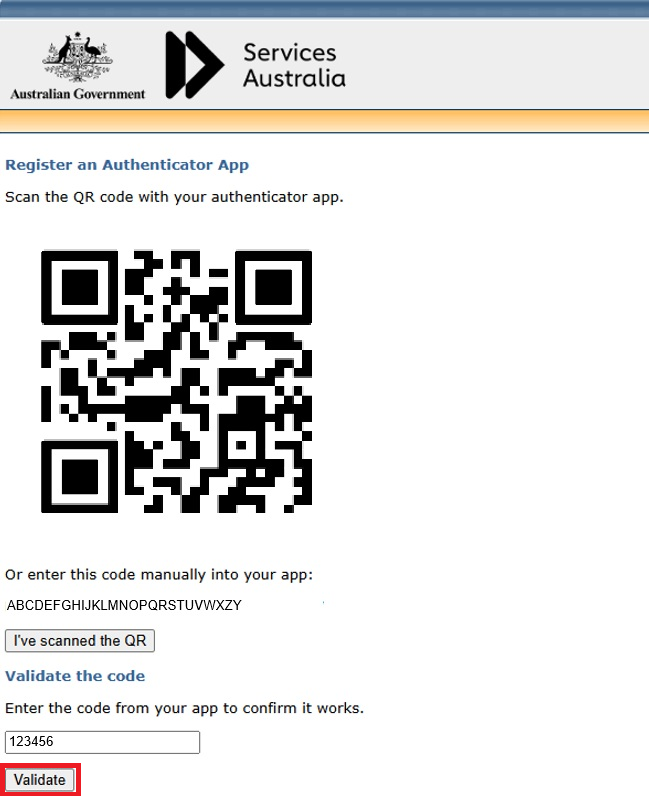
Manage your password changes
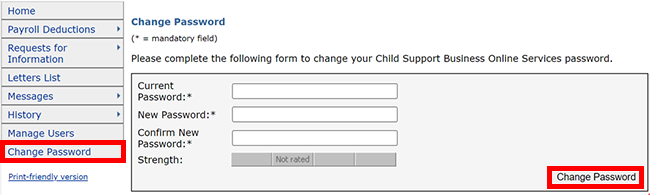
If you can access your account, select Change Password from the menu. Type in your current password and then your new password. Click Change Password.
If you can’t access your account and need to change your password, you need to know if you’re the Main Administrator or a Sub-User.
If you’re a Main Administrator and have a 12-digit login ID, you need to call the Child Support Employer Services team.
If you’re a Sub-User or administrator with a 10-digit login ID, please contact the main administrator within your organisation, and they’ll be able to reset your password.