Child Support Business Online Services (CSBOS) is for organisations including employers and financial institutions.
This page provides information to help you complete common tasks in your CSBOS account.
We have information if you need help logging in to your CSBOS account. Once you’ve logged in, you can complete tasks using your account.
If you’re an employer, from time to time we’ll ask you to confirm a person’s employment. This message will appear on the homepage. You can confirm a person’s employment using your online services account. You don’t need to call or send a fax.
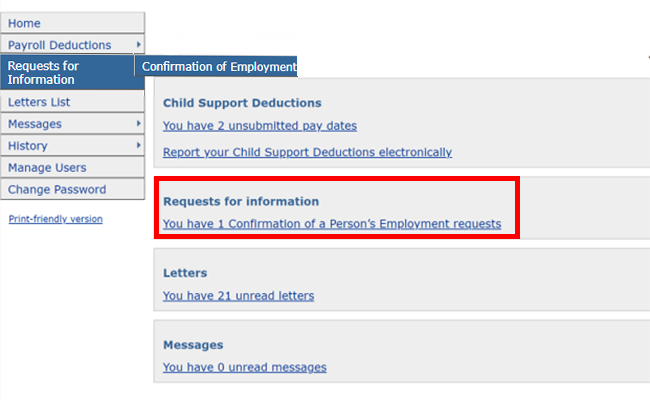
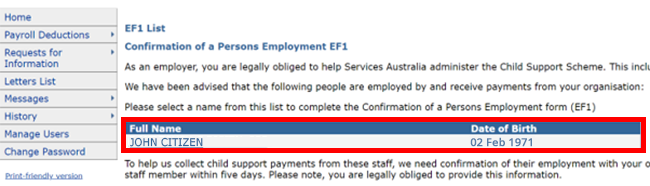
Select Requests for information. On the Confirmation of a Person’s Employment EF1 page, select a name from the list and follow the instructions on each page.
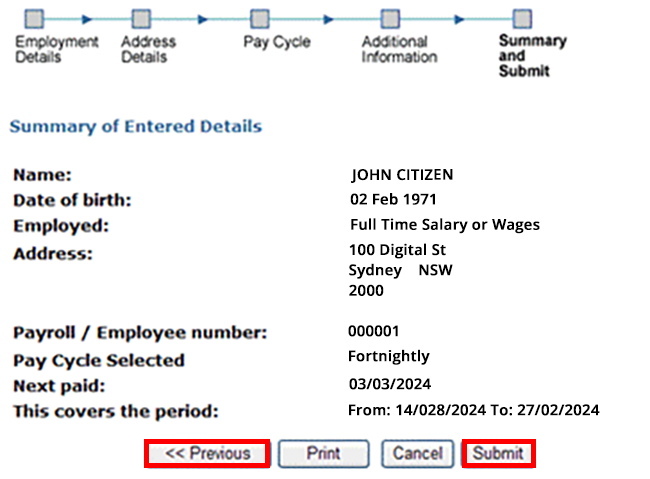
Once you have completed the steps, check that the Summary of Entered Details is correct.
If you need to correct any items, select the Previous button to go back to earlier screens. If the information is correct, select Submit. You’ll receive confirmation that it has sent to us.
If you’re an employer, we may need you to report deductions for your employees.
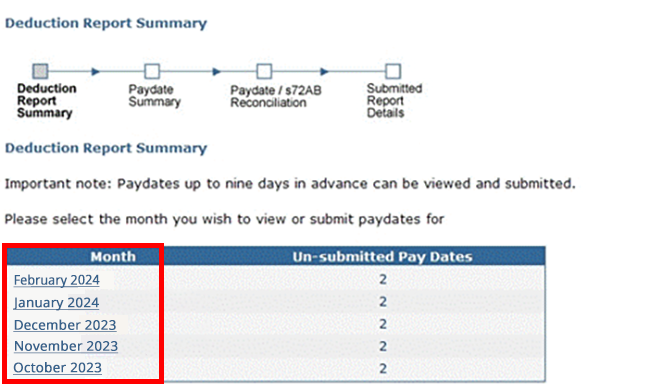
To get started, select Payroll Deductions from the menu.
On the Deduction Report Summary page, select the pay period by selecting the month.
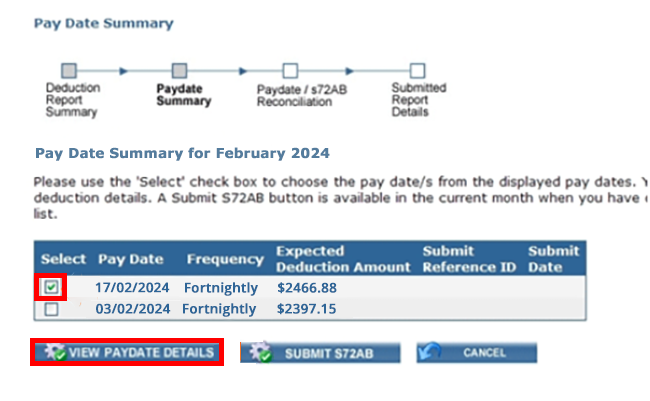
Select individual or multiple pay dates, then select View Paydate Details.
Enter the deduction amounts against each employee name. If the amount deducted is different to the amount expected, enter a Variation Reason from the dropdown box. Then select Check Entries.
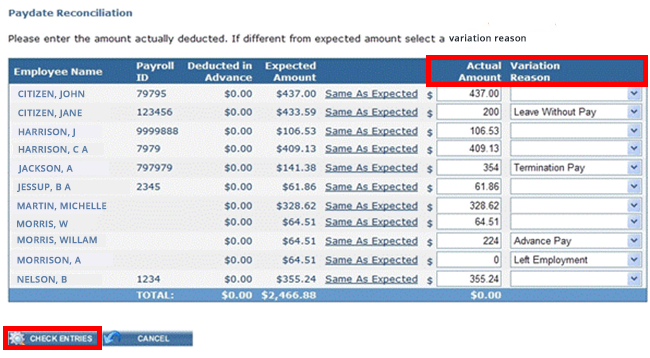
Variation Reason Codes are used to explain the difference between the actual and expected deductions when reporting the child support deductions for your employees.
Your entries will be checked. You then select Submit to CSA.

Where the Actual Amount you’re reporting is greater than the expected amount, a list of relevant variation reasons will appear in a dropdown menu.
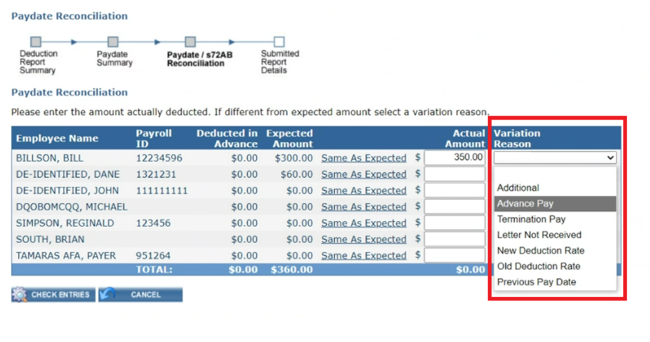
Use these variation codes when the ‘Actual Amount’ is greater than the ‘Expected Amount’.
| Variation Reason | Description |
|---|---|
| Additional | If this reason is selected, then a message should be sent via the Messages/Contact Us function in the CSBOS portal to explain why the additional amount was deducted |
| Advance | Advance deductions due to holidays or long service leave |
| Termination Pay | Deducted from Payer’s termination payment |
| Letter Not Received | Deduction letters not received by employer in time |
| New Deduction Rate | Employer deducting at new rate earlier than required |
| Old Deduction Rate | Employer deducting at old rate |
| Previous Pay Date | Includes Payer’s deduction from the previous month |
Where the Actual Amount you’re reporting is less than the expected amount, a list of relevant variation reasons will appear in a dropdown menu.
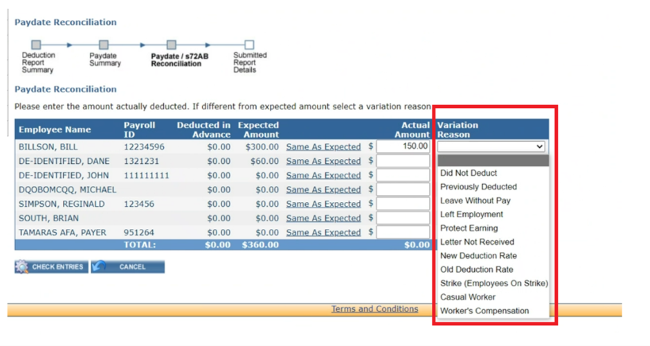
Use these variation codes when the ‘Actual Amount’ is less than the ‘Expected Amount’.
| Variation Reason | Description |
|---|---|
| Did Not Deduct | If this reason is selected, then a message should be sent via the Messages/Contact Us in the CSBOS portal to explain why the additional amount was deducted |
| Previously Deducted | Previously deducted payment |
| Leave Without Pay | Leave without pay |
| Left Employment | The employee is no longer employed |
| Protect Earning | Unable to deduct the full amount due to the Protected Earnings amount |
| Letter Not Received | The letter was not received in time to commence the expected deduction amount on the pay date specified |
| New Deduction Rate | Deductions started prior to the pay date in the notice. The correct deduction amount is required from the next available pay date |
| Old Deduction Rate | Deduction made at a previously advised amount in the notice. The correct deduction amount is required from the next available pay date |
| Strike (Employees on Strike) | Employee on strike |
| Casual Worker | Employee is casual - unable to deduct |
| Worker’s Compensation | Employee is on worker’s compensation |
If you’re unsure of the correct reason code to use, then select either ‘Did Not Deduct’ or ‘Additional’. If using either of these reason codes, then a message must also be sent via the Message/Contact Us function in the CSBOS portal to explain why the deductions received differ according to the scheduled notice.
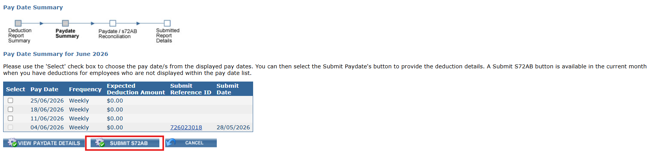
If you have to report deductions from an employee or contractor under a ‘Notice to pay money directly to the Child Support Registrar pursuant to section 72A’ select Submit s72AB.
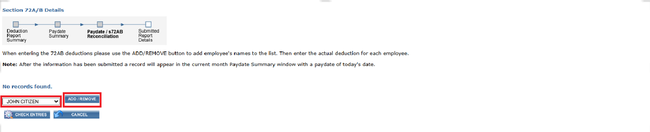
Select the employee name and select Add/Remove.
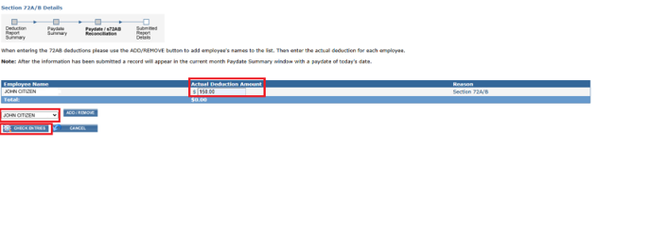
Update the amount in the Actual Deduction Amount field.
If you have more than one employee, select the next employee in the drop-down list and select Add/Remove and continue with updating the amount. Once all employees with a section 72A/B notice have been added, select Check Entries.
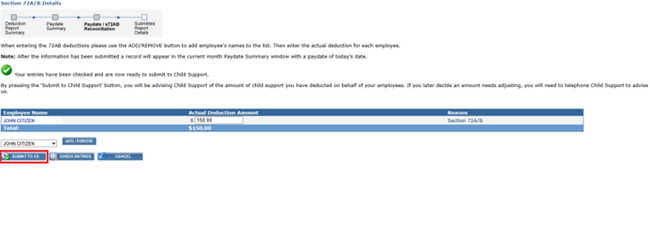
Once you have checked all entries and amounts are correct, select Submit to CS.
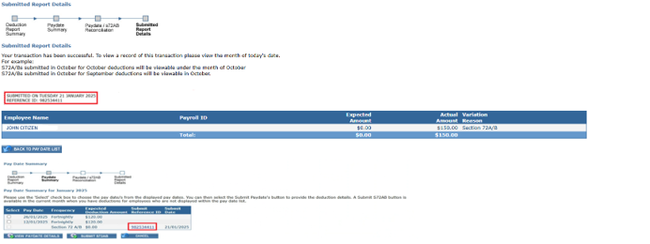
You will receive confirmation that the transaction was successful with a Reference ID. This will also display in the Pay Date Summary.
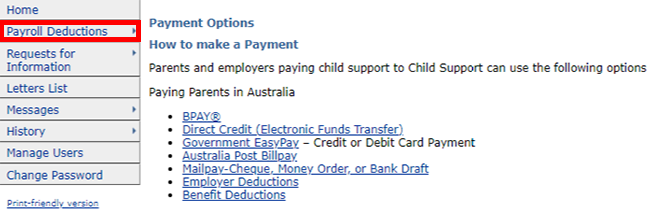
You can choose different options to make payments to Child Support for your employees.
To view payment options, select Payroll Deductions from the menu, then Payment Options.
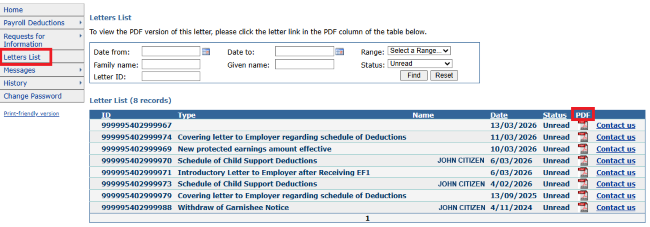
We will send you letters about child support payments for your employees. You can view and print these letters in your CSBOS account.
Select Letters List from the menu. You can view, organise and print most Child Support letters online. Letters are available in PDF format.
Your CSBOS account can be accessed by multiple users. Select Manage Users from the menu to view and manage your user accounts. Account users can have different levels of access.
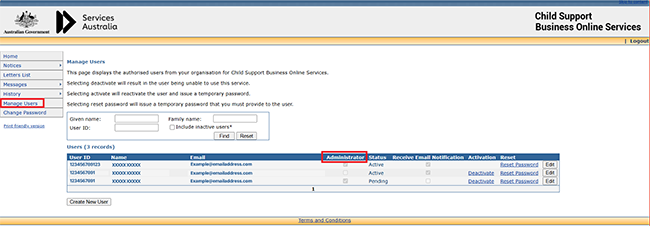
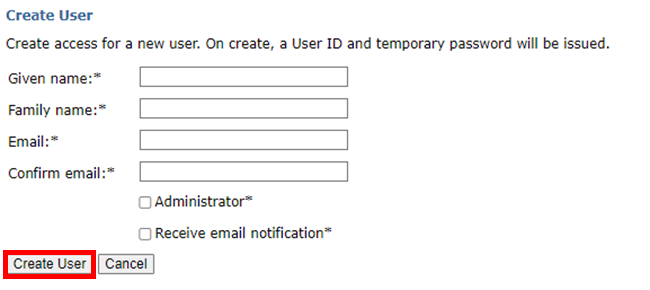
To create a new user ID, type in the new user’s given name, family name and email address. Tick the box to make the user an administrator or to receive email notifications. Select Create User.
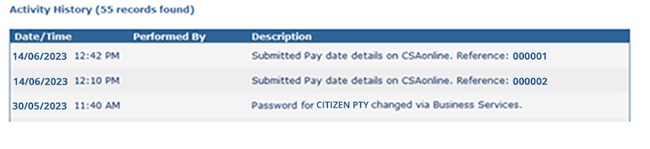
To see a record of your online transactions, select History from the menu at the left of the screen, then Activity Summary.
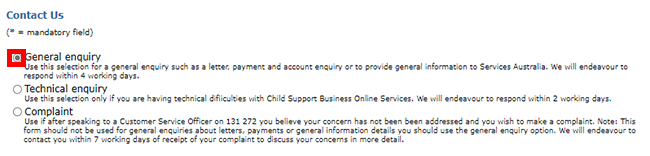
If you have an enquiry or need help with your CSBOS account, you can ask your questions online. Select Messages from the menu at the left of the screen, then Contact Us.
For example, if you have a question about letters, payments or accounts, select the General enquiry option.
You can also attach a file to your enquiry if you need to provide additional information.